Assigning SP Medical Items as Menu Items
Using Joomla's native menu manager, you can assign various SP Medical components, such as specialists, departments, or services, as menu items. This allows you to easily organize and display specific medical content on your site, making it simple for patients to navigate through your healthcare services. Whether you’re showcasing individual specialists or specific medical departments, you have full control over how your services are presented, ensuring a clean and professional display for an optimal patient experience.
How to Create a Menu Item to Display SP Medical’s Listings
Access the Menu Manager
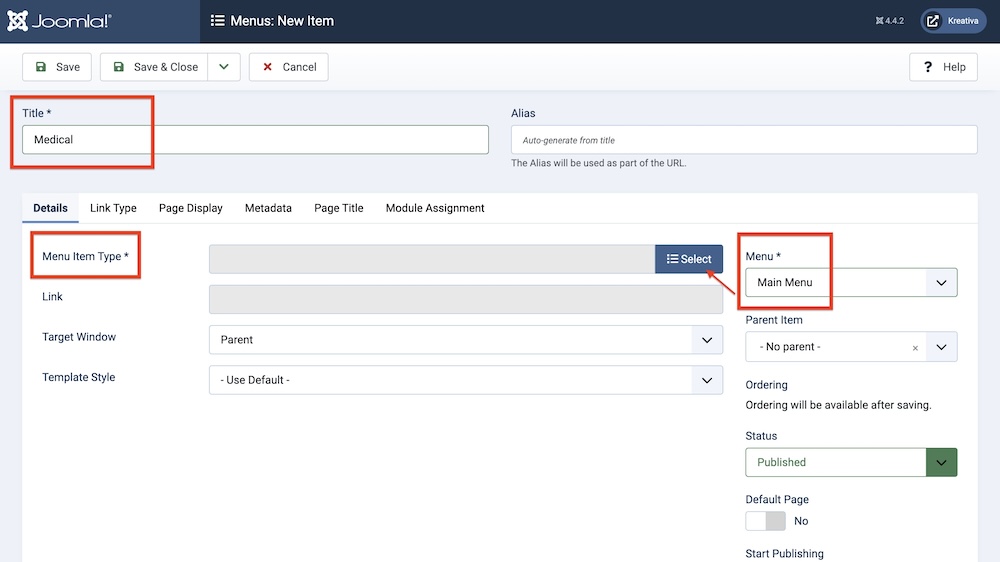
In your Joomla Admin Dashboard, navigate to Menus > Main Menu > +New. This will take you to the form for creating a new menu item.
Add a Title and Select a Menu
Enter a title for your new menu item. Then, choose the appropriate menu where you want this item to appear, such as the Main Menu.
Select the Menu Item Type
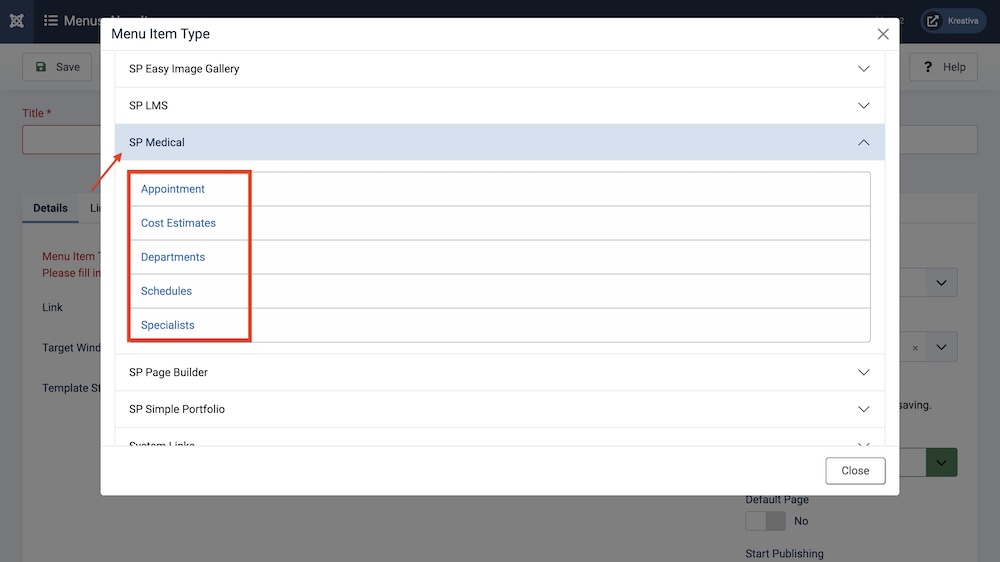
To choose an SP Medical item as your "Menu Item Type", click Select. A list of available item types will appear. Scroll down and find SP Medical in the list.
Choose the Specific Content to Display
After selecting SP Medical, the available options you’ll get are ‘Appointment', ‘Cost Estimates’,’ Departments’, ‘Schedules’, and ‘Specialists’. This feature allows you to curate and customize how your medical service is organized.
Save Your Menu Item
Once you've selected the content type, click Save & Close. Your new menu item will now display the selected SP Easy Image Gallery content.