Not every online store needs customers to buy products immediately.
If you sell wholesale, create custom products, or like to negotiate prices before orders, you need to set up your website so visitors can browse product listings, read details, and contact you for quotes instead of seeing shopping carts and checkout options.
We’ll demonstrate how to turn your Joomla eCommerce website into a tailored product catalog using EasyStore’s Catalog Mode.
Throughout this tutorial, we’ll be using a furniture store as an example of how to use Catalog Mode practically. So, let’s get to it!
What Catalog Mode Actually Does
Catalog Mode is a website setting that turns an eCommerce store into a product showcase by hiding prices, shopping carts, and checkout features.
Catalog mode modifies your store in the following ways:
- Hides prices
- Removes “Add to Cart” or other purchasing buttons
- Disables shopping cart and checkout
- Replaces purchasing buttons with inquiry or quote requests
So, depending on how you configure the feature, customers can contact you, request pricing, or submit quote requests instead of purchasing immediately.
When Should You Use Catalog Mode?
Catalog Mode is especially useful when online checkout isn’t your primary sales process.
Primarily, it depends on how the business operates.
Some common businesses that could benefit from Catalog Mode:
- Custom Manufacturing: Companies whose products require custom dimensions, such as furniture stores.
- Wholesale and B2B Stores: Any wholesale goods supplier that negotiates bulk prices.
- Industrial Equipment Distributors: Companies that supply industrial machinery and handle large commercial sales.
- Consultation-Driven Services: Companies offering services that might need prior discussion before finalising a price.
- Pre-Launch Stores: Businesses preparing their catalog before officially launching online sales.
- Temporary Closures: Stores temporarily halting operations and pausing purchases during inventory updates, holidays, or maintenance.
With all of that out of the way, it’s time to get to how you can set up Catalog Mode in your Joomla online store.
Step 01: Install the Latest Version of EasyStore Pro
Catalog Mode is only available for EasyStore Pro users who are using version 3.0 and beyond. Hence, you need to make sure you have the latest version of the Joomla eCommerce extension installed.
Step 02: Enable Catalog Mode
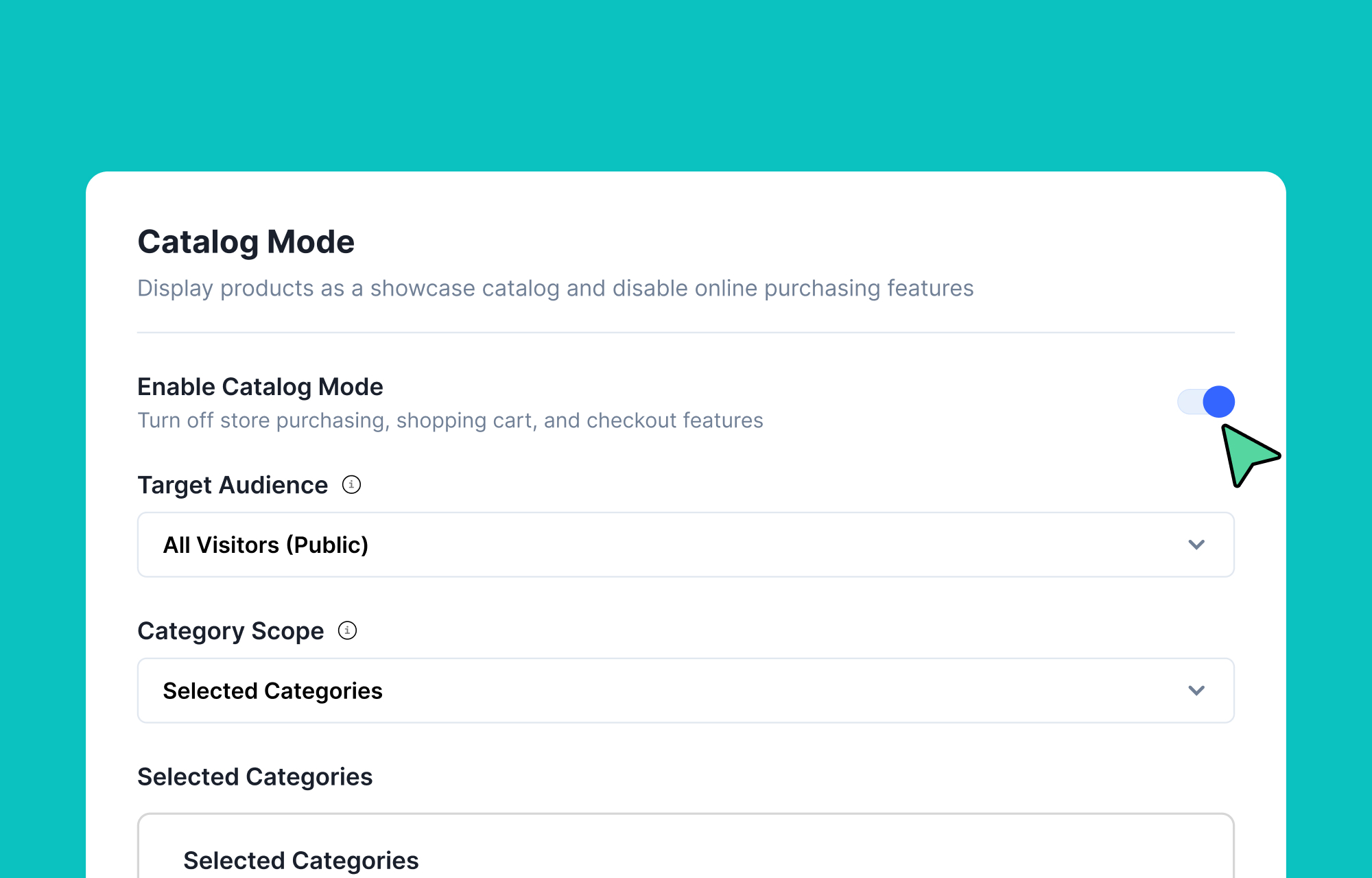
After installing EasyStore Pro, the next thing you need to do is enable Catalog Mode. To do this,
- Go to EasyStore > Settings > Products.
- Enable Catalog Mode.
Once enabled, EasyStore gives you several options to control who sees Catalog Mode, which products it applies to, and how customers interact with your store.
Step 03: Choose Who Sees the Store in Catalog Mode
Put yourself in the shoes of a store owner who sells office furniture.
In this store, customers can purchase small accessories such as desk lamps online, but larger items like executive desks and conference tables are built to order, so pricing depends on the customer's dimensions, wood choice, and finish.
Now, think about who should be able to purchase directly in this case.
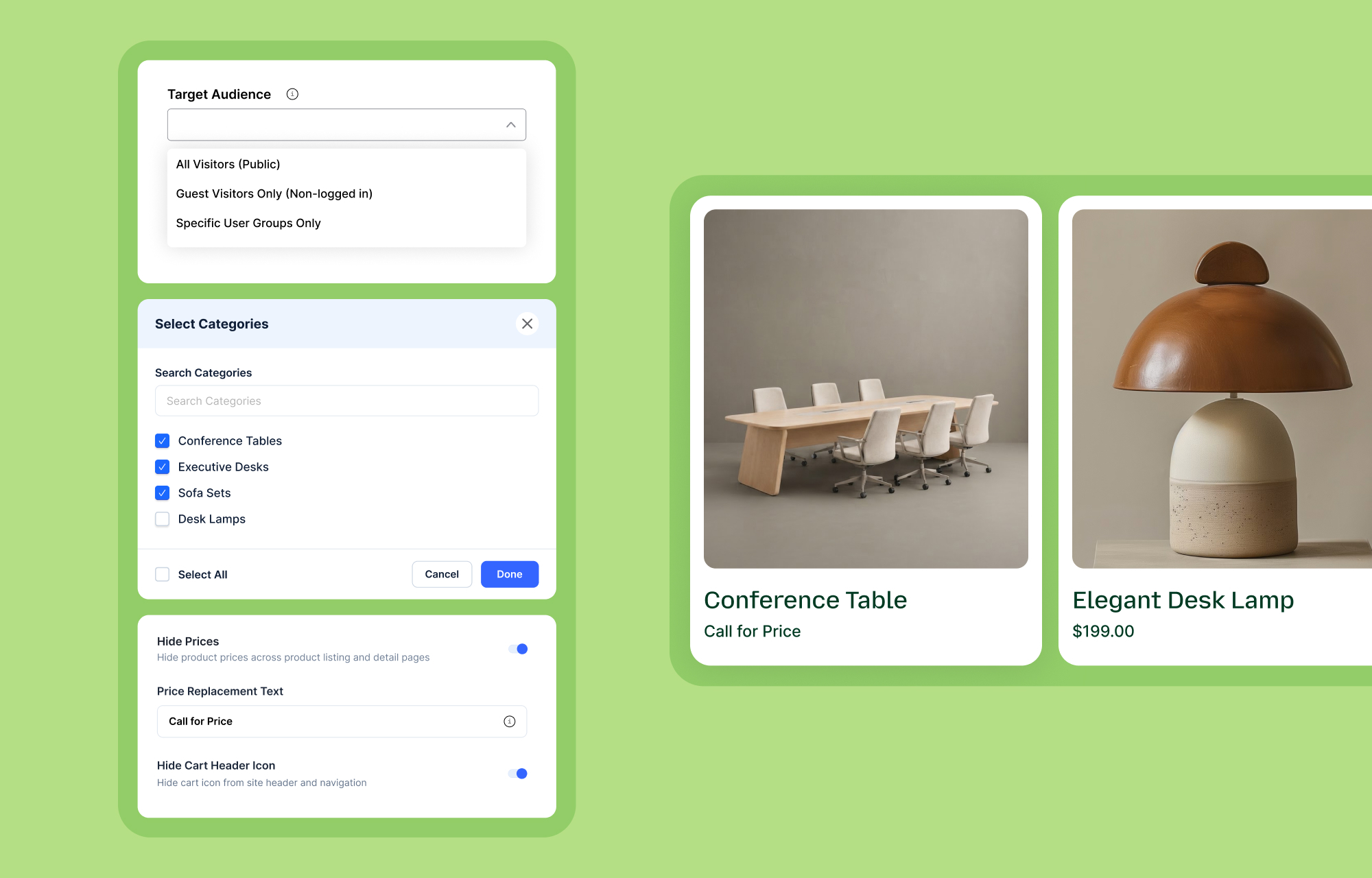
Select a Target Audience
- Find the Target Audience setting.
- Choose one of the following:
- All Visitors: Everyone sees quote-only products.
- Guest Visitors Only (Non-logged in): New visitors request quotes, while logged-in wholesale customers can still make purchases.
- Specific User Groups: Only selected Joomla user groups see Catalog Mode.
Your approach is entirely determined by the way your business runs.
Let’s stick to the All Visitors option so that Catalog Mode is applied store-wide for all customers.
Apply Catalog Mode to Selected Products
Right now, all customers of your furniture store will see every product in Catalog Mode.
However, in the scenario we’ve established, we’ve mentioned that customers can purchase small accessories from your store: ready-made desk accessories and office supplies of fixed proportions, such as:
- Desk Lamps
- Desk Mats
- Pen holders
These products don’t require consultation and can be priced evenly.
On the other hand, suppose your store only has these three products that require custom pricing:
- Executive Desks
- Conference Tables
- Sofa Sets
For this scenario:
- Set Category Scope to Specific Categories.
- Click + Add Categories.
- Select “Executive Desks”, “Conference Tables”, and “Sofa Sets”.
Customers can now view the prices of and purchase desk lamps, mats, and pen holders instantly, However, custom furniture items based on the categories chosen will be displayed in Catalog Mode.
Decide How Prices Appear
So far, we’ve configured Catalog Mode such that users will see it for specific custom furniture products.
Now it’s time to set how those products look in your store’s frontend while Catalog Mode is active.
- Custom furniture rarely has a single fixed price, so let’s hide prices for those products. Enable Hide Prices.
- In the Price Replacement Text, enter an instruction like “Price on Request”, “Call for Price”, or “Request a Quote”.
- Since these products aren't meant for direct checkout, enable the Hide Cart Header Icon to remove the cart icon and prevent confusion while browsing
At this point, visitors can purchase those small accessories, but need a way to contact you for purchasing the custom furniture. That’s where the inquiry button comes in.
Step 04: Replace Add to Cart with an Inquiry Button
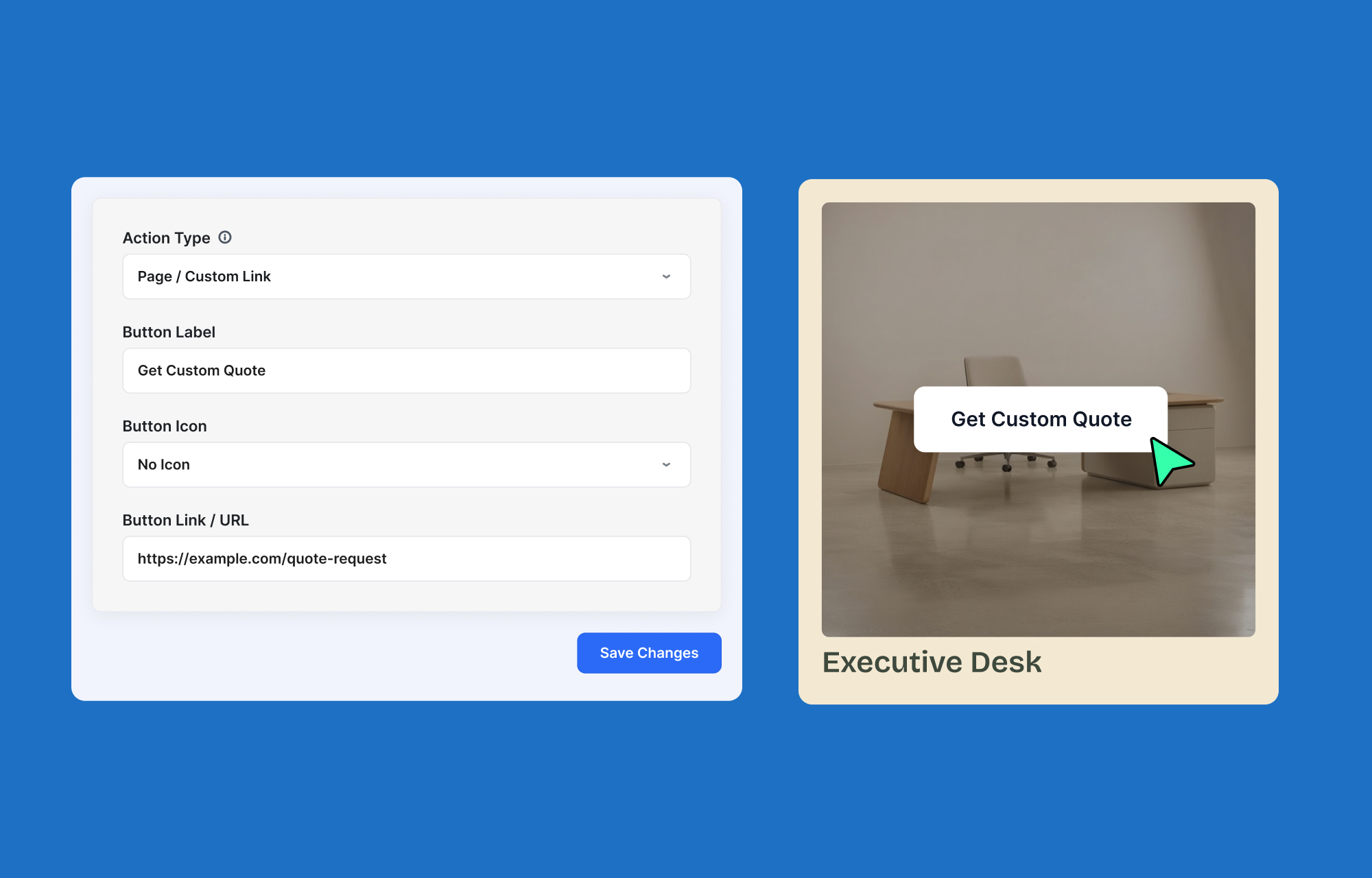
Let’s imagine a customer is interested in ordering an “Executive Desk”.
They can’t buy it immediately because the price depends on the size and finish they choose.
Instead of the usual add to cart button, they should be able to find an alternative way to contact you.
For this, enable the Custom Inquiry Button.
There are three primary action types, each controlling what happens when a customer clicks it:
- Pop-up Inquiry Modal: Customers request quotes without leaving the product page.
- Page / Custom Link: Redirect visitors to a separate webpage (such as the Contact page on your site).
- Direct Email (mailto): Open the visitor’s email client instantly.
Each type reveals its own set of options, and which one you choose depends on what level of communication you want your customers to have.
Even in the furniture store scenario, any of the three inquiry types could be utilized without issue.
Let’s go through the specifics of each, and you can decide which one works best for your business.
Option 1: Build an Instant Quote Form
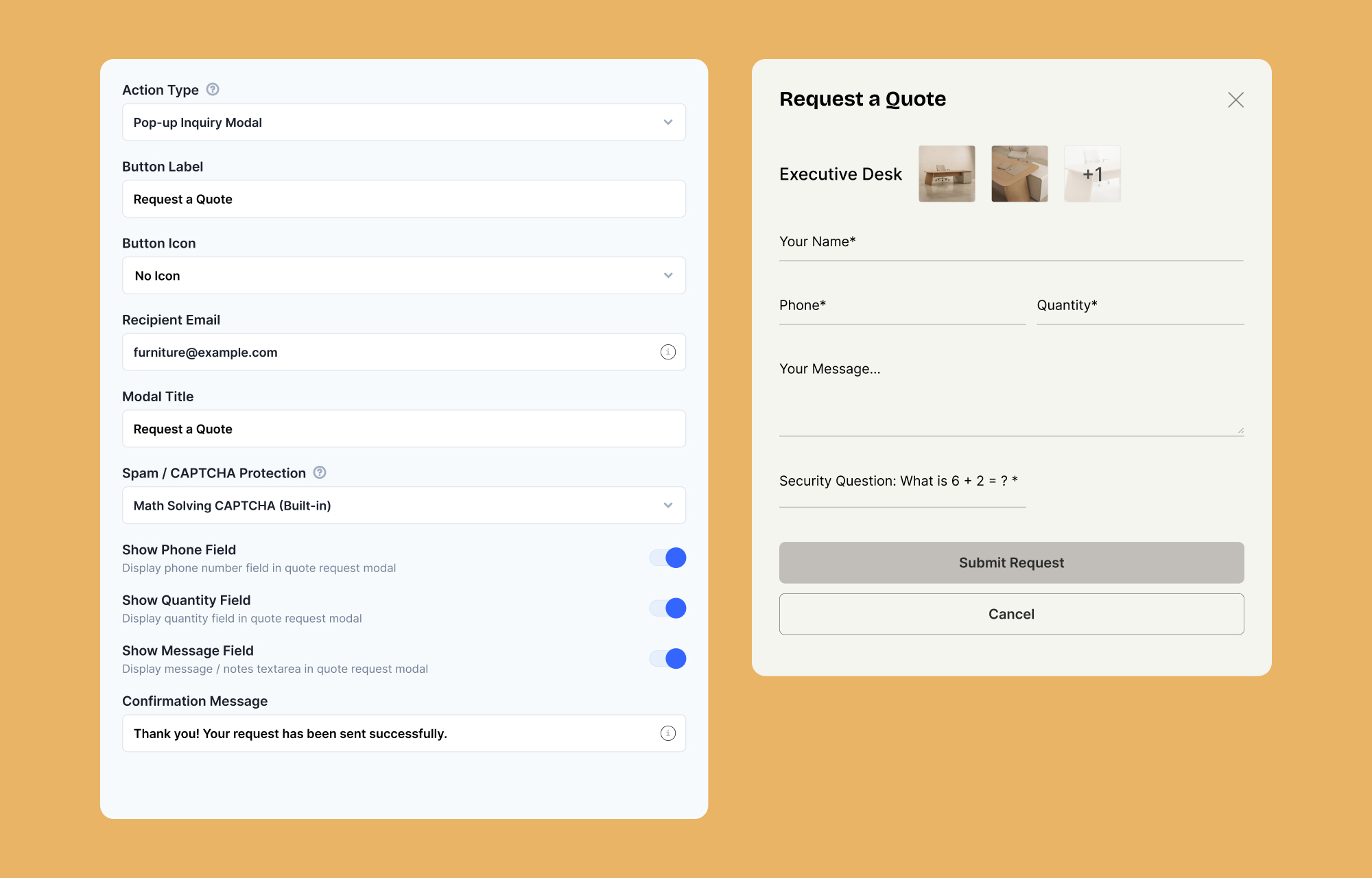
Using a pop-up inquiry modal is the most complete solution for businesses collecting quote requests directly from product pages.
When a customer clicks the inquiry button, a small form appears directly on the product page.
When selected, additional options become available:
Set the Recipient Email: This is where you enter the email address for receiving inquiries. If left empty, EasyStore automatically uses the store administrator's email configured in Store Settings.
Give the Modal a Clear Title: Insert the title of the modal in this field. For example, you can use titles like “Request a Quote”, “Contact Sales,” or “Product Inquiry”.
Enable Spam Protection: For security purposes, you need to select an anti-spam protection challenge for the quote modal:
- Math Solving CAPTCHA (Built-in)
- Joomla Global CAPTCHA (reCAPTCHA / Turnstile)
Ask for Useful Information: You can decide between a few Optional Form Fields that customers can provide. Such as:
- Phone Number
- Quantity
- Message
For example, the customer seeking to order the “Executive Desk” can enter their contact number, specify the number of desks they require, and specify the dimensions and the type of finish they require.
Confirmation Message: Finally, enter the message that will be shown to the customer after submitting a quote request.
Option 2: Send Visitors to Another Page
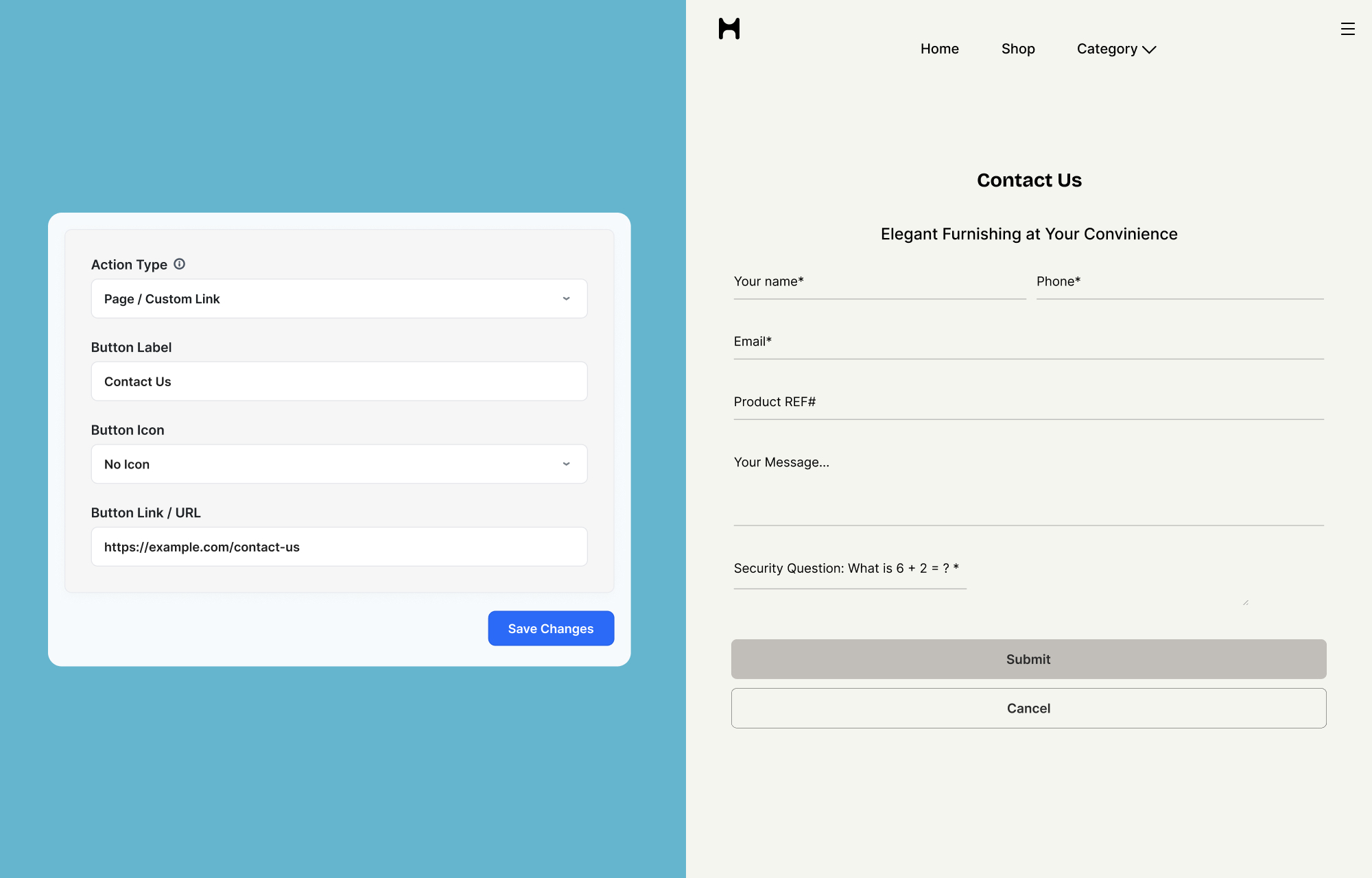
If your store has a separate contact page, you could link that one as well.
Instead of opening a pop-up:
- Choose Page / Custom Link.
- Enter your consultation page URL.
When customers press the inquiry button, they will be redirected to your contact page where you can set up a contact form allowing them to enter their phone number, required furniture sizes, finish preferences, and other details.
To find out how to set up a contact form with SP Page Builder, you can check out our official contact form documentation.
Option 3: Let Customers Email You Directly
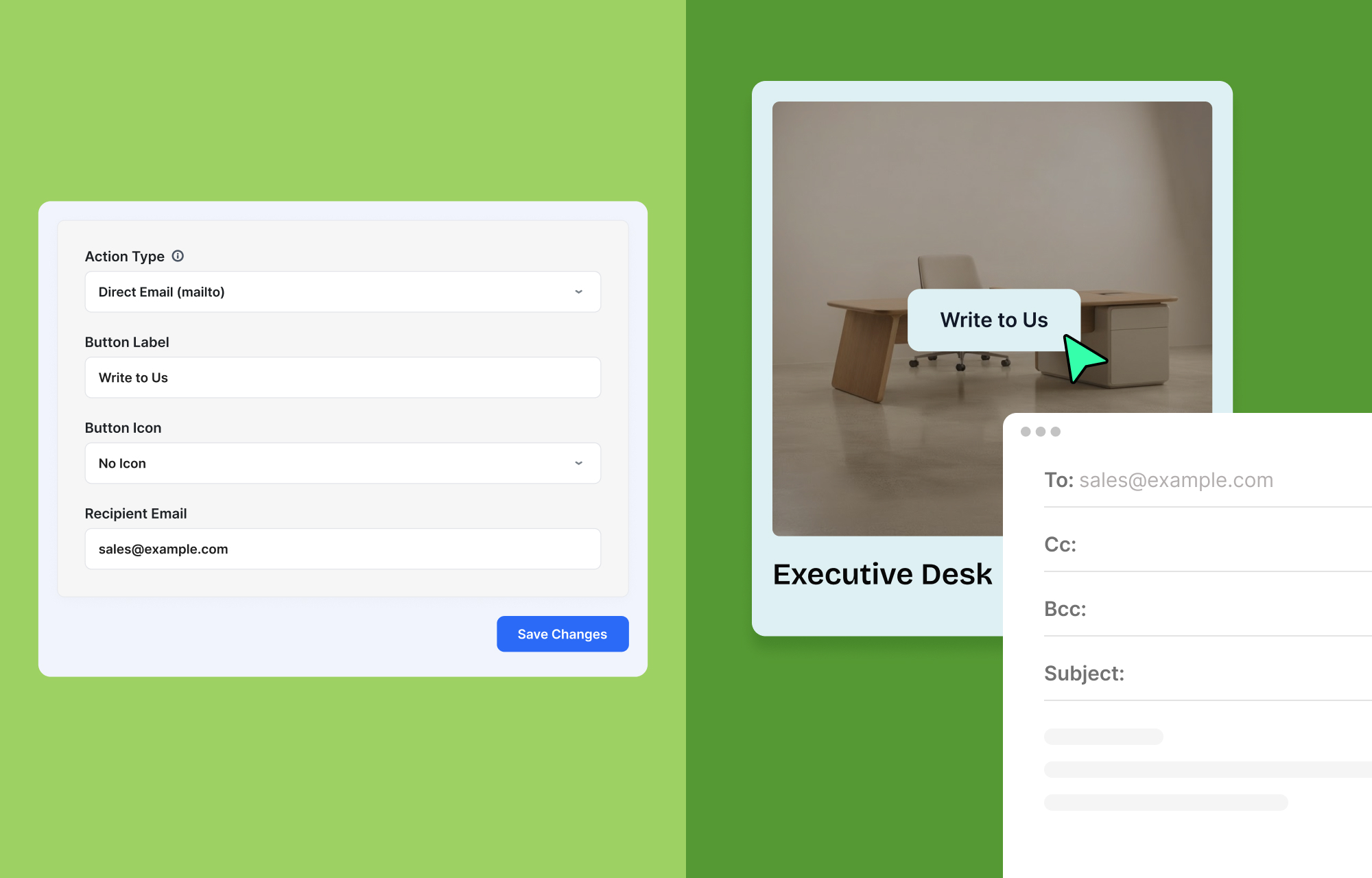
If you prefer handling everything via email,
- Choose Direct Email (mailto).
- Enter your sales email.
When customers click the button now, EasyStore opens their default email application with your recipient email already filled in.
If no recipient email is entered, EasyStore automatically uses the store administrator email used in Store Settings.
Customize the Inquiry Button
After choosing the inquiry button type, you can personalize the inquiry button itself.
- Button Label: Here, you can insert a label such as “Request a Quote.
- Button Icon: Choose a button icon that goes with the label, such as a phone icon.
A clear label combined with a recognizable icon helps visitors immediately understand what action they’ll take.
If you are using SP Page Builder to design your storefront, keep in mind that the inquiry button simply replaces the Add to Cart button. Thus, the visuals of the inquiry button outside of the label and icon depend on how you’ve customized the Add to Cart button.
What Customers Will See
Once Catalog Mode is active and set up, your storefront behaves differently depending on how you set it up.
In the video demonstration above, we set up Catalog Mode in the following ways:
- It applies only to specific furniture categories, but not all.
- We replaced the Add to Cart button with a Popup Inquiry Modal.
As you can observe, users can add certain products to their cart and buy them, but for items with Catalog Mode applied, they must complete a form to obtain the price.
In general, with Catalog Mode enabled, customers can still:
- Browse product listings
- Open product detail pages
- View product descriptions
- Check specifications and images
If prices are hidden, they’ll instead see your custom replacement text.
Instead of purchasing immediately, they’ll use your inquiry button to contact your business, request pricing, or ask questions about the product.
Please consider examining our official Catalog Mode documentation, where you may find solutions to any further concerns or queries.
Explore EasyStore’s Catalog Mode Now
Catalog Mode helps you create a better experience with EasyStore.
Let us know if you’ve found this tutorial helpful, and provide your suggestions in the comments below!
No comments yet. Be the first to share your thoughts.