Catalog Mode
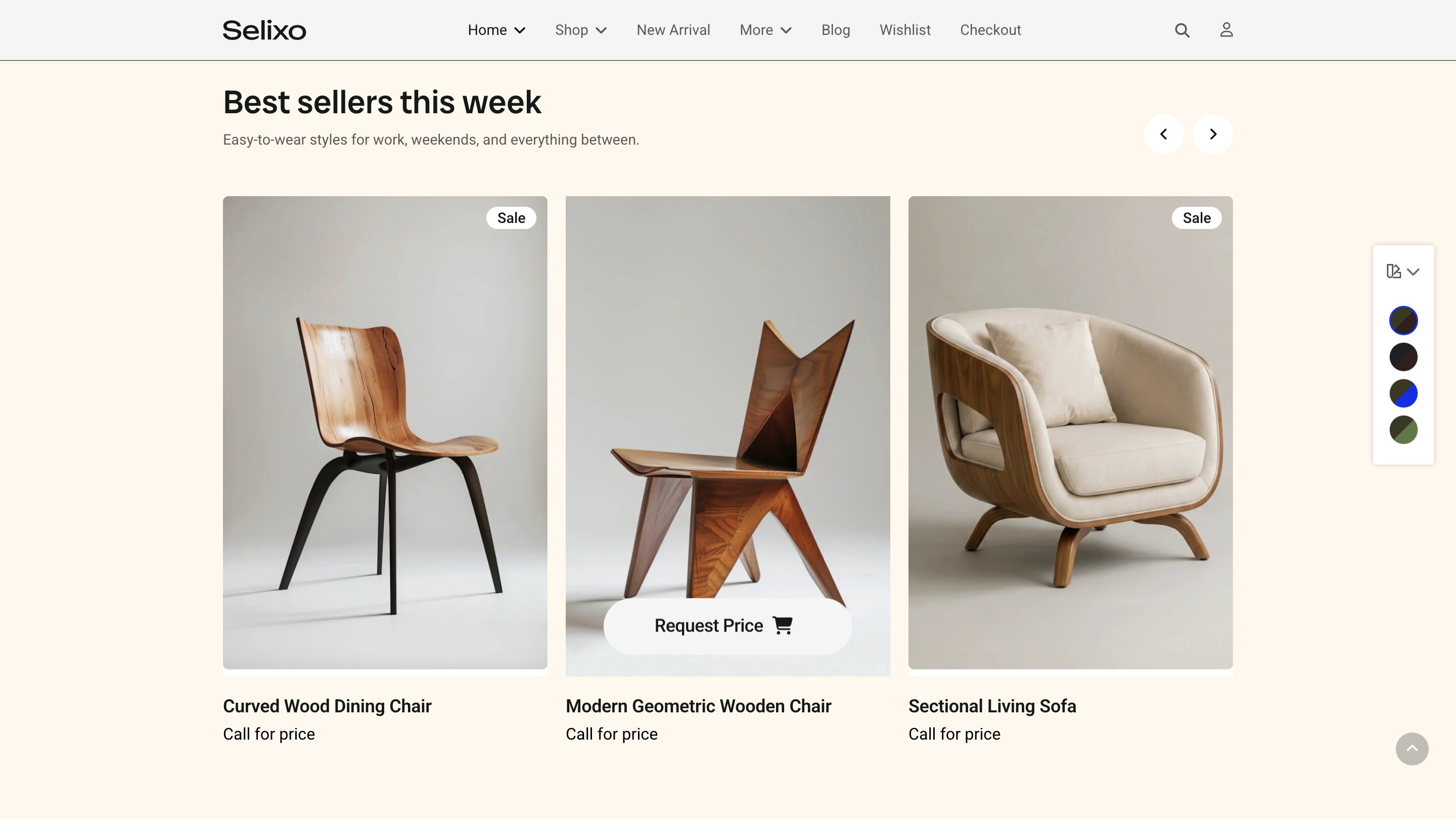
Use Catalog Mode to showcase your products without enabling online purchasing. When active, it turns off the shopping cart and checkout while keeping your product listings and detail pages fully visible.
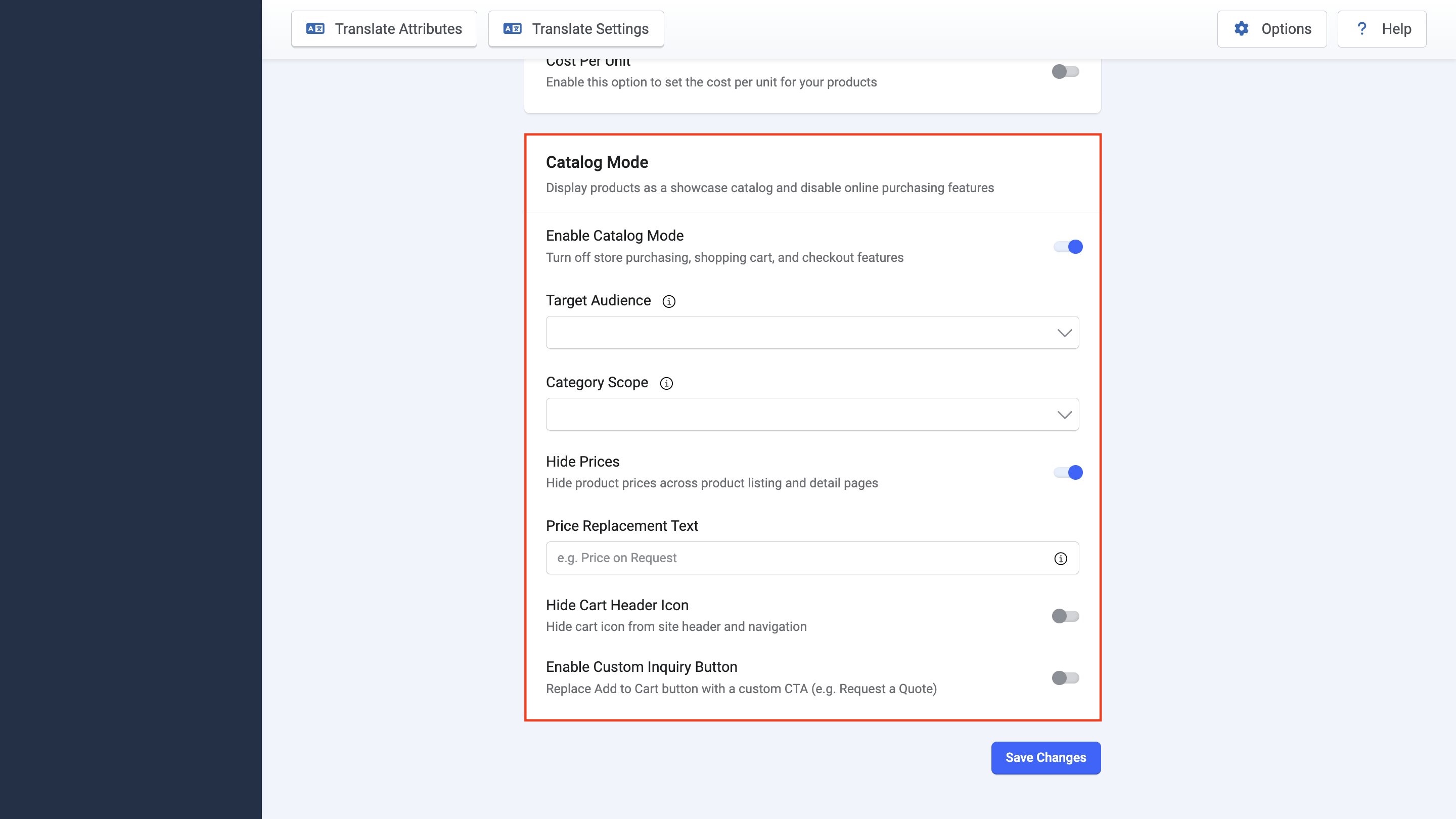
The customization settings for Catalog Mode include:
Enable Catalog Mode: Turn off store purchasing, shopping cart, and checkout features
Target Audience: Choose who sees the store in catalog mode:
- All Visitors (Public)
- Guest Visitors Only (Non-logged in)
- Specific User Groups Only — reveals an Allowed User Groups field where you select which groups view the store in catalog mode
Category Scope: Apply catalog mode to:
- All Categories
- Specific Categories — reveals a Selected Categories field where you choose which categories catalog mode affects
Hide Prices: Choose to display or hide product prices across product listing and detail pages.
Price Replacement Text: Type the text to be displayed if product prices are hidden. For example, “Price on Request” or “Call for Price”.
Hide Cart Header Icon: Choose to display or hide the cart icon from the site header and navigation.
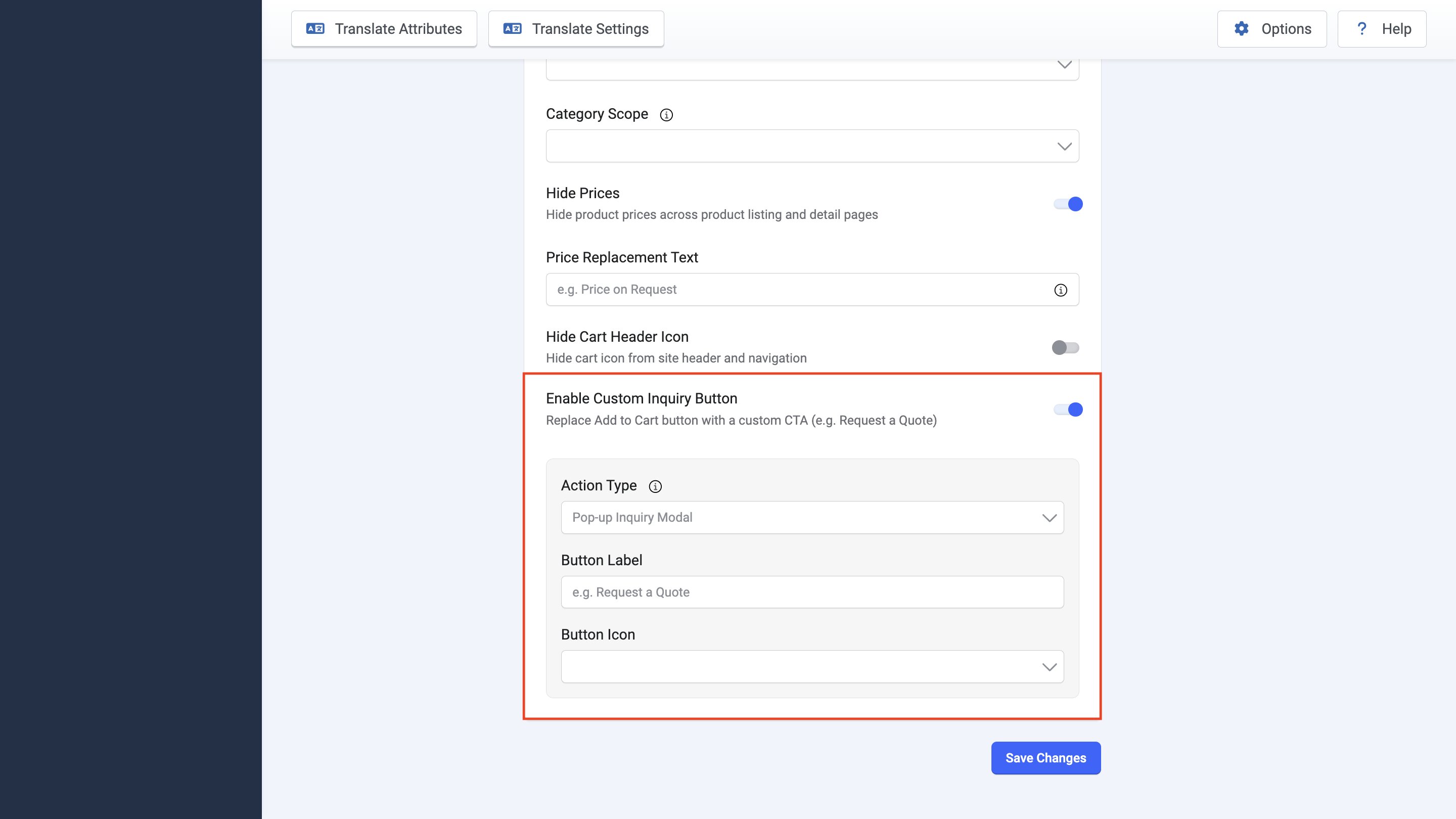
Enable Custom Inquiry Button
Enable this setting to replace the Add to Cart button with a custom call-to-action. Enabling it reveals the following options:
Action Type: Select what happens when the customer clicks on the inquiry button. There are three primary action types, each controlling what happens when a customer clicks it:
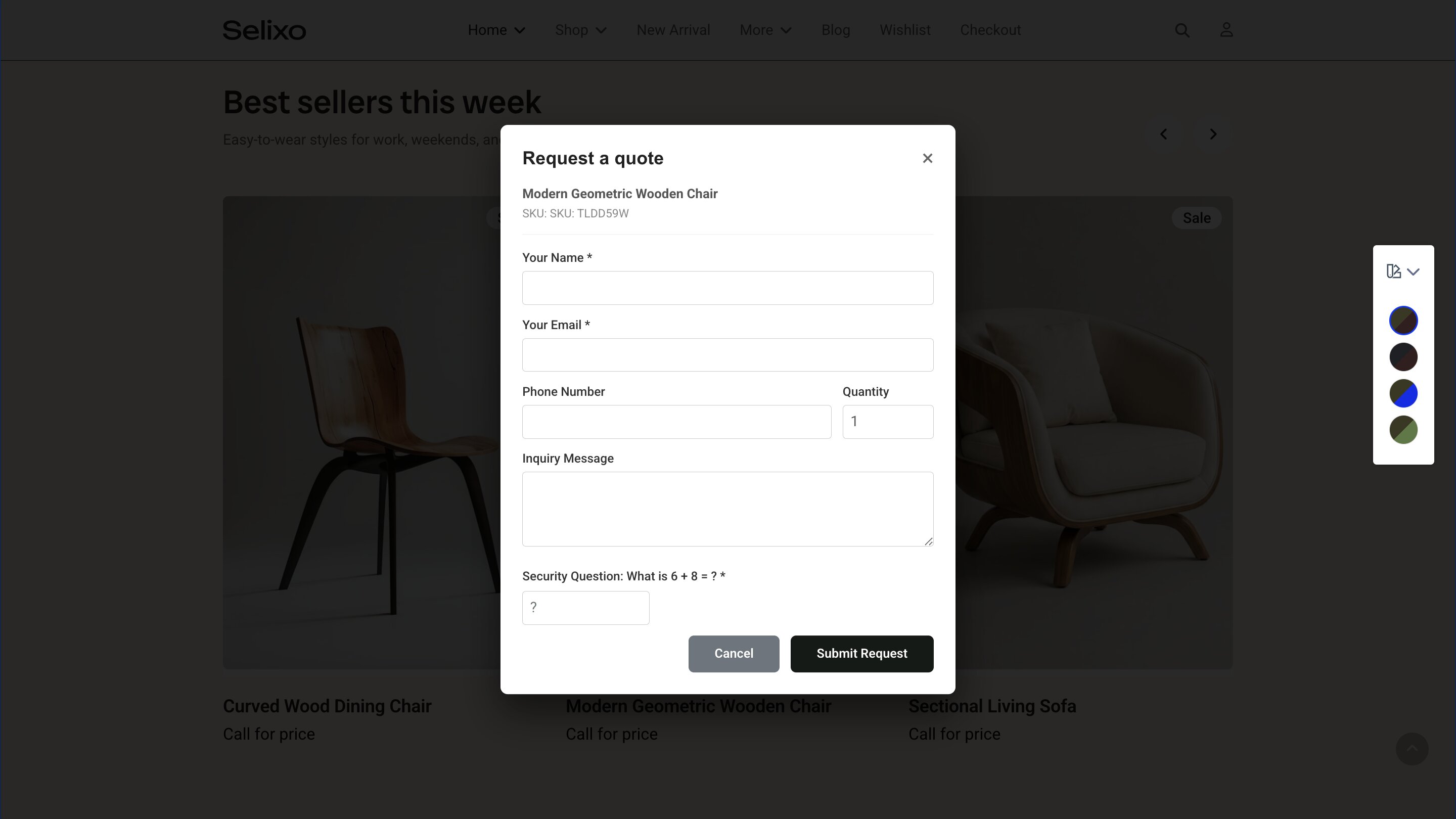
- Pop-up Inquiry Modal — opens an on-page quote request form (with optional phone, quantity, and message fields, spam protection, custom title, and confirmation message)
- Page / Custom Link — redirects the customer to any URL you specify
- Direct Email (mailto) — opens the customer's email client, pre-addressed to your recipient email
Each type reveals its own set of options, described below.
1. Pop-up Inquiry Modal
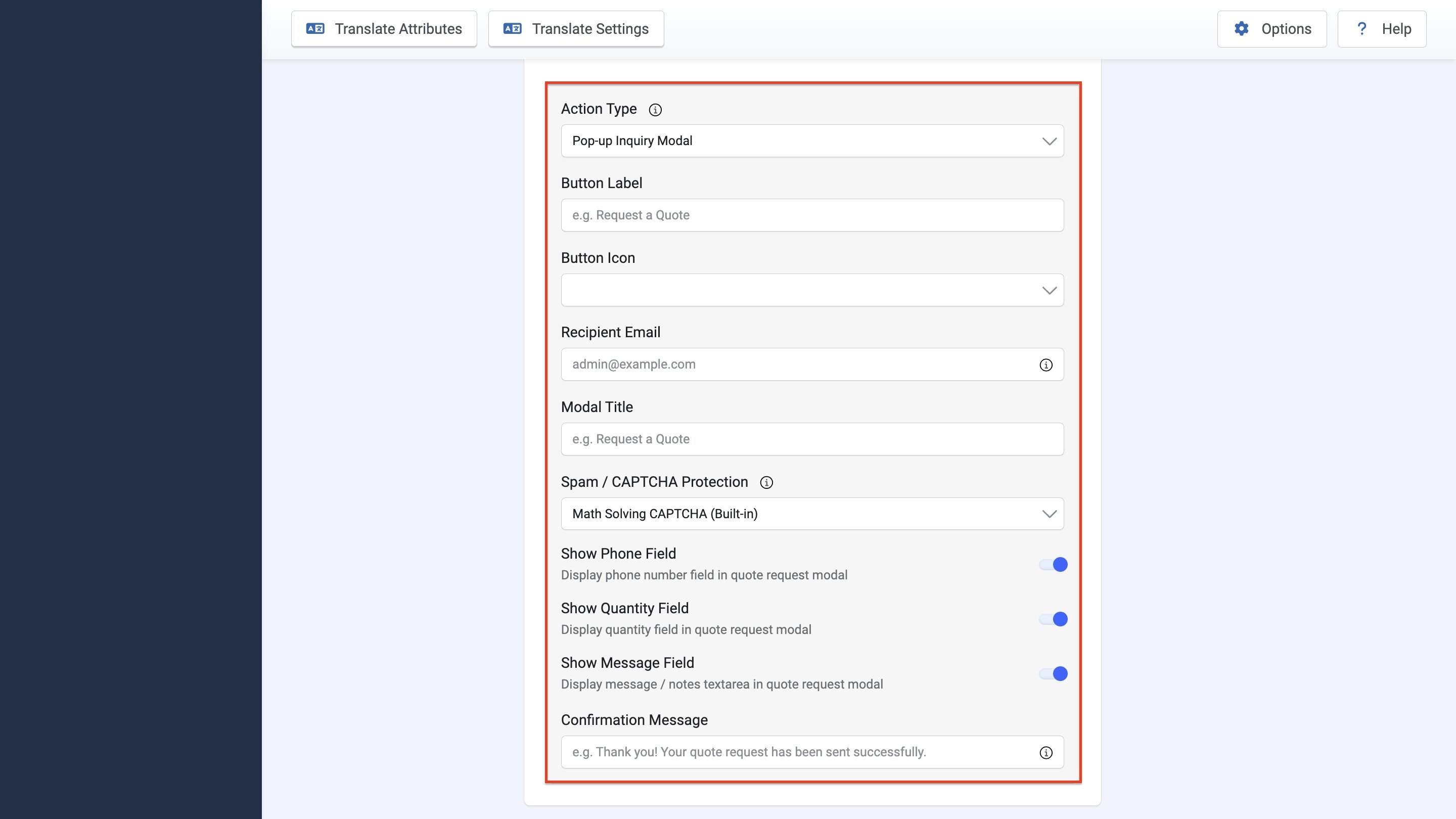
Selecting this type will display additional options such as:
- Recipient Email: Enter the email address for receiving inquiries. If you don’t enter an email in this field, by default it will use the store administrator email address configured in Store Settings.
- Modal Title: Enter the title of the modal. For example, “Request a Quote” or “Contact for further queries”.
- Spam / CAPTCHA Protection: Select an anti-spam protection challenge for the quote modal. The available options include “Math Solving CAPTCHA (Built-in)”, “Joomla Global CAPTCHA (reCAPTCHA / Turnstile)”, and “Disabled”.
- Show Phone Field: Enable to display the phone number field in the quote request modal.
- Show Quantity Field: Enable to display the quantity field in the quote request modal.
- Show Message Field: Enable to display the message field in the quote request modal.
- Confirmation Message: Enter the message that will be shown to the customer after submitting a quote request.
2. Page / Custom Link
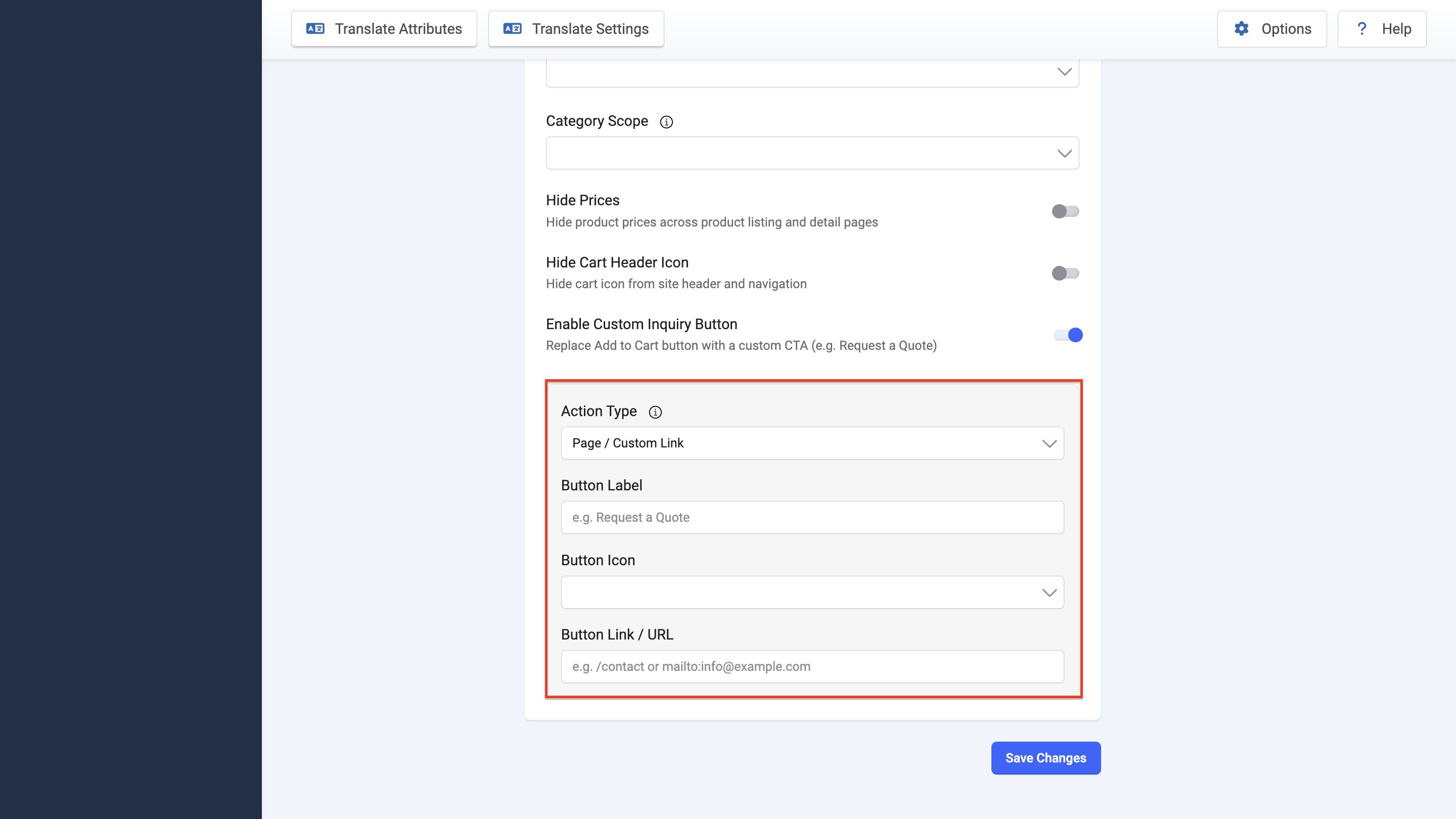
- Button Link / URL — the destination link
3. Direct Email (mailto)
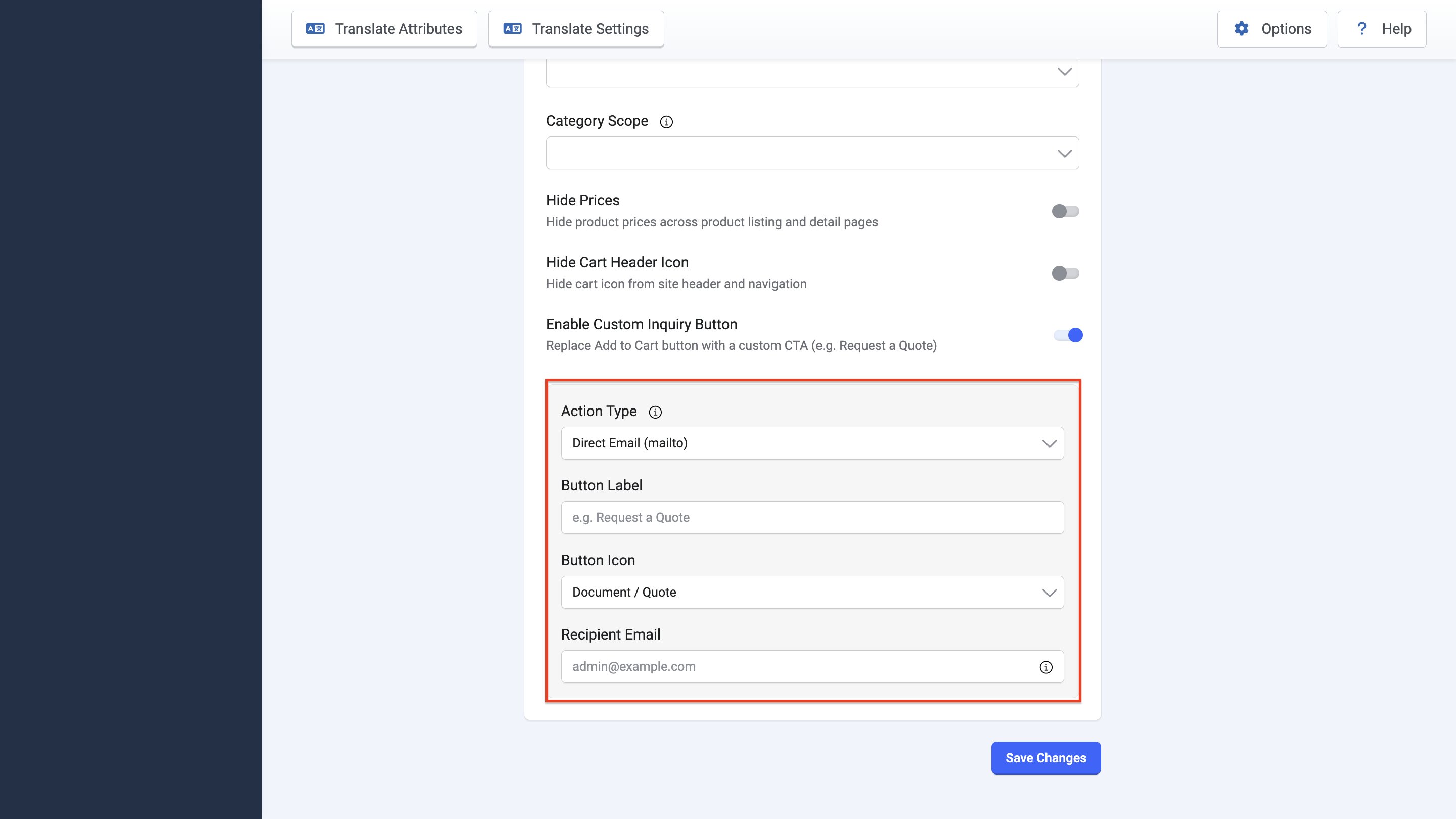
- Recipient Email — where inquiries are sent; defaults to the store administrator email in Store Settings if left blank
Button Label: Enter the text displayed on the button (e.g., "Request a Quote").
Button Icon: Choose an icon: Document / Quote, Phone, Envelope / Email, Link Arrow, or No Icon.