Multicurrency Management
Multicurrency lets you price and sell products in multiple currencies, with rates updated manually or automatically.
Note: Multicurrency is available exclusively for EasyStore Pro users.
Enabling Multicurrency
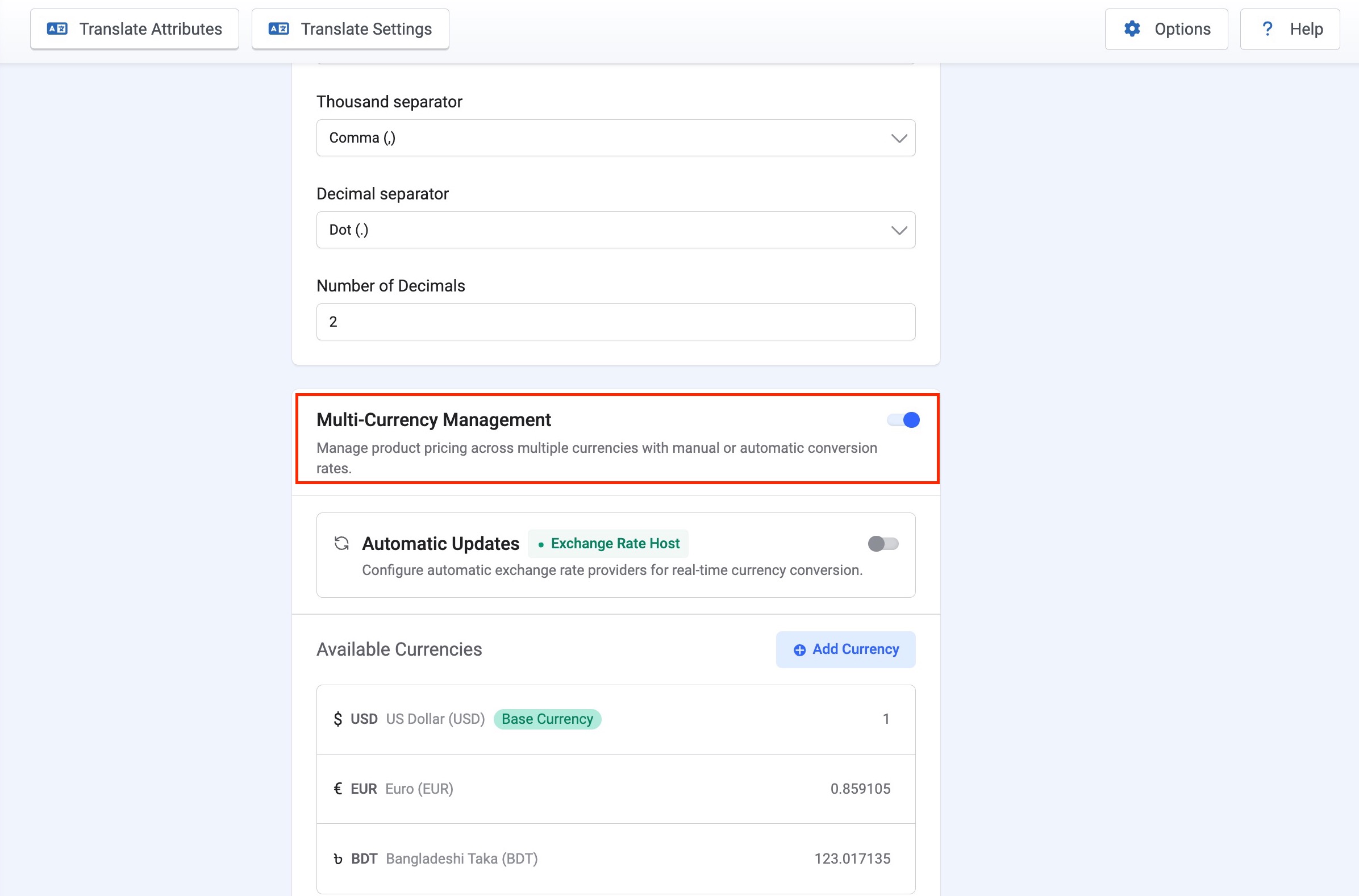
From your Joomla dashboard navigate to Components > EasyStore > Settings. Under the General settings locate Multcurrency Management option and enable it.
Once enabled, you can configure automatic rate updates and add the currencies you want to sell in.
Automatic Updates
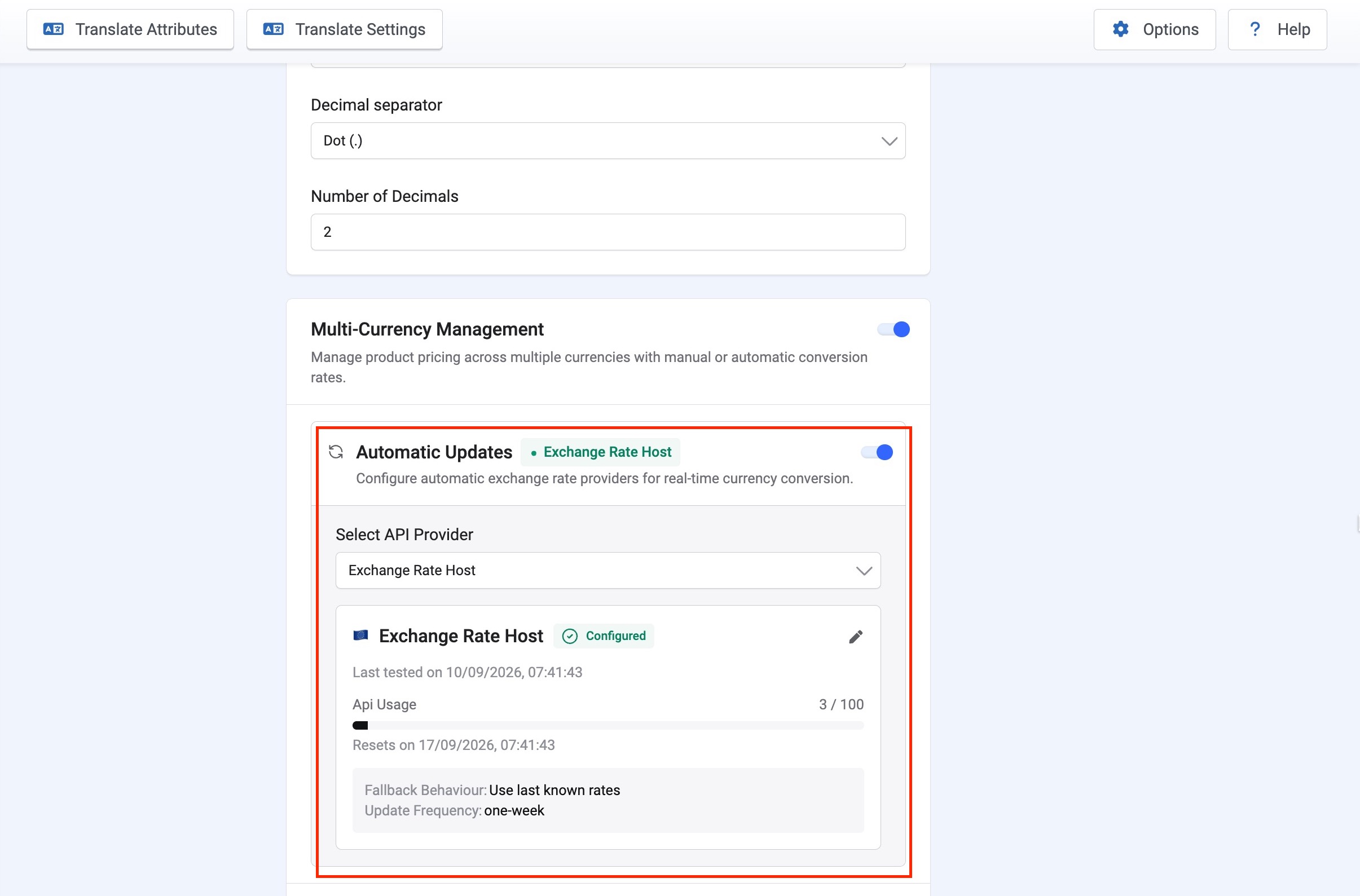
Turn on Automatic Updates to have EasyStore fetch exchange rates from a live API instead of entering them manually.
Select API Provider
Choose your exchange rate provider from the dropdown. EasyStore currently supports Exchange Rate Host.
Provider Card
Once a provider is selected and configured, its card shows:
- Status: Shows "Configured" once the API connection is set up and verified.
- Last tested on: Timestamp of the most recent successful connection test.
- API Usage: Number of API calls used against your plan's monthly limit (e.g. 1 / 100).
- Resets on: Date and time the usage counter resets.
- Fallback Behaviour: What EasyStore does if a live rate fetch fails. Set to "Use last known rates" to keep pricing stable during an outage.
- Update Frequency: How often EasyStore pulls new rates (e.g. one-week).
Click the pencil icon on the provider card to edit its configuration.
Available Currencies
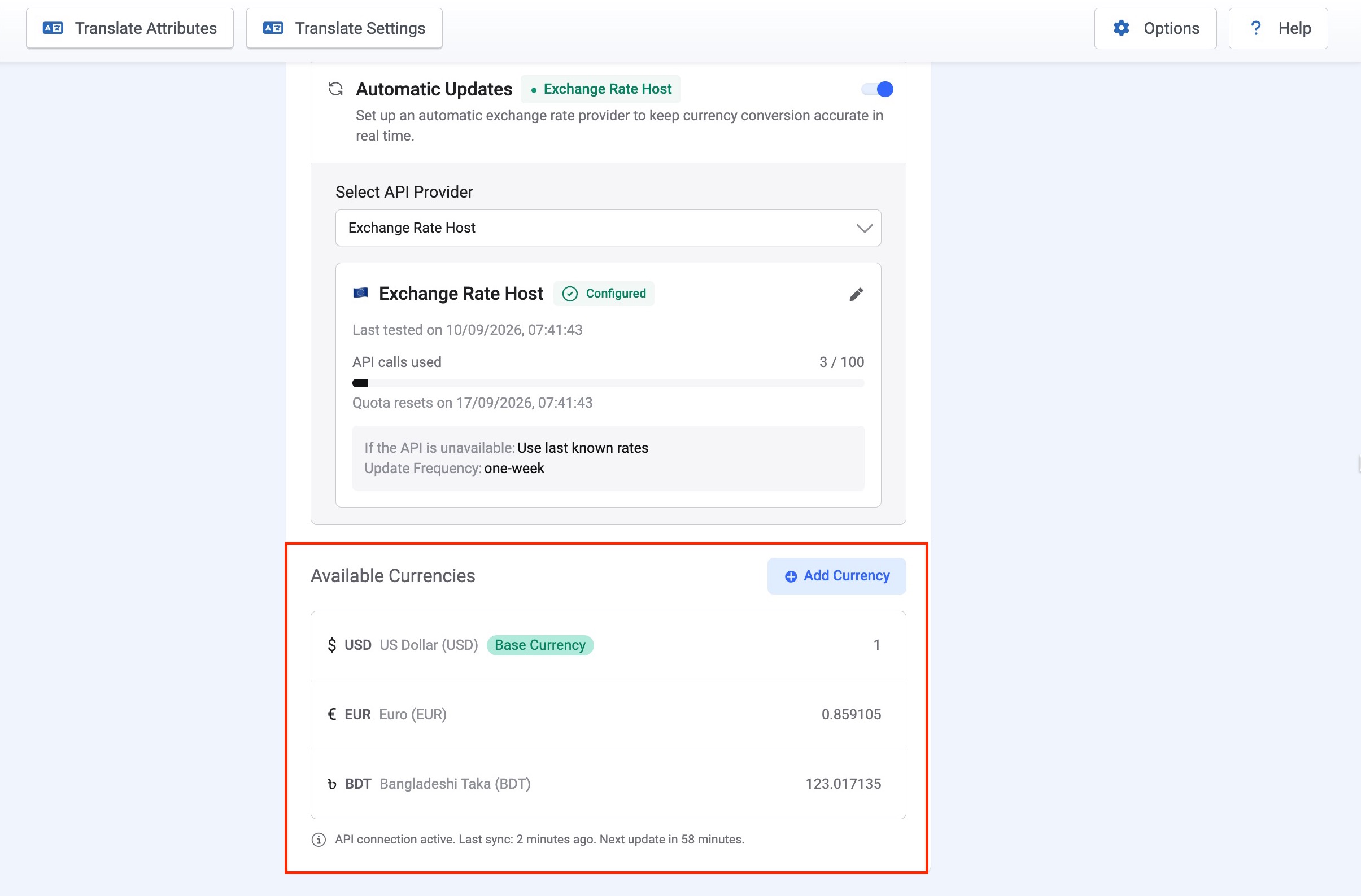
This section lists every currency active on your store.
- Base Currency: Your store's default currency, shown with a "Base Currency" tag. All other rates are calculated relative to this currency, and its rate is always 1.
- Currency rows: Each additional currency shows its code, full name, and current exchange rate against the base currency.
Adding a Currency
Click Add Currency in the top right of the section to add a new currency to your store. Once added, its exchange rate will populate automatically (if Automatic Updates is on) or can be set manually.
Notes:
- If Automatic Updates are off, exchange rates must be entered and maintained manually for each currency.
- The "If the API is unavailable" only applies when Automatic Updates is on and a live rate fetch fails.
- API Usage resets on a rolling cycle based on your provider's plan, shown in the "Quota Resets" field.
Displaying Currencies on the Frontend: Currency Switcher Module
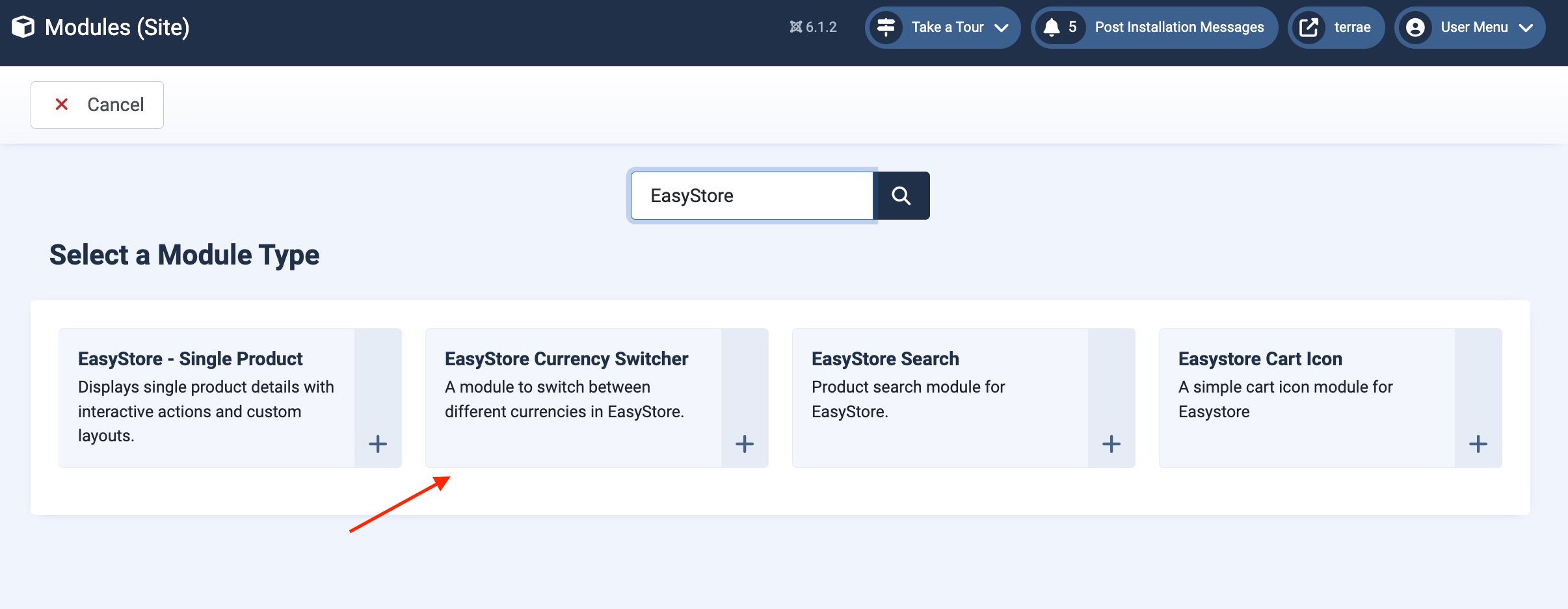
Once you've set up your currencies under Multicurrency Management, use the Currency Switcher module to let customers pick their preferred currency directly on your storefront.
Where to Configure It
- Go to Joomla Administrator > Content > Site Modules.
- Click New, then select EasyStore - Currency Switcher from the module type list.
- Give the module a title (e.g. "Currency Switcher").
- Under Position, choose where on your template the switcher should appear (header, sidebar, footer, or any custom position your template supports).
- Under Menu Assignment, choose which pages the module shows on. Select "On all pages" to display it storewide, or assign it only to specific EasyStore pages (product listing, product detail, cart, checkout).
- Set Status to Published.
- Click Save & Close.
Only currencies added under Available Currencies appear as options in the switcher, so add all the currencies you want customers to choose from before publishing the module.
How It Displays
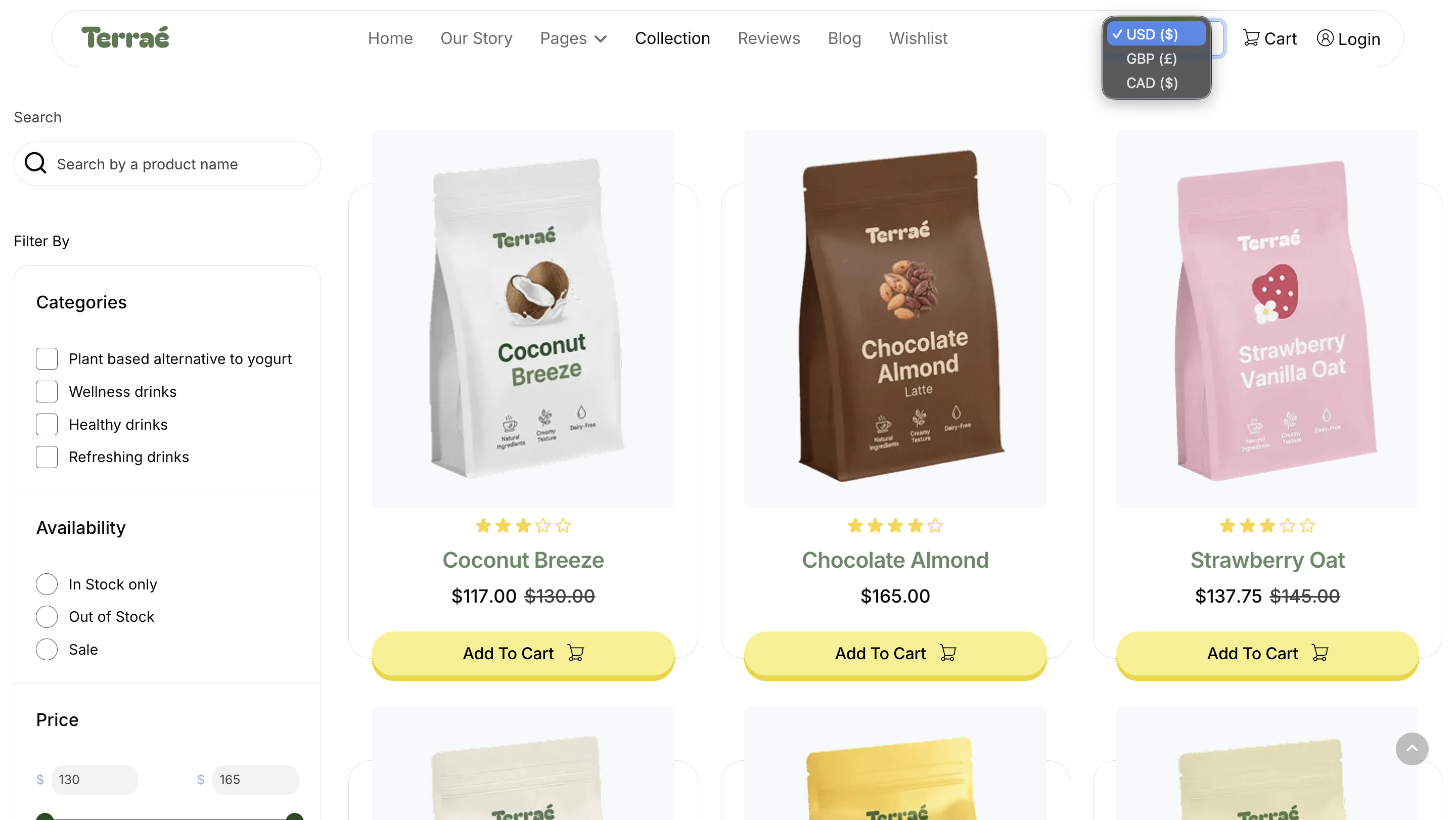
Once published, the module renders as a dropdown (or list, depending on your template's styling) showing each active currency by code or symbol. You can also decide to display the currency rate for a more detailed conversion. When a customer selects a currency:
- All product prices on the page update instantly to reflect the selected currency, using the exchange rate set under Multicurrency Management.
- The selection persists across the store as the customer browses, so they don't need to reselect it on every page.
- Prices at checkout and on invoices reflect the currency chosen, keeping the experience consistent from browsing to purchase.
Notes:
- The Base Currency is always included in the switcher and reflects your store's default pricing.
- If a currency's exchange rate isn't configured, it won't display correctly in the switcher. Confirm rates are set before publishing.
- Module position and styling depend on your Joomla template. Some templates offer built-in styling for the switcher; others may need custom CSS to match your storefront design.