Page Versioning
Page Versioning in SP Page Builder tracks changes made to a page and restores previous versions whenever needed. This feature helps protect your work by keeping a history of edits and providing a safety net during design experimentation. You can view and restore previous versions of a page if needed. It can be useful when your client will delete/damage something.
How Page Versioning Works
When you save a page version, each version stores:
- Page layout structure
- Content changes
- Addon configurations
- Styling adjustments
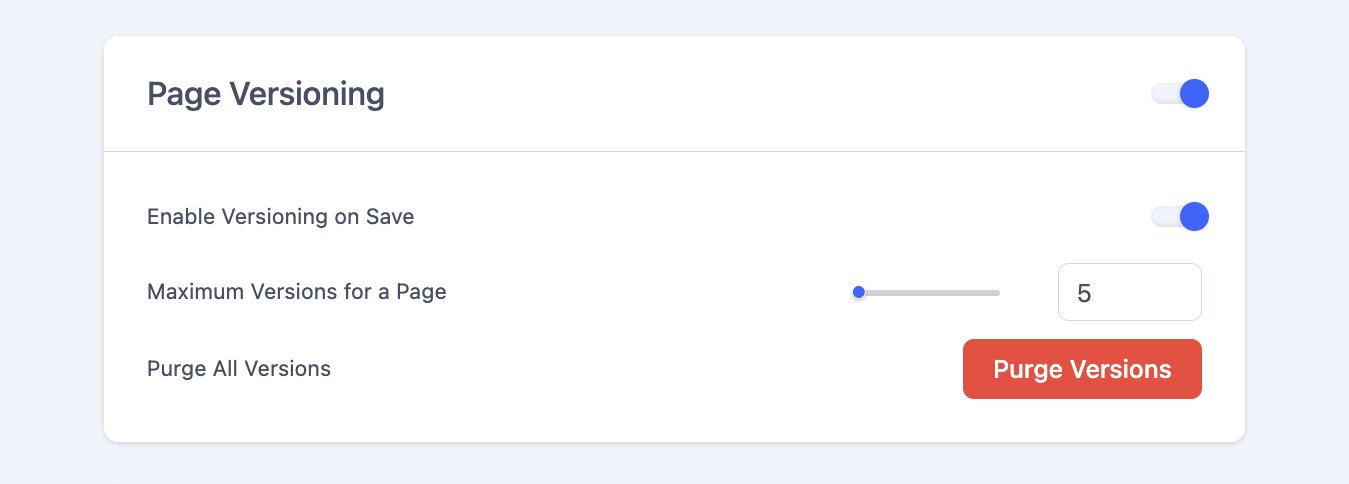
To enable the page versioning feature on your website, first go to SP Page Builder Pro > Settings > Advanced > Enable Page Versioning: On > Save. Toggle the “Enable Page Versioning” option. You can also disable that feature using the same switcher. You can also decide how that feature should work by using:
- Enable Versioning on Save - when enabled, a new version will be automatically created each time you save a page. This allows you to keep a history of changes and revert to previous versions if necessary. Without that, saving a page will not generate a new version; it will only overwrite the current one.
- Maximum Versions for a Page limit - define the max number of page versions allowed per page. Once the limit is reached, older versions will be automatically removed. The less value you choose, the fewer database resources will be used. The default value is 10.
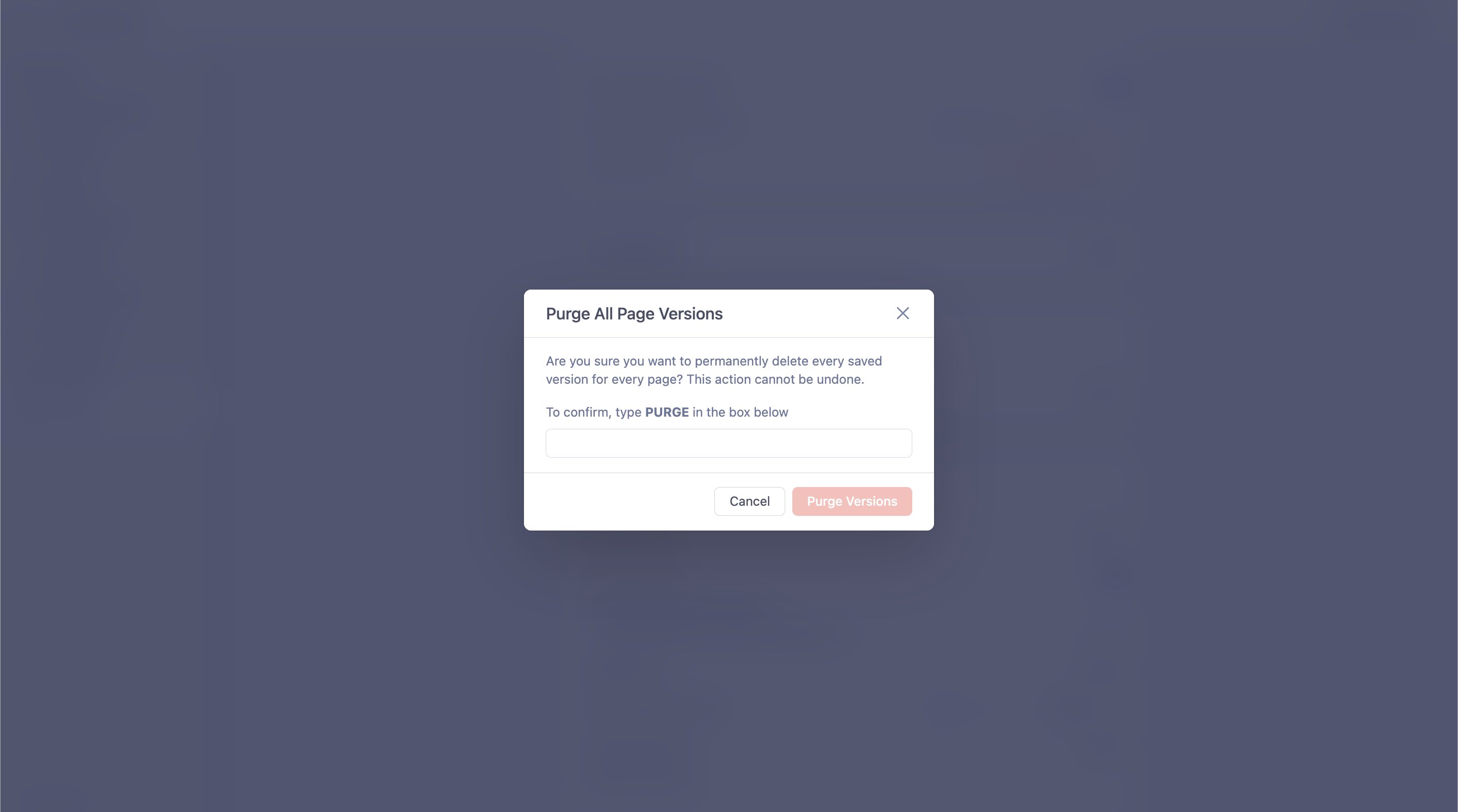
- Purge All Versions - Clicking the "Purge Versions" button permanently removes all saved page revisions across all pages to free up database space. The current version of your pages will remain unaffected.
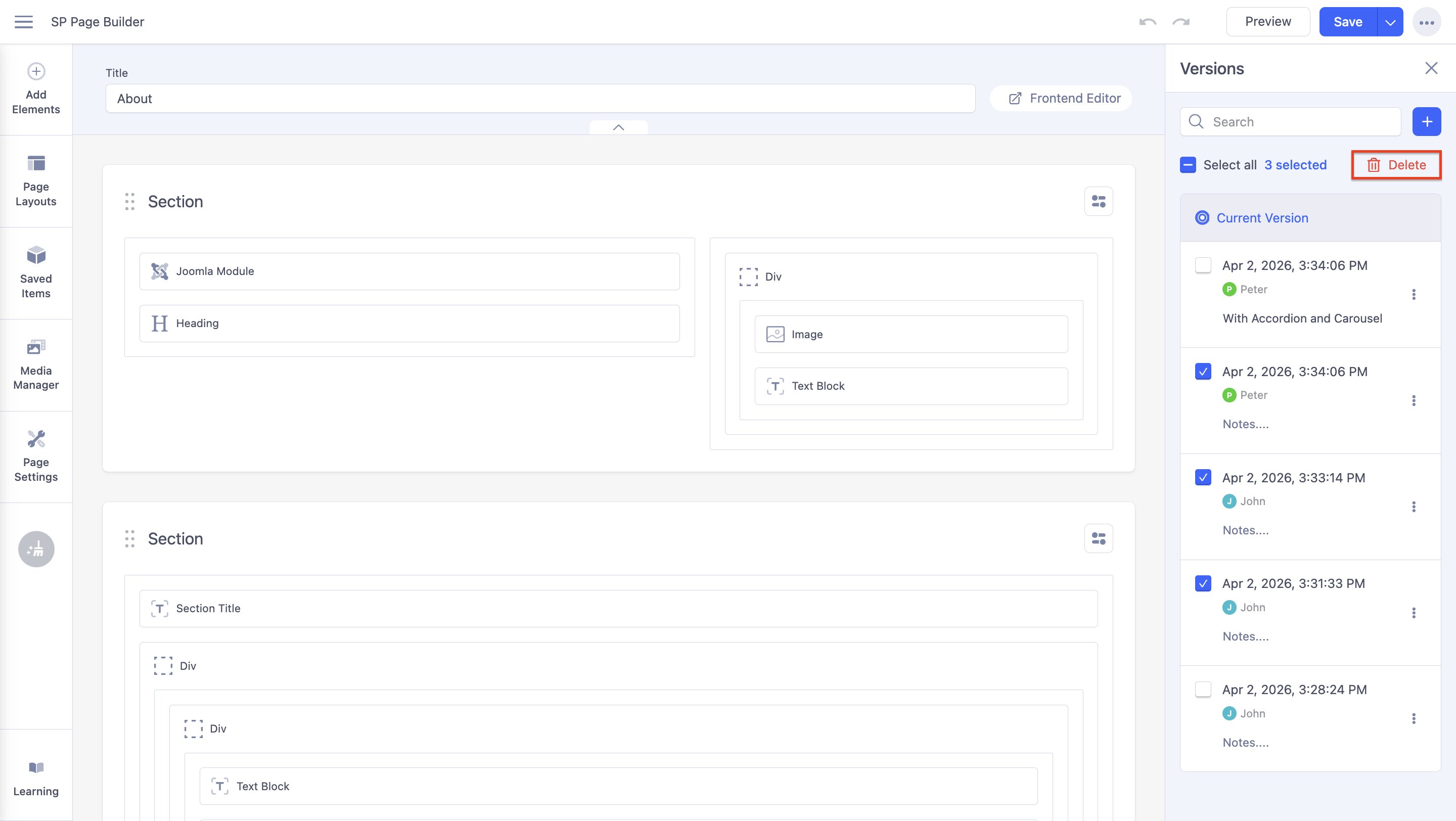
Each page version can be accessed through the Version History, where you will be able to see the version name, author/user name, and version notes. You can also delete older versions from each Page and bulk delete multiple versions at once, saving time when cleaning up outdated entries.
Accessing Version History
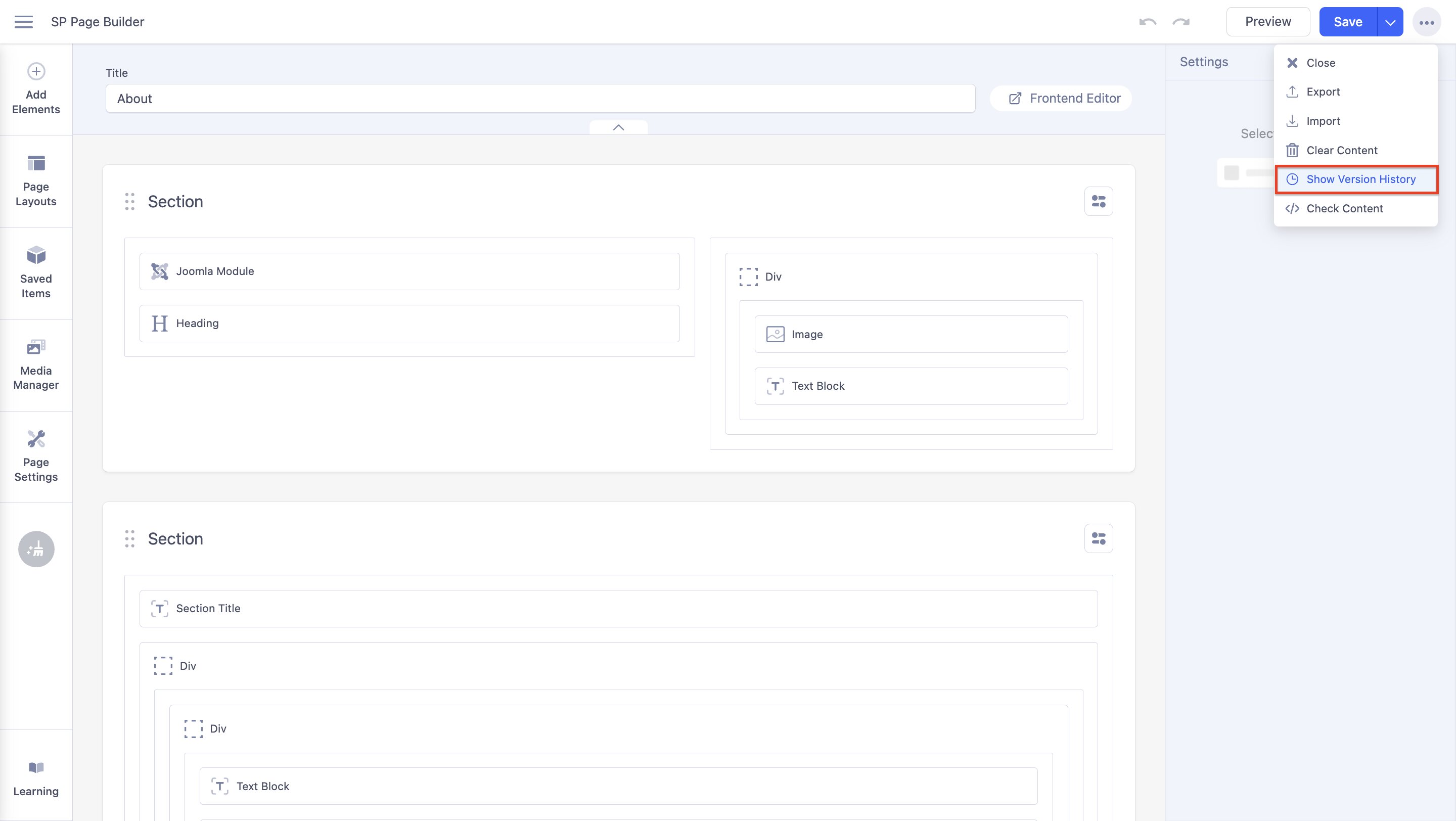
To view version history:
1. Open the page in the SP Page Builder editor.
2. Click the Show Version History option from the 3 dots dropdown option in the top right corner.
3. A list of previously saved versions will appear with timestamps and editor information (if available).
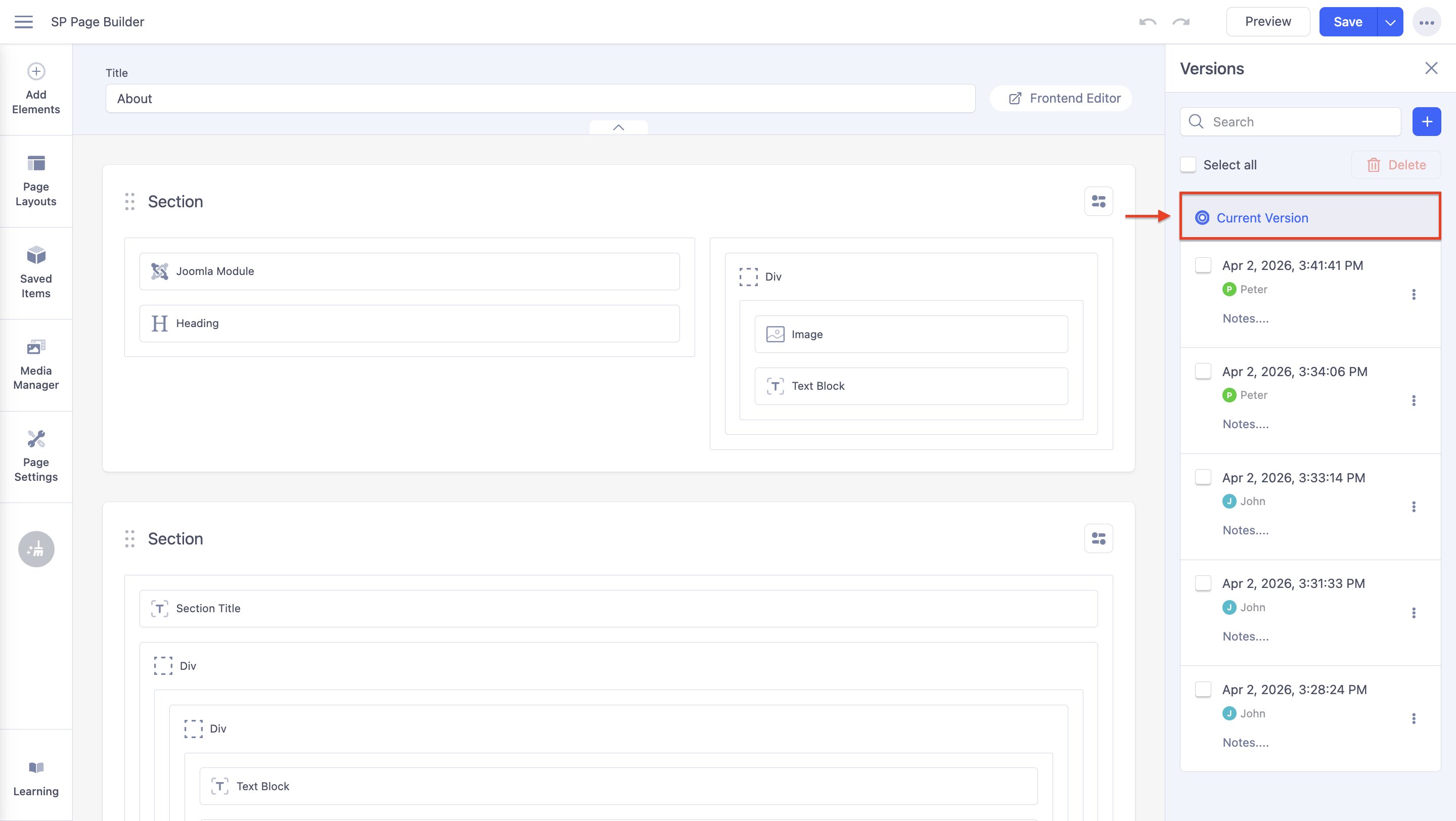
4. Simply select any version from the list to restore it.
Managing Versions
Add a New Version Manually
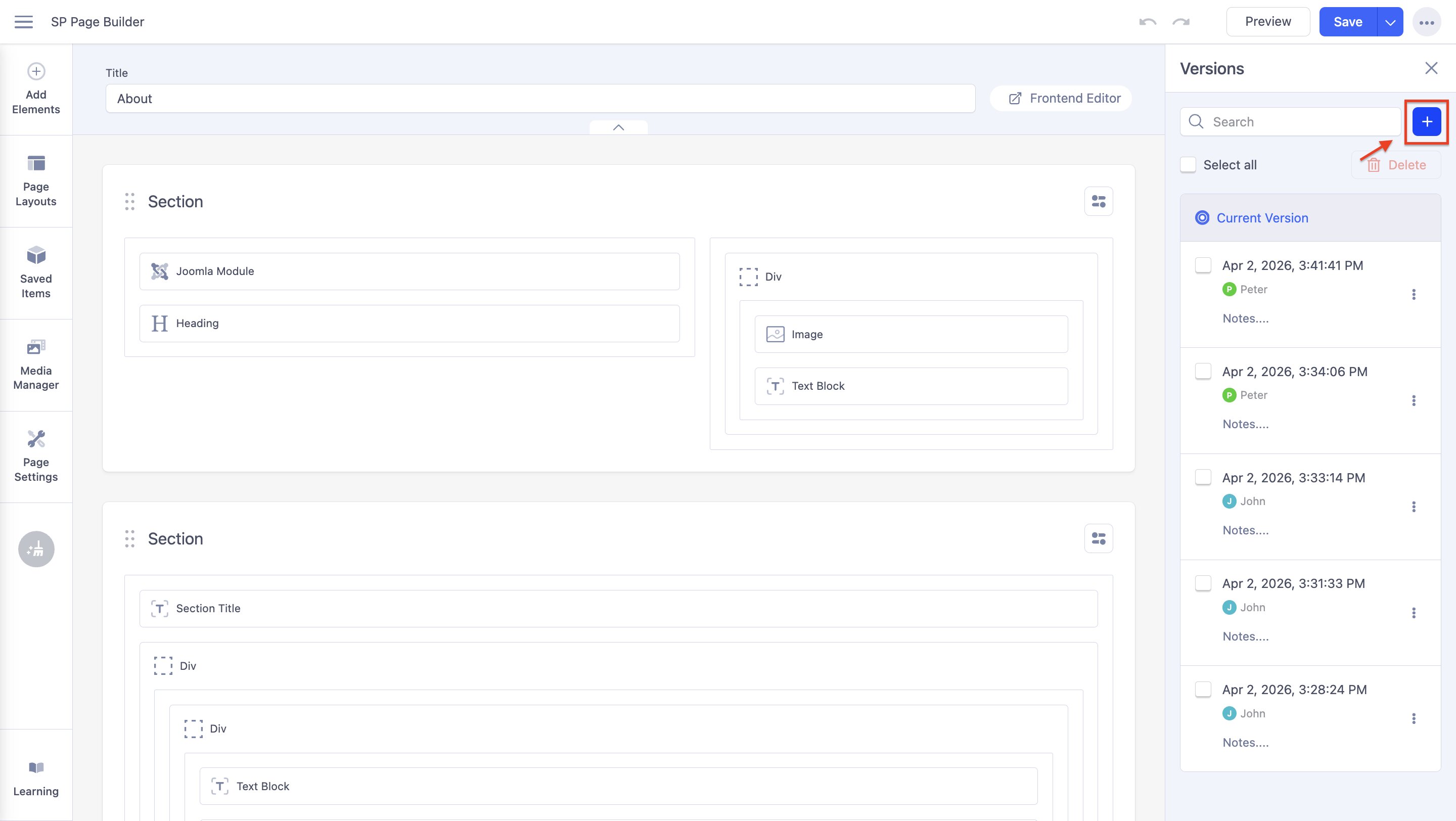
1. Click on the “+” icon.
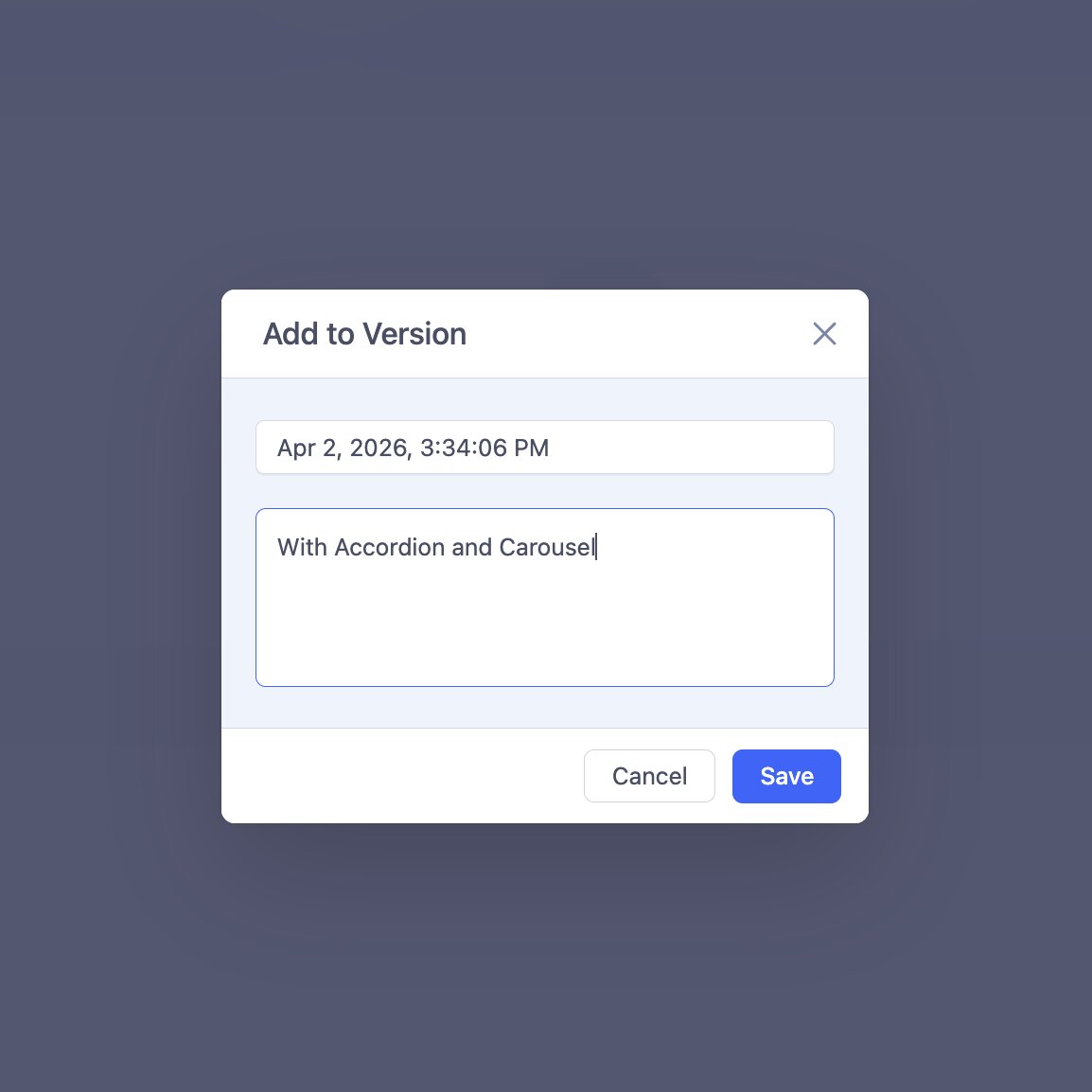
2. Add a Title and Note for this page version to help identify its purpose and changes.
3. Hit “Save”.
4. Your page version will be created manually.
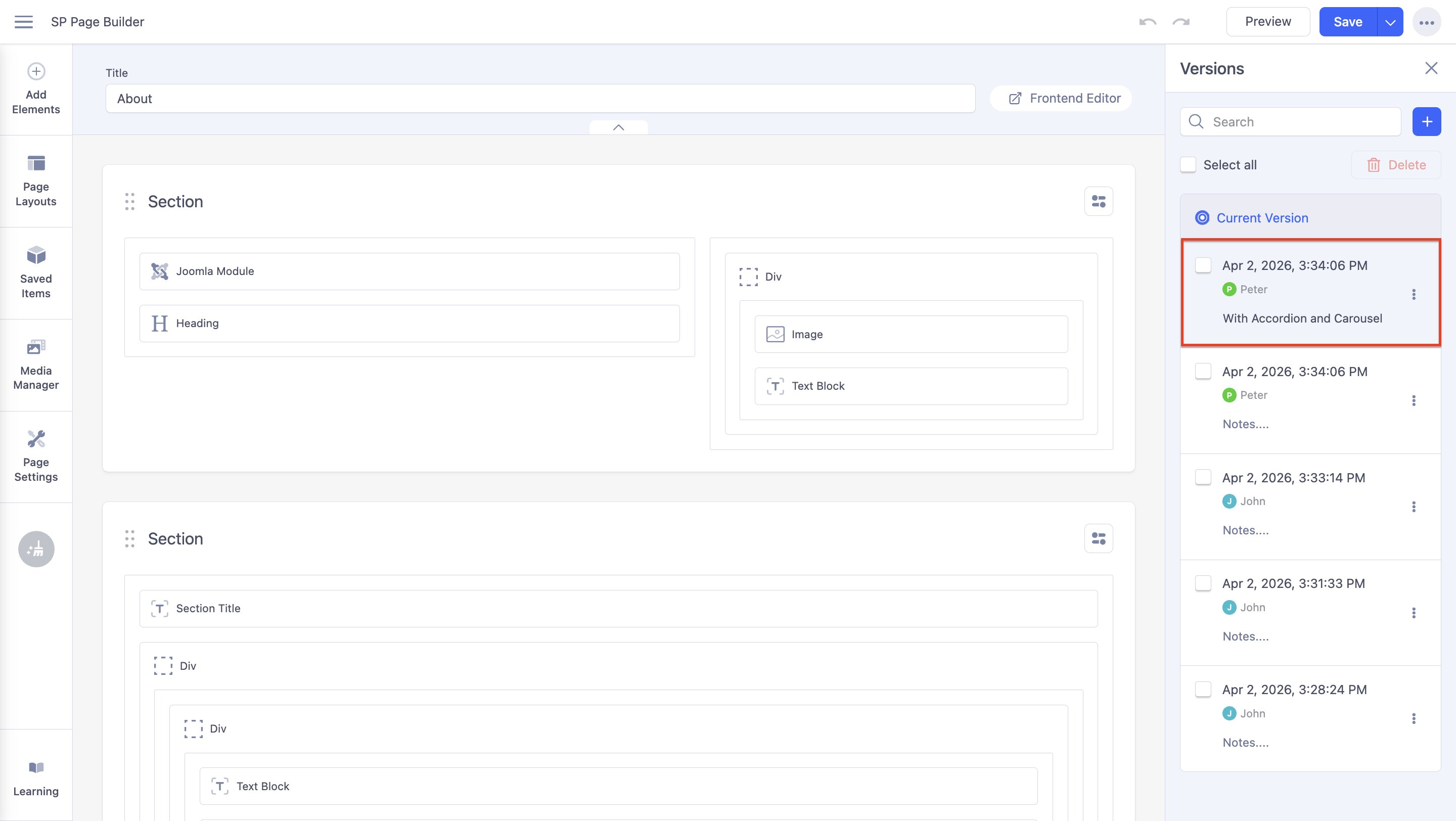
Rename, Restore, and Delete a Page Version
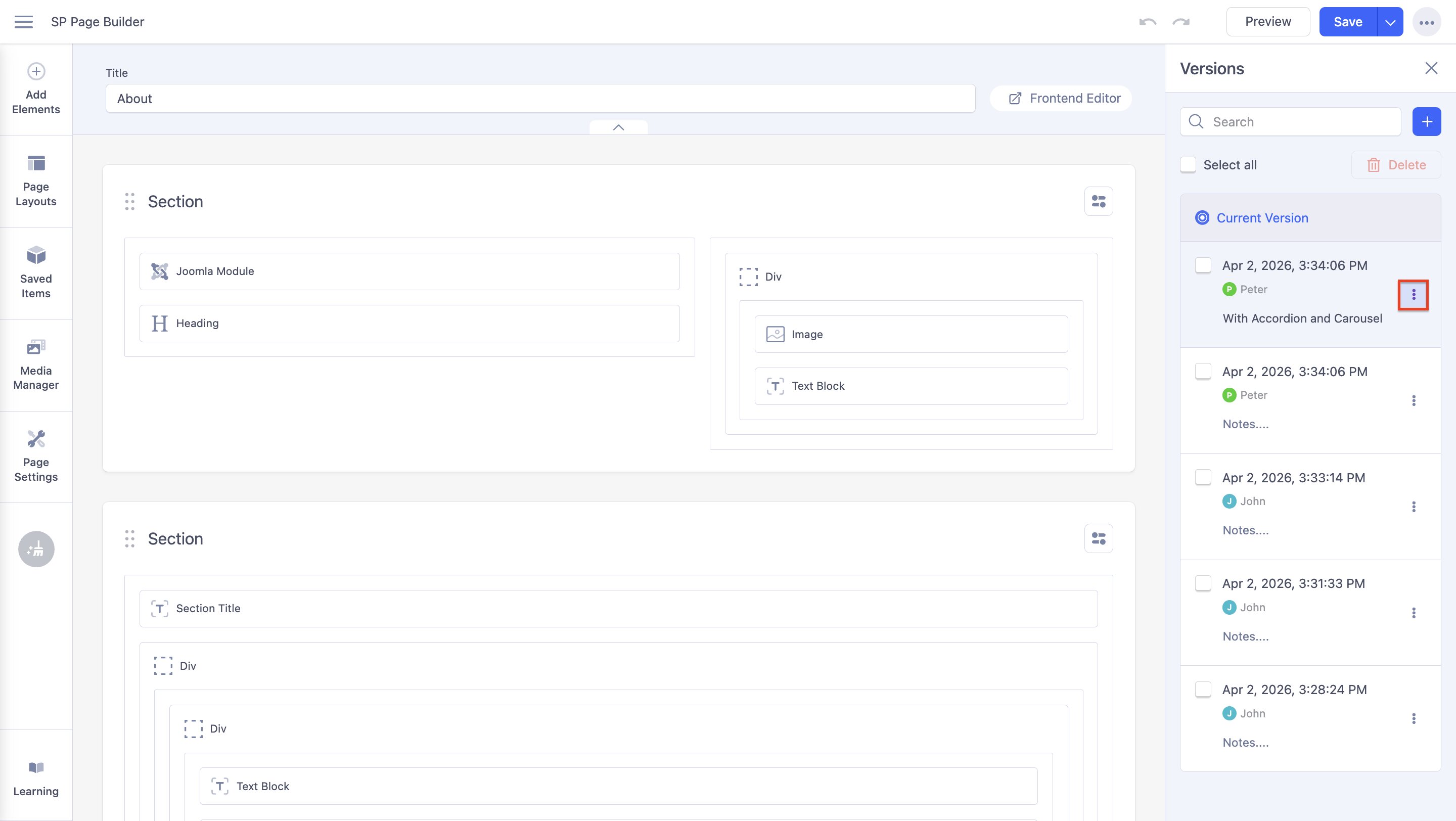
When you hover over a page version, you’ll see a three-dot menu (ellipsis). Clicking it reveals the following options:
- Rename – Change the name of the selected page version for easier identification.
- Restore – Revert your page to this version, recovering its content, layout, and settings.
- Delete – Permanently remove this page version from the version history.
To delete several page versions simultaneously, you can either click the checkboxes beside their names or select them all by clicking the "Select All" checkbox. Click on Delete to erase the required versions.
Previewing Page Versions
You can preview existing page versions from the version list before restoring them. Simply click on a version to view its changes, then click “Restore this Version” to revert your page to that selected state.
Search for a Page Version
You can search for a page version using its title, date, or notes.