Gallery
SP Page Builder Gallery Addon is designed for a gorgeous-looking image gallery output. You can add thumbnails for your images and upon clicking the thumbnails the image pops up.
How to Add a Gallery Addon
You can add a Gallery addon to your page from the SP Page Builder sidebar. Simply drag the addon from the Addons panel and drop it on the section of the page where you want to add a Gallery addon.
Content
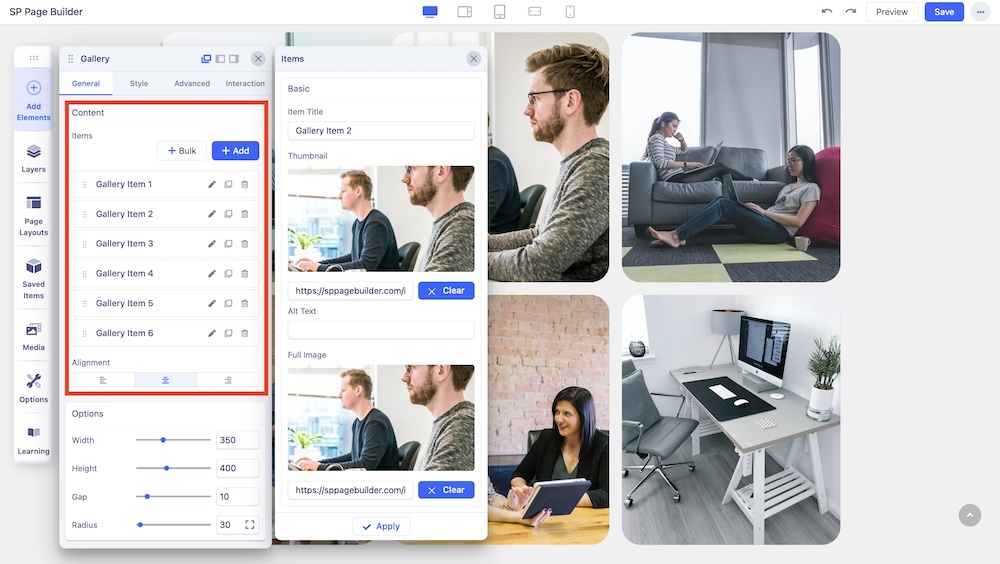
Under the Content section of the General tab, you can add or delete your gallery items and edit the existing ones.
Click on the + Add button to instantly add your image items to your gallery.
Select “+ Bulk” to add multiple gallery items together. Upon clicking, you'll be directed to the Media Manager, where you can choose multiple media items. You have the flexibility to select items individually, or you can opt for an entire folder selection.
Click on the edit button to add Titles, Thumbnails, Alt Text, and Full images for your gallery items.
You can choose the best alignment for your gallery items. You can choose from Left, Right, and Middle alignment options.
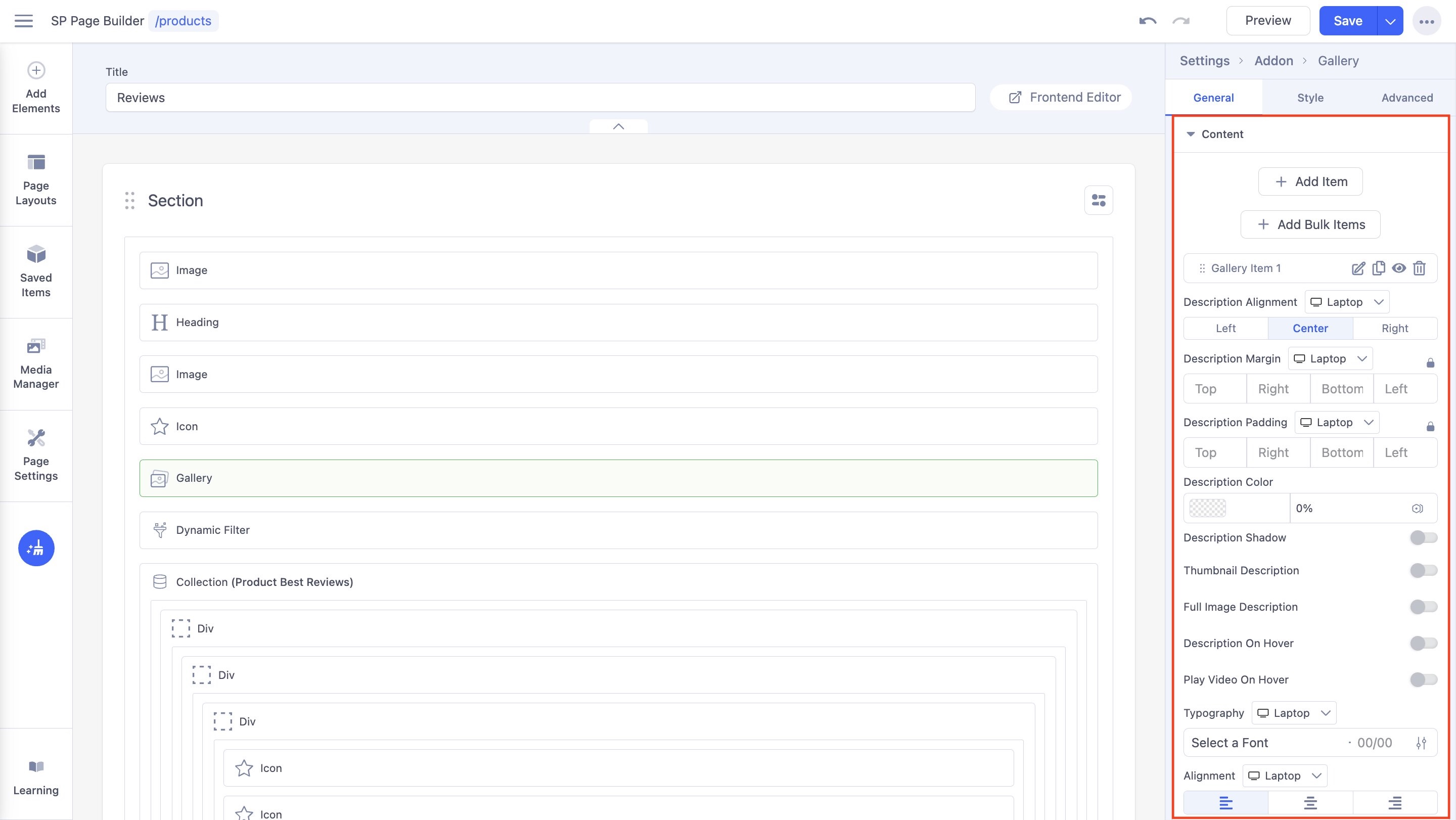
You get the following customization options for the description text of the gallery items:
- Description Alignment: Adjust the gallery item description to align left, centre, or right.
- Description Margin: Adjust the dimensions of the description alignment.
- Description Padding: Adjust the padding for the description text.
- Description Color: Set the color and opacity of the description text.
- Description Shadow: Enable a text shadow for the description.
- Thumbnail Description: Display the thumbnail description of each gallery item.
- Full Image Description: Display the full image description of each gallery item.
- Description On Hover: Turn on to reveal the description of every gallery item as the user hovers over it.
- Play Video On Hover: Enable to display a preview of the video items when a visitor hovers over the thumbnail.
Adding Videos as Gallery Items
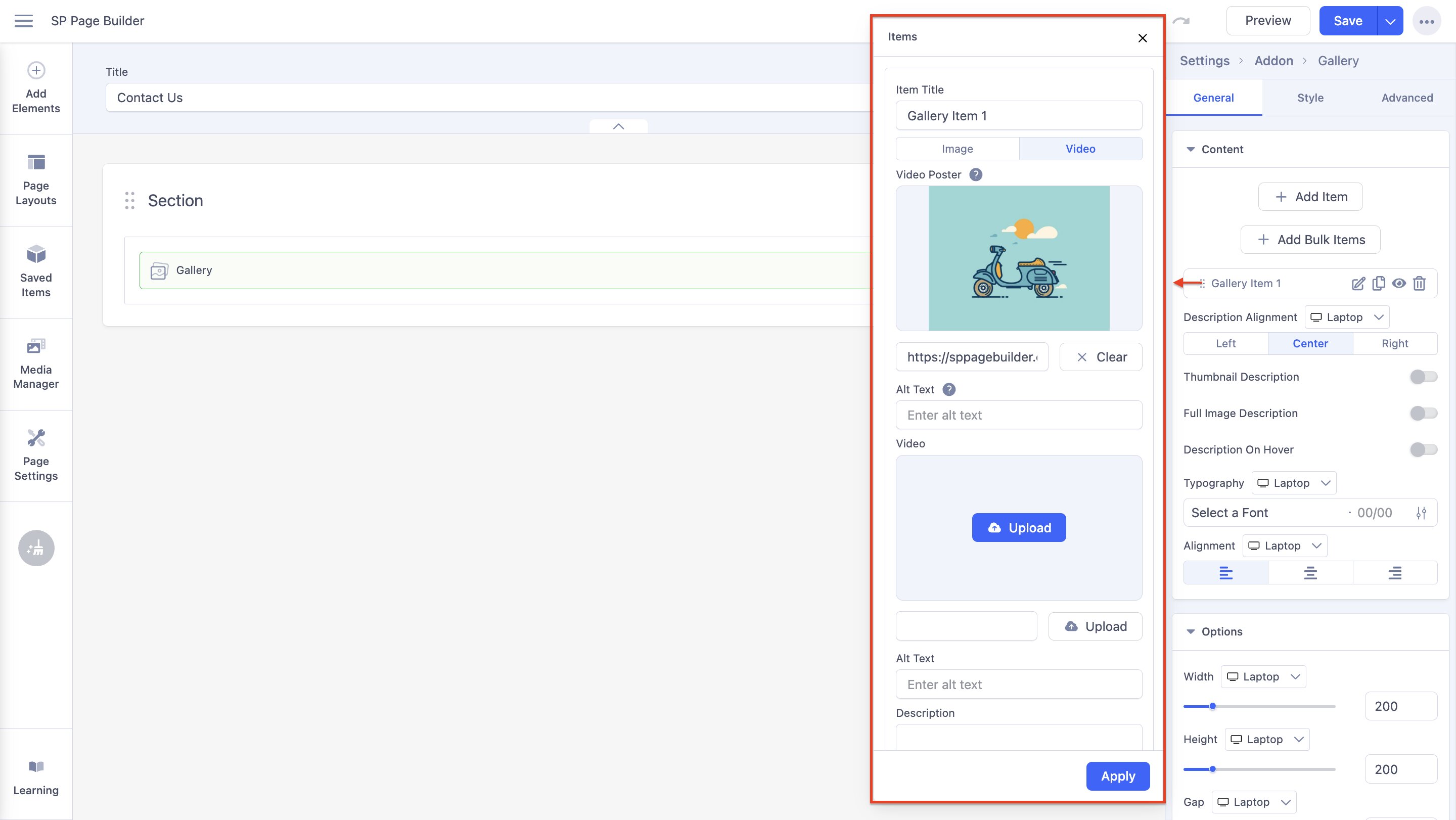
SP Page Builder Pro users can also insert videos as gallery items.
To add a video, click on the + Add button as you would while adding an image. Under the Item Title field, you will get the option to change the item type between “Image” and “Video”.
- Video Poster: Insert a poster image for the video by either uploading a video via the Media Manager or inserting a hyperlink in the relevant field.
- Alt Text: Insert alternative text for the video poster.
- Video: Upload or insert link to the video itself.
- Alt Text: Enter the alternative text for the video
- Description: Add a description for the video gallery item.
Options
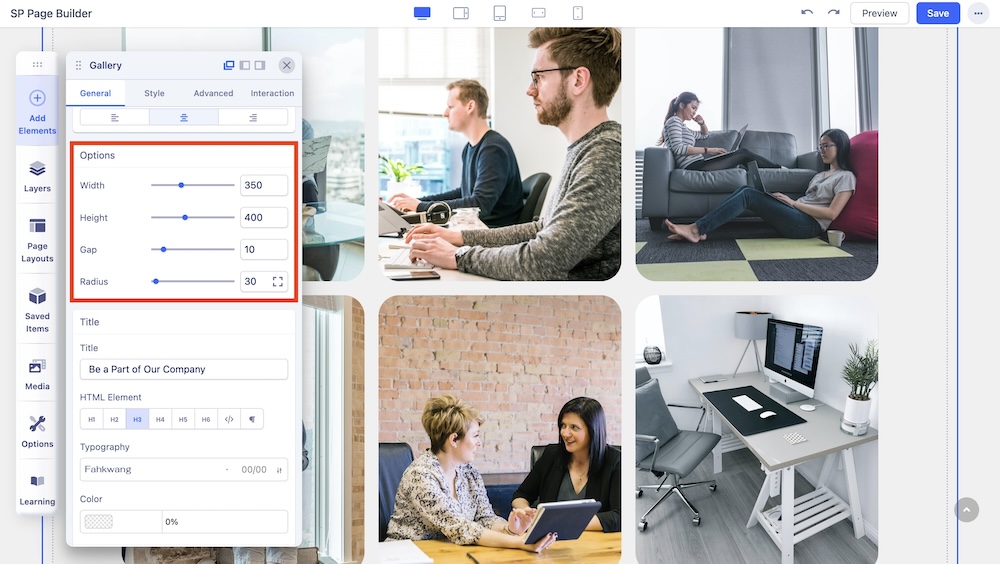
The Options settings allow you to customize the basic settings of your gallery image.
- Width: Set an optimum width of your image.
- Height: Set an optimum height for your image.
- Gap: Customize the gap between each image in your gallery to fit your needs.
- Radius: Use this option to add a radius to your Gallery addon’s items.
Title
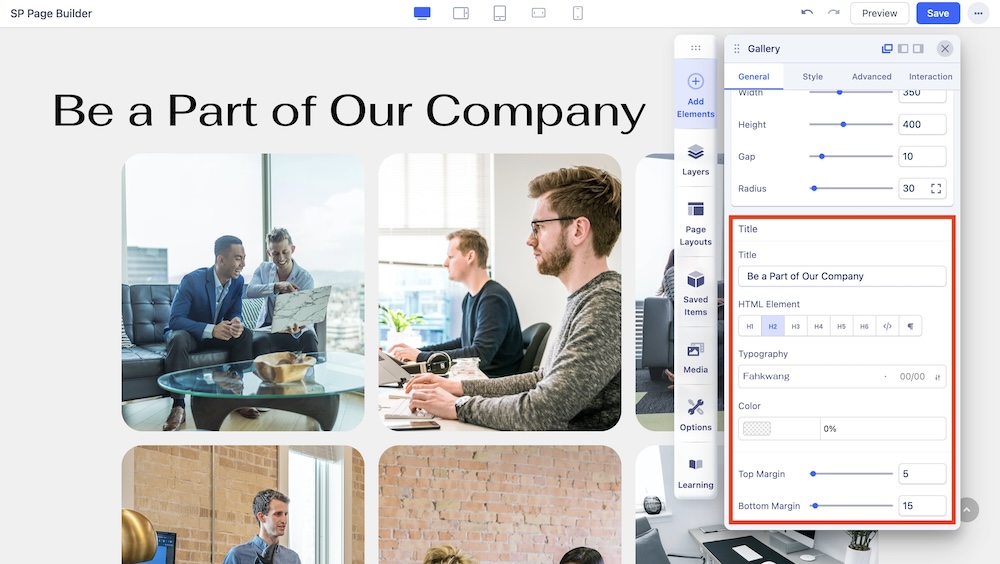
Use this tab to add a title to the section you just added with the addon.
- Title: Add a title to your addon.
- HTML Element: Set the HTML Element of your title.
- Typography: The Typography Settings lets you edit your title’s appearance to fit your preference. Adjust your font types, Size, Line Height, Letter Space, Style, and Weight for your Feature box button texts. Learn more about Typography here.
- Color: Choose your title’s color option. Learn more about color settings here.
- Top Margin: Adjust the top margin of the Gallery.
- Bottom Margin: Adjust the bottom margin of the Gallery.