

Sections
What is a Section
Sections or Rows give you an initial horizontal structure to your frontend page where you can apply styling to an entire row or add new add-ons to it, such as Columns, Text Blocks, etc.
How to Add Sections
There are 2 ways you can add a row.
On a New Page:
While creating a brand new page from scratch you should be able to see Add New Section button.
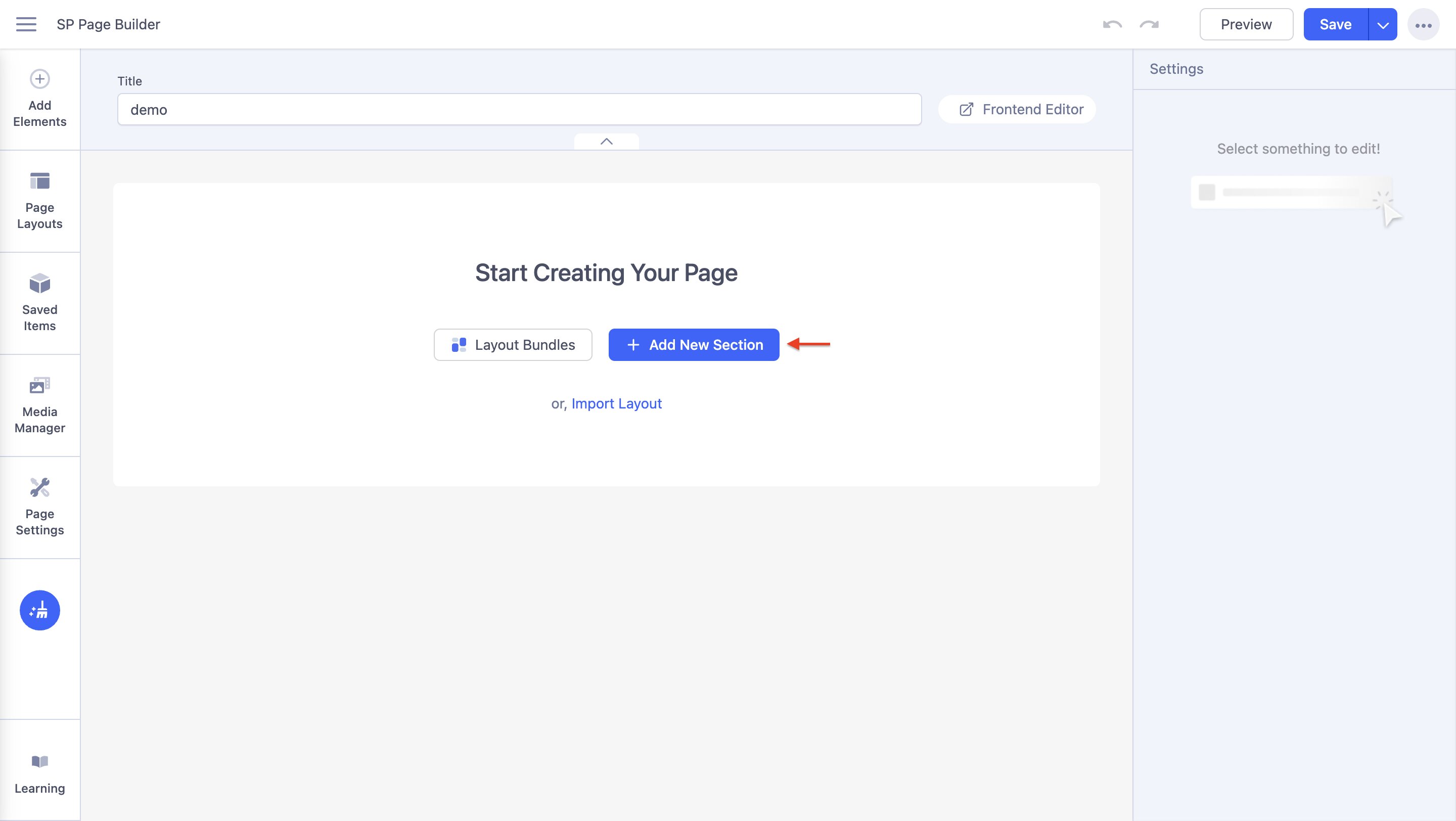
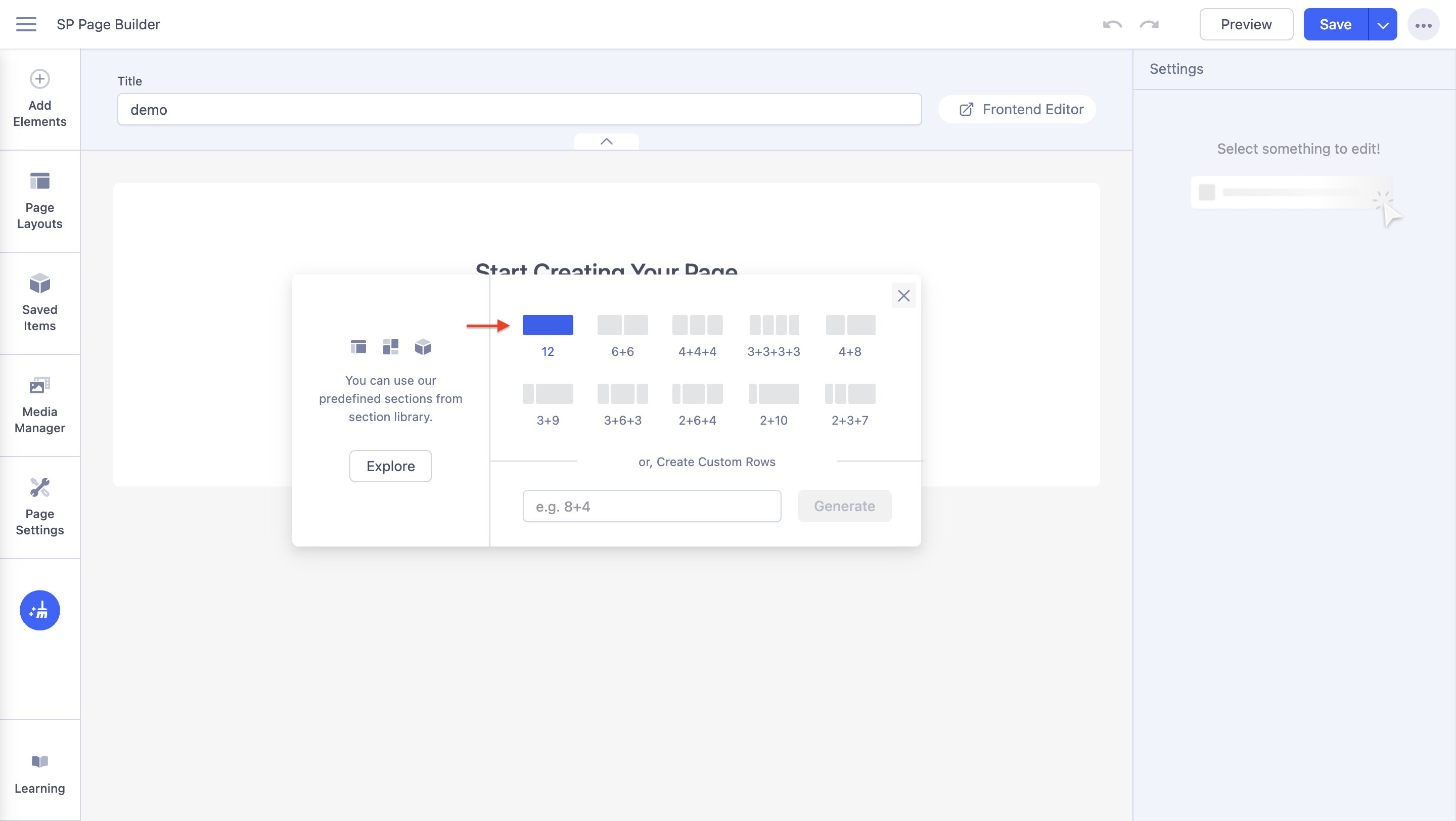
Click on the Add New Section button to get the option to choose your row layout. Choose the first layout (12) to add your row.
Using the (+) button:
Under each panel of sections and columns, you should be able to find an Add New Section Button (+) as shown in the screenshot.
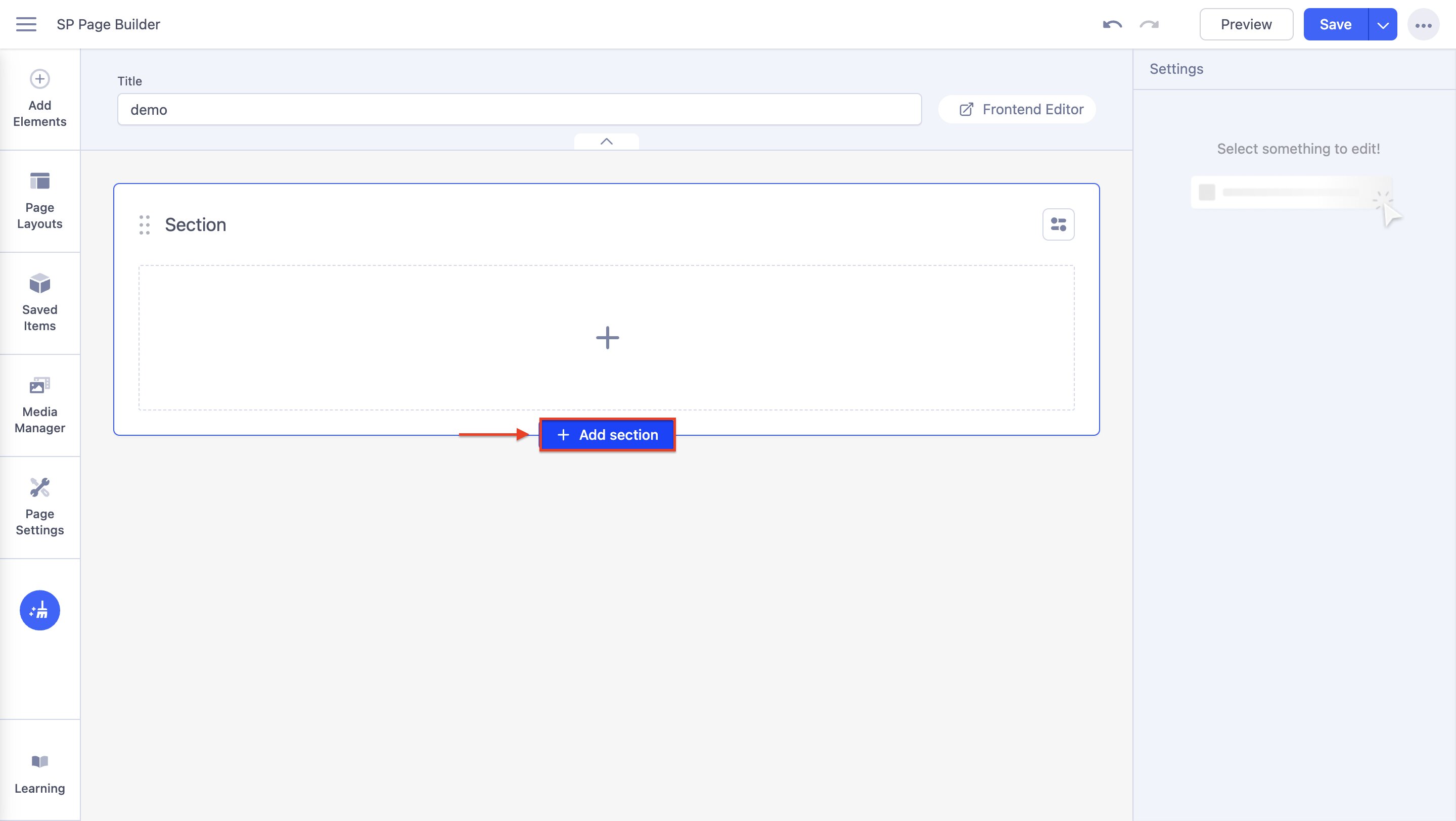
Click on the Add New Row Button (blue plus sign) to get the column generator. From the column generator, you can now choose and add your Sections.
How to Add Nested Sections
Make sure to add your sections/rows first. Once you have added your sections, navigate to the frontend sidebar and choose Addons. From the Structure Section choose Row. Drag and drop the row on your previously created sections. Your nested sections have been created.
You can also repeat the process multiple times to create a complex row and column layout.
Adjust Column Size
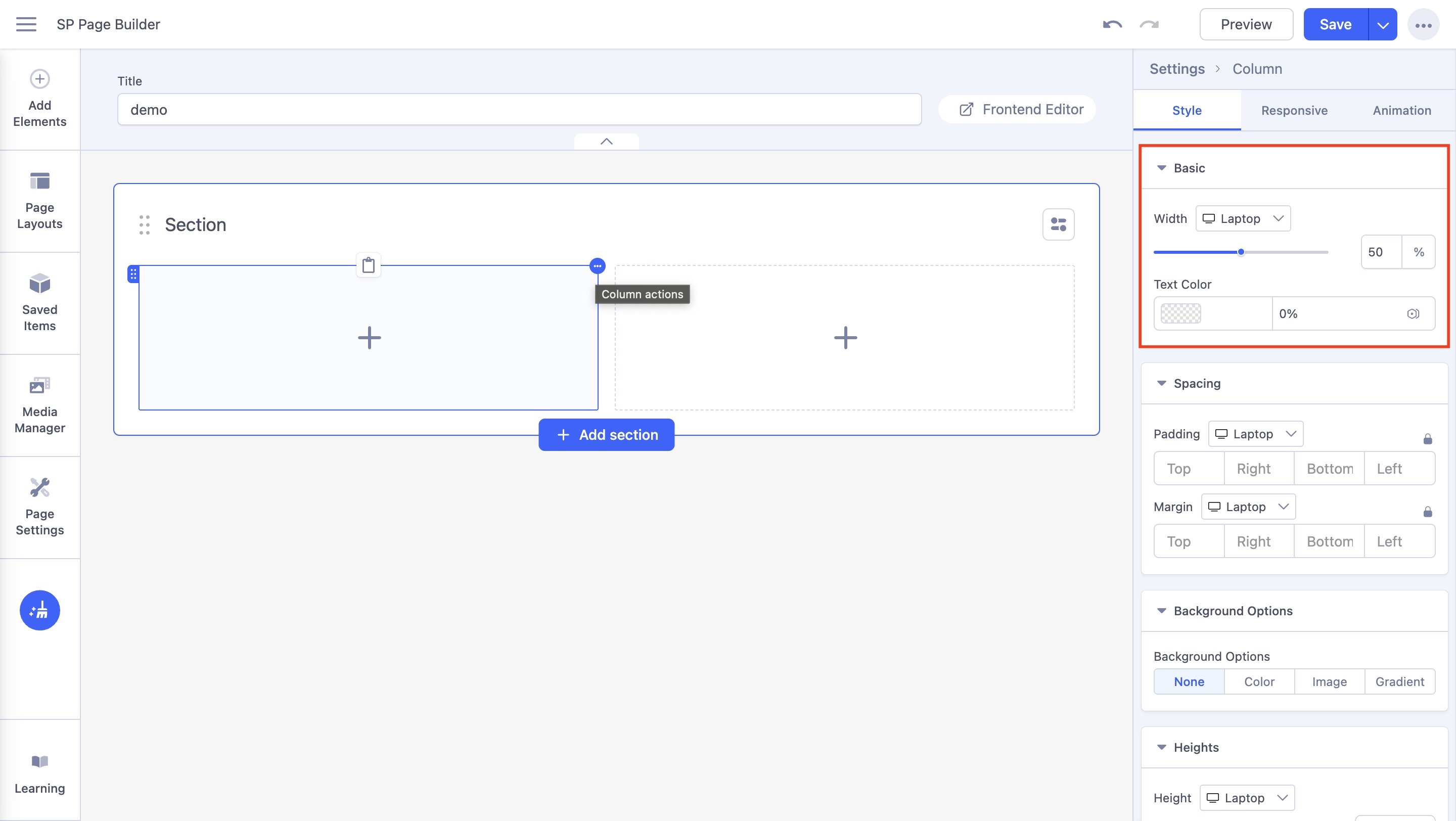
To adjust your column width, simply drag the column boundary and adjust the size according to your preference.
Or you can also resize your columns using the Width Slider or by simply specifying the width percentage.
Add Elements to a Section
Once you have created your sections you can now add your preferred addons. Navigate to the SP Page Builder Sidebar and simply choose your required addons. Drag and drop the addons inside the sections according to your requirements.
Basic

Admin Label: Define an admin label for easy identification.
Fill Columns: Fill the columns within the row. Laptop, Tablet Landscape, Tablet Portrait, Mobile Landscape, Mobile Portrait.
Text Color: Adjust the color of the label.
Background

Background: Set whether the background of the image will be a Color, Image, Gradient, or Video.
Custom Background Size: Change the custom background size based on screen size by using the slider or inputting a value in px, rem, em, or %.
Spacing

Padding: Set the padding values (Top, Right, Bottom, Left). Use the following units for values: px, em, or %. Padding is the space between the content of the element and its border. Negative values are not allowed.
Margin: Margin represents the space outside the element. Set the margin values (Top, Right, Bottom, Left). Use the following units for values: px, em, or %. Negative values are also allowed.
Column alignment

Determine column alignment from top, centered, and bottom-aligned positions.
Stretch Section

Stretch Section: Enable this option to make this row take up the full width.
Fluid Row

Container Max Width: Set the maximum width of the container. This width will not exceed the maximum width of the browser window.
Remove Columns Gap

Gap Between Columns: If the “Remove Columns Gap” setting is disabled, then you can enter a specific gap or spacing between columns in px, rem, em, or %.
Width Options
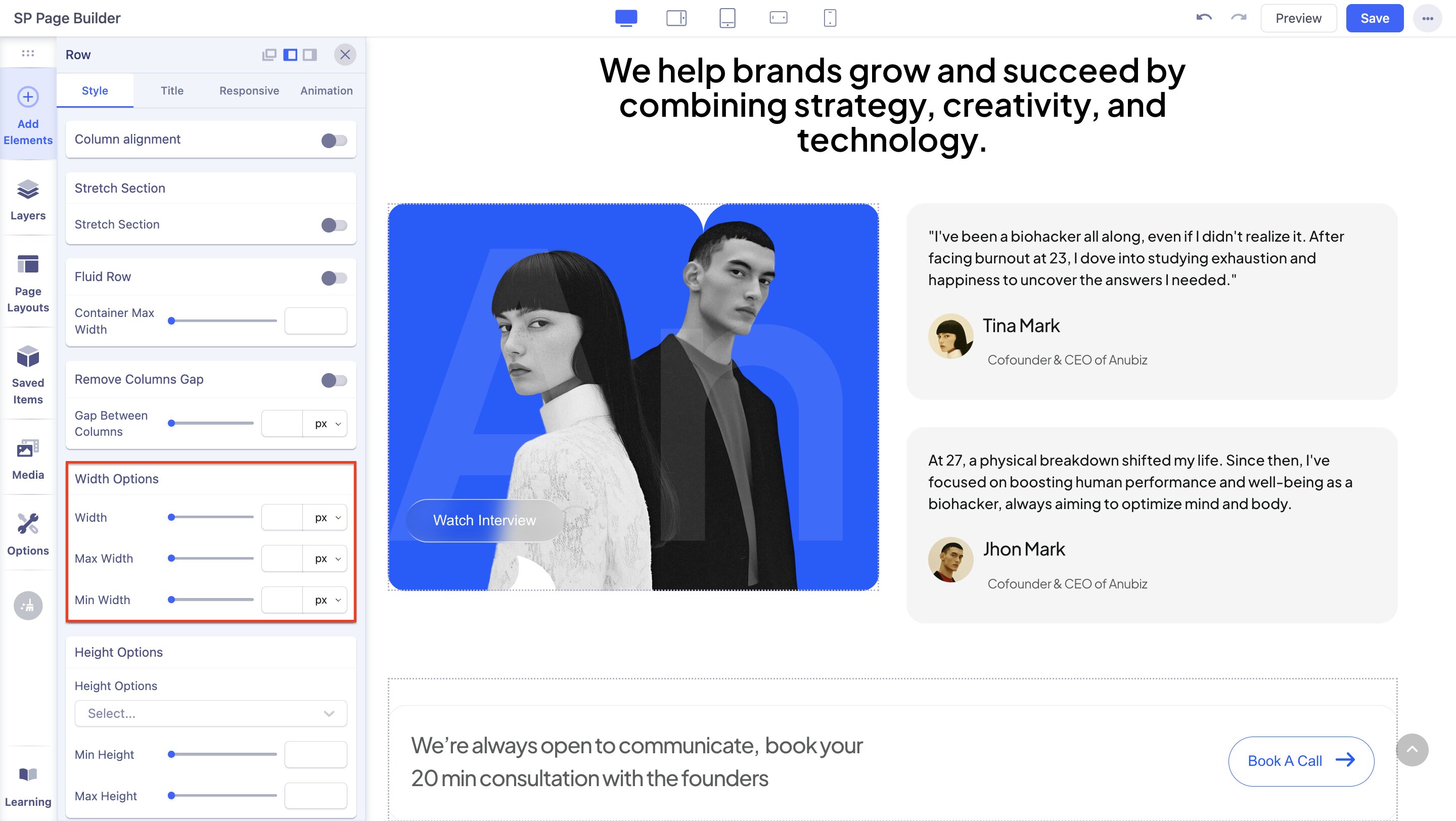
Width: Modify the section's width based on the screen size through the slider or by inputting a numerical value in px, rem, em, or %.
Max Width: Set a maximum width limit for the section.
Min Width: Set a minimum width limit for the section.
Height Options

Height Options: Select an option between “Window Height” and “Height”.
Height: This setting appears only if you have selected the “Height” option previously.
Min Height: Set a minimum height limit for the section.
Max Height: Set a maximum height limit for the section.
Border

Width: Modify the width of the section’s border based on the screen size through the slider or by inputting a numerical value in px, rem, em, or %.
Style: Select a border style between None, Solid, Double, Dotted, and Dashed.
Color: Set the color of the border.
Top Shape
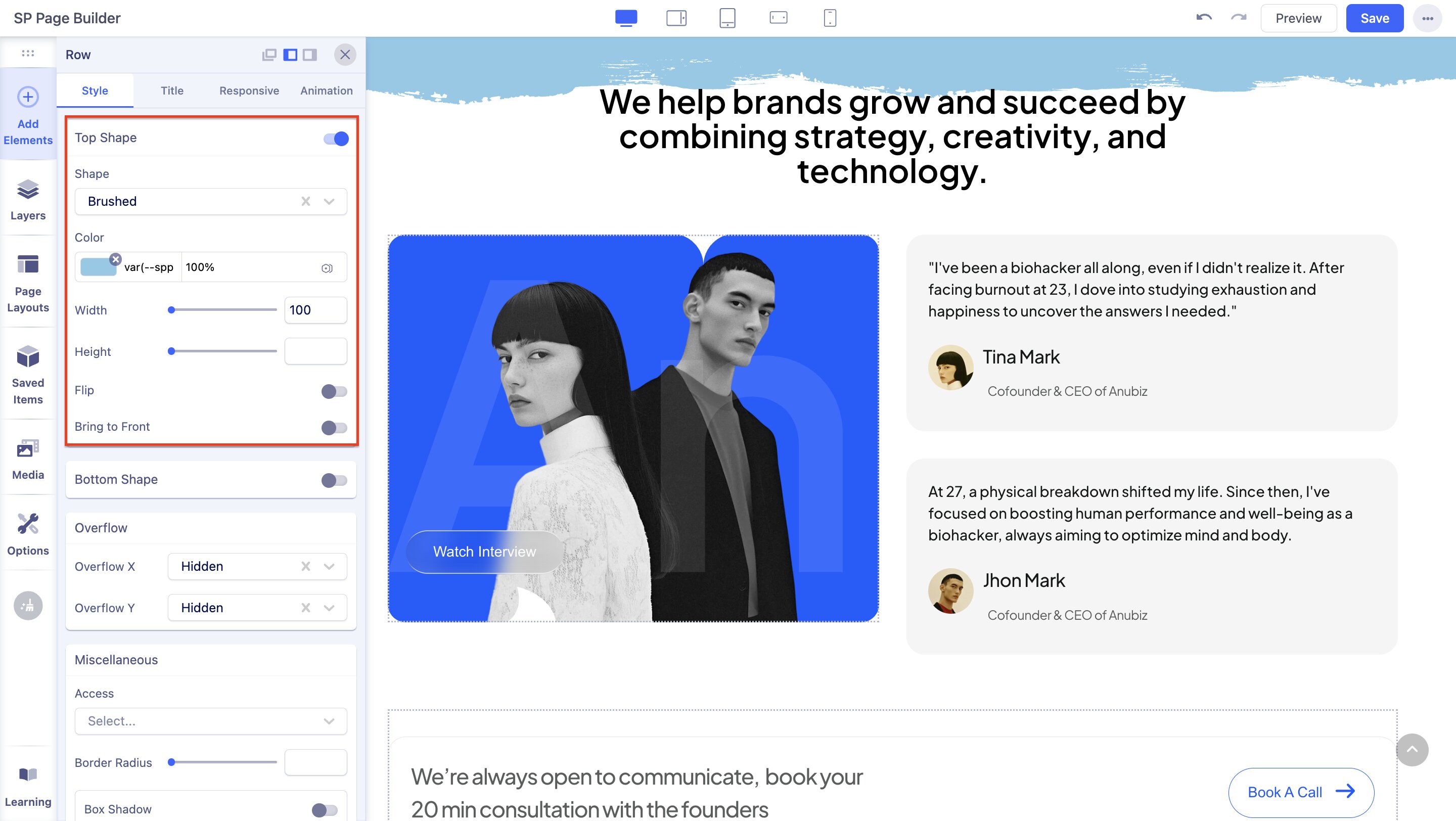
Shape: Customize the shape of the topmost portion of the section. Choose from the following options:
- Belly
- Flushed
- Clouds Flat
- Clouds Opacity
- Drip
- Hill
- Hill Wave
- Line Wave
- Paper Torn
- Pointy Wave
- Rocky Mountain
- Shaggy
- Single Wave
- Slope Opacity
- Slope
- Swirl
- Wavy Opacity
- Waves3 Opacity
- Turning Slope
- Zigzag Sharp
- Custom SVG
Custom SVG Code: If "Custom SVG" is selected in the previous option, then you can input a custom SVG code in a text field.
Color: Choose the color and opacity of the shape.
Width: Set the width of the shape.
Height: Set the height of the shape.
Flip: Select this option to flip the shape to the opposite side.
Invert: Select this option to invert the shape.
Bring to Front: Select this option to place the shape above the section’s content.
Bottom Shape
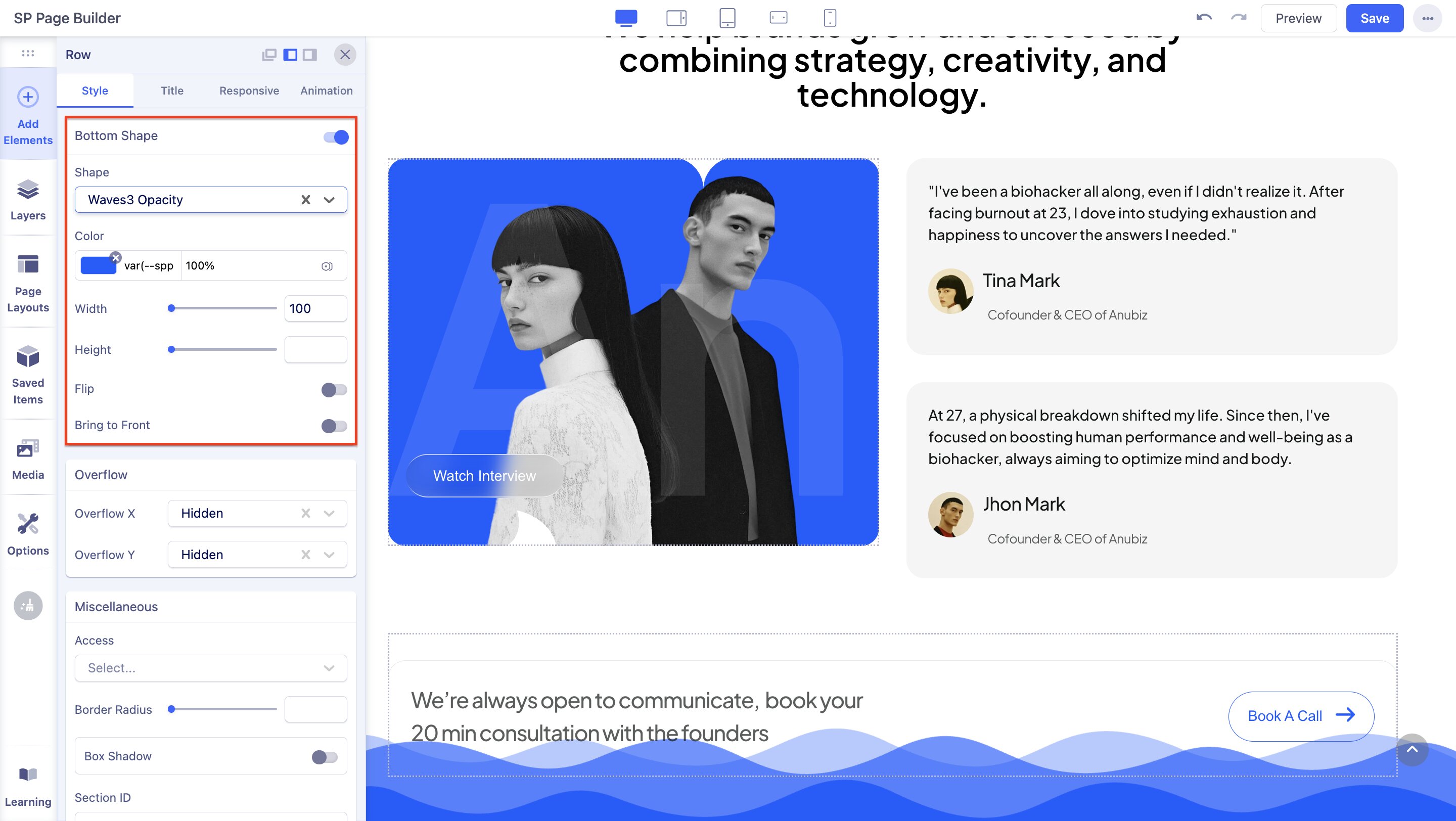
Shape: Customize the shape of the bottom portion of the section. Choose from the following options:
- Belly
- Flushed
- Clouds Flat
- Clouds Opacity
- Drip
- Hill
- Hill Wave
- Line Wave
- Paper Torn
- Pointy Wave
- Rocky Mountain
- Shaggy
- Single Wave
- Slope Opacity
- Slope
- Swirl
- Wavy Opacity
- Waves3 Opacity
- Turning Slope
- Zigzag Sharp
- Custom SVG
Custom SVG Code: If "Custom SVG" is selected in the previous option, then you can input a custom SVG code in a text field.
Color: Choose the color and opacity of the shape.
Width: Set the width of the shape.
Height: Set the height of the shape.
Flip: Select this option to flip the shape to the opposite side.
Invert: Select this option to invert the shape.
Bring to Front: Select this option to place the shape above the section’s content.
Overflow
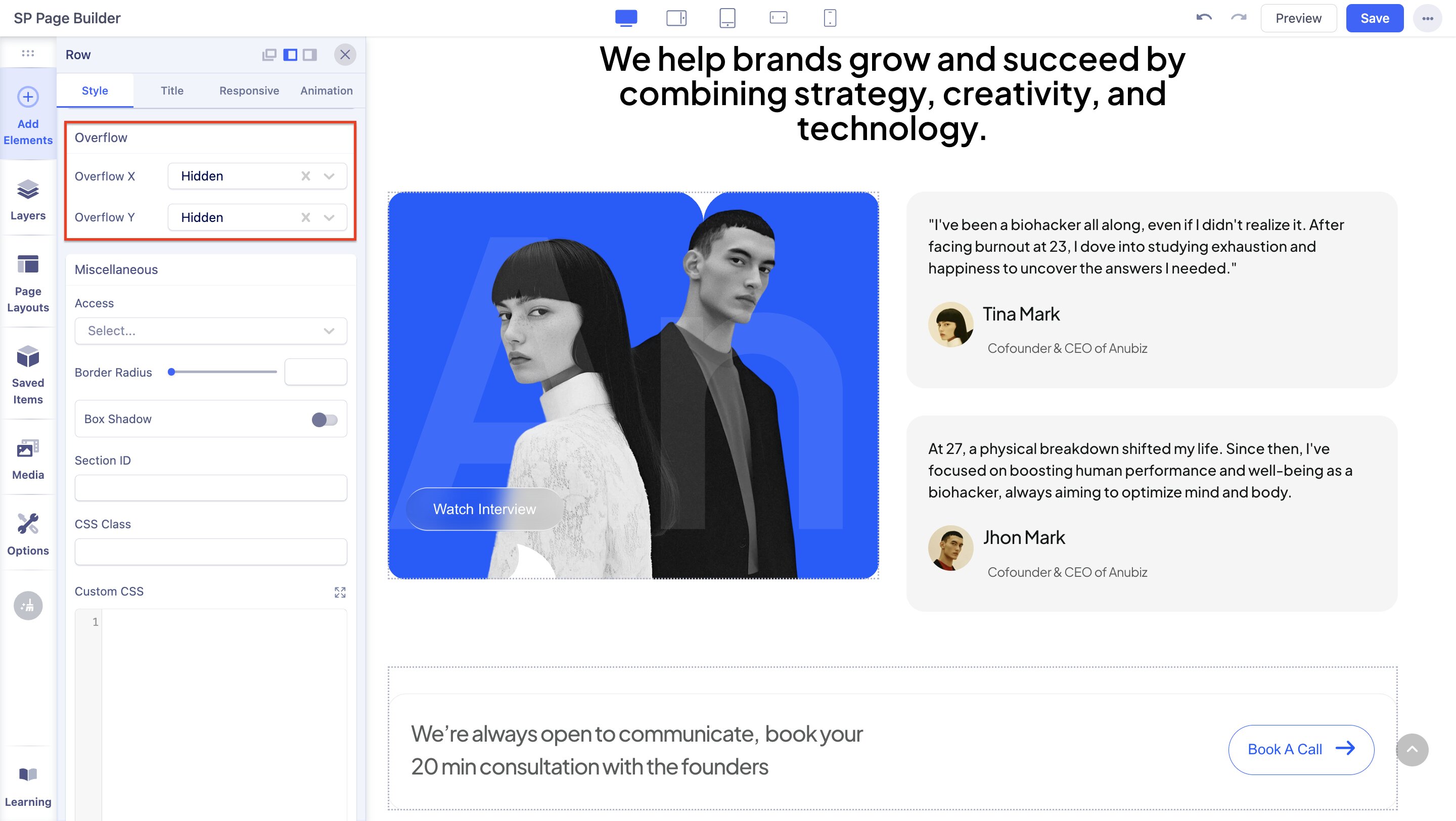
Overflow X: Select an option between Auto, Hidden, Initial, Scroll, and Visible.
Overflow Y: Select an option between Auto, Hidden, Initial, Scroll, and Visible.
Miscellaneous
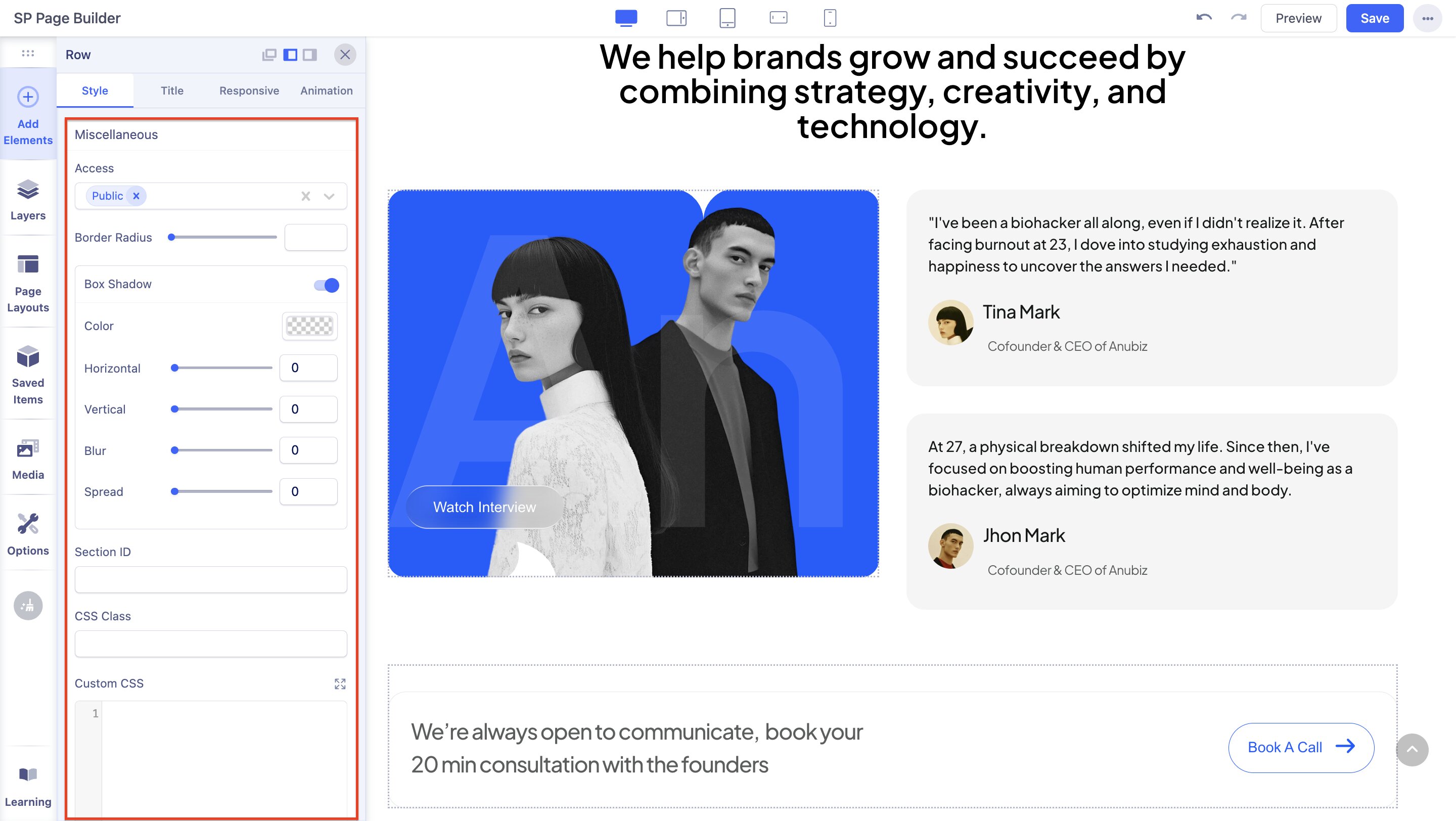
Access: Choose the user group(s) that are allowed to view this section. Leaving blank will make it public.
Border Radius: Set the border radius values (Top, Right, Bottom, Left). Use 'px' unit after inputing value. Negative values are not allowed.
Box Shadow: Enable a box shadow for the section and adjust the Color as well as the Horizontal, Vertical, Blur, and Spread values.
Section ID: A unique ID that will be applied to this row. Must start with a letter and may only contain dashes, underscores, letters, or numbers. No spaces.
CSS Class: If you wish to style a particular content element differently, then use this field to add a class name and also refer to it in your CSS file.
Custom CSS: Enter custom CSS code for the section.
ACL Functionality
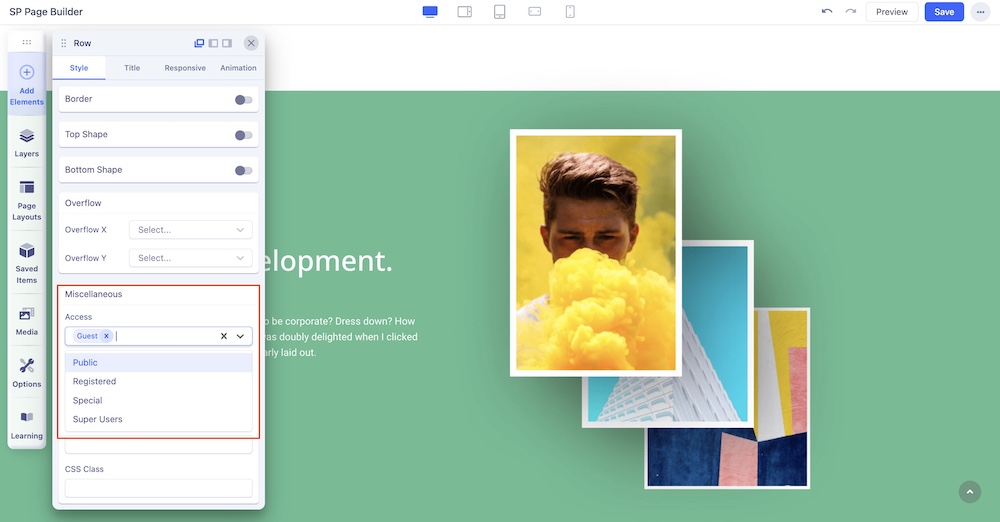
The ACL functionality of the Section settings lets you control over permissions and restrictions for users accessing and modifying row settings. From your Section’s Style settings, scroll down to the Miscellaneous section and locate “Access”. Click on the dropdown menu and designate the permitted users. Please note that you can choose one or more users from the dropdown list.