
Translate Storefront, Single Store, and Collection Pages with SP Page Builder
You can translate product details, attributes, and settings within EasyStore. However, to translate other page elements, such as buttons and headings, you'll need to use SP Page Builder.
When editing an EasyStore page with SP Page Builder:
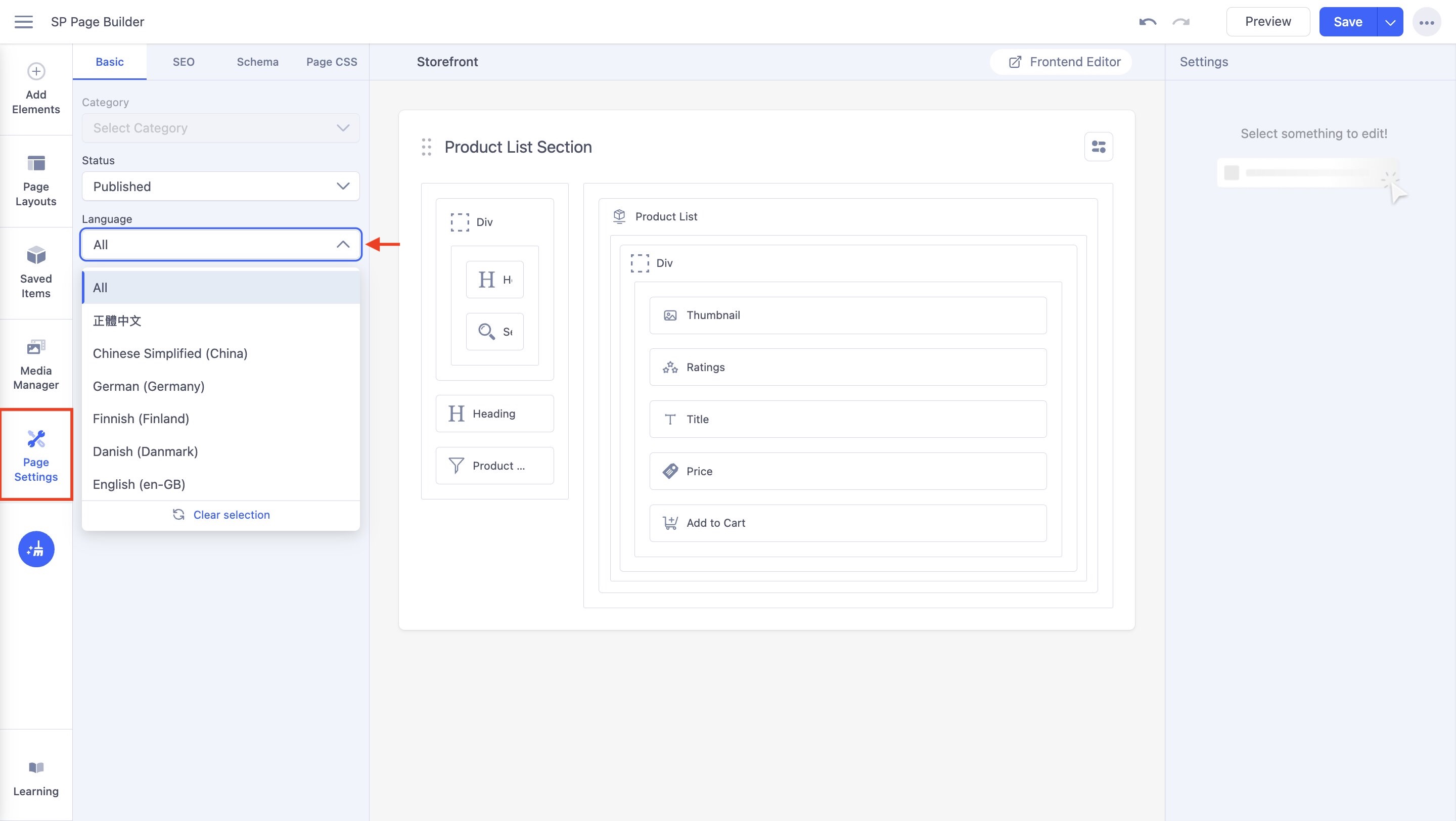
- Go to Page Settings > Basic and select the Language using the dropdown menu.
- Based on the language you select, a new version of the page will be used.
- Translate the text in addons that contain text fields, such as the Text Block, Heading, Button addons, etc.
- Click Save.
This will not change the original page or other language versions; instead, it will save a version containing the translations for the particular language chosen. - Feel free to pick a different language and add its respective translations following the same process.
Note: This feature applies only to content managed directly through SP Page Builder, specifically addons that contain text fields. EasyStore-specific content, such as product names, prices, and categories, is loaded dynamically. These aren't translated from the SP Page Builder editor; instead, they use the translations you've already configured through EasyStore's multilingual system.