
Translating Collections and Brands
Similar to product categories and tags, upon configuring multilingual support, you can also translate product collections and brands without having to make any alterations to the original content.
Translate a Collection
- Go to Components > EasyStore > Collections.
- Locate the collection you want to translate.
- Click Auto Translate or translate manually.
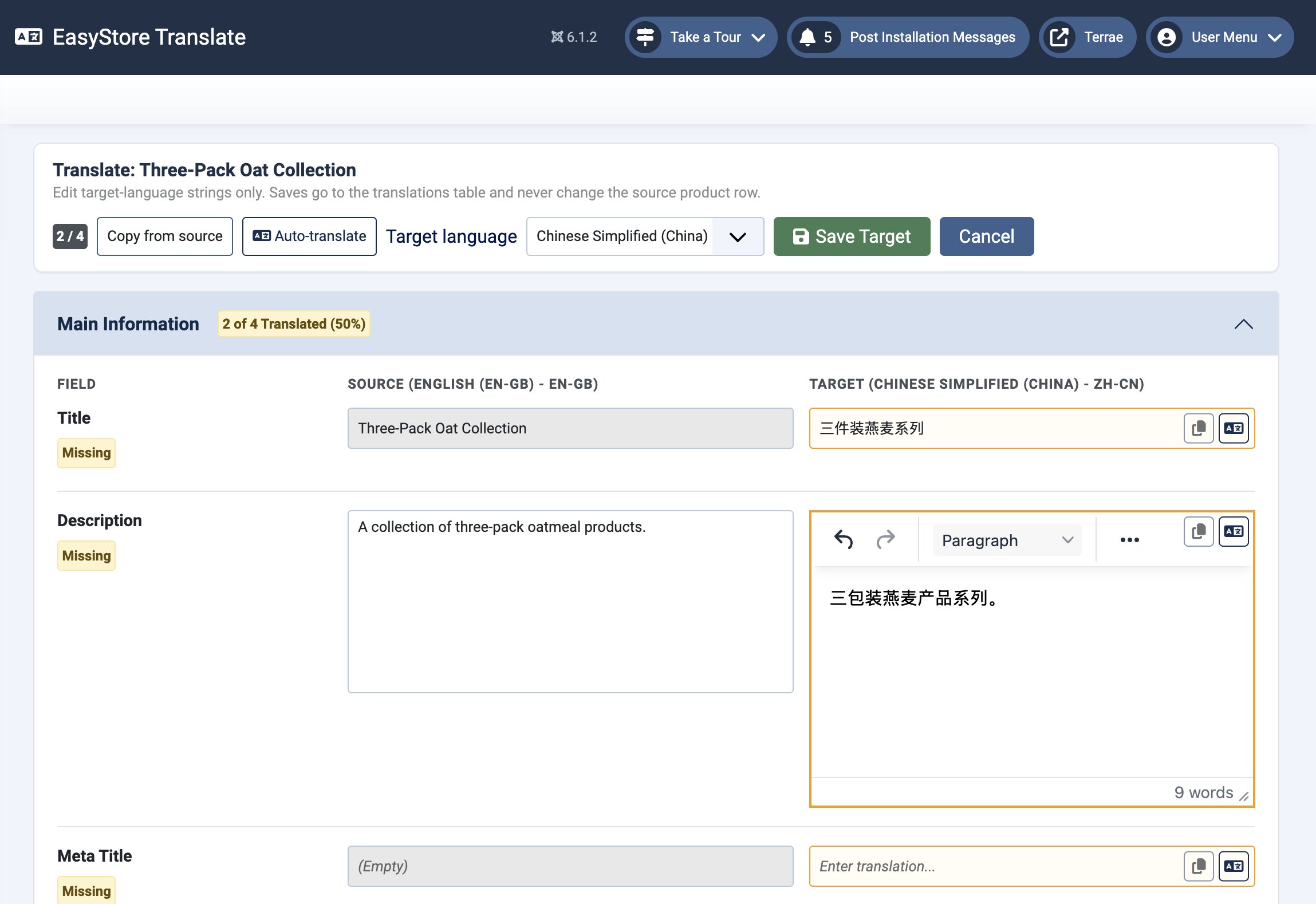
The translation editor opens with the original collection content on the left and the translation fields on the right.
Note: Collection translations are language-specific. Editing a translation never modifies the original collection.
Translate a Brand
- Go to Components > EasyStore > Brands.
- Locate the brand you want to translate.
- Click Auto-translate beneath the brand name or translate manually.
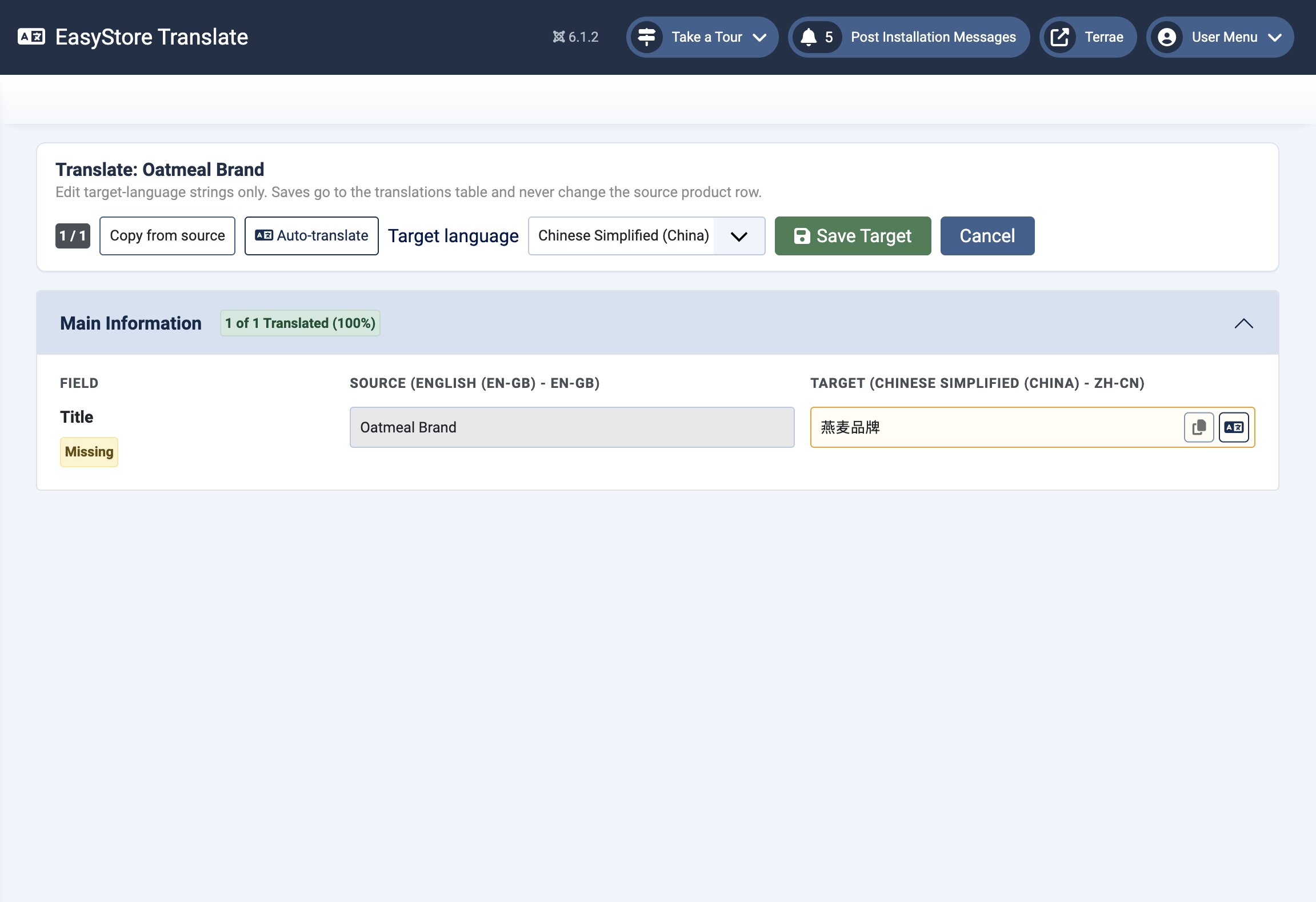
The translation editor opens in the same side-by-side layout used for collection translations.
Note: Brand translations are stored independently for each language and do not affect the original brand.
Understanding the Translation Editor
The translation editor uses a side-by-side layout, allowing you to compare the original content with its translation while you work.
Source
The Source panel displays the original collection or brand information in your store's default language. This content is read-only and serves as the reference for your translation.
Depending on what you're translating, the Source panel displays information fetched from the original item, including:
- Title – from the Collection or Brand title.
- Description – from the Collection description.
- Meta Title – from the Collection's Meta Title field.
- Meta Description – from the Collection's Meta Description field.
Note: For Brands, only titles can be translated. The Description, Meta Title, and Meta Description fields can't be translated since they are absent from the source itself.
Target
The Target panel is where you enter the translated content for the selected language.
Each field displays a Translated badge after it has been saved, making it easy to identify completed translations.
The Description field uses a rich text editor, allowing you to preserve formatting such as headings, paragraphs, lists, bold text, and line breaks.
Translation Progress
A progress indicator at the top of the page shows how many fields have been translated for the selected language.
For example, 2/2 indicates that all available fields have been translated.
Toolbar Actions
The toolbar at the top of the translation editor provides several actions to help manage your translations.
- Copy from Source: Copies the original category or tag content into the target fields. This is useful when only minor edits are needed.
- Target Language: Switches to another language without leaving the current category or tag.
- Save Target: Saves the translated content for the selected language.
- Cancel: Closes the translation editor without saving any unsaved changes.
Notes
- Collection and brand translations are stored separately for each language.
- Saving a translation never overwrites the original collection or brand.
- Collections and brands must be translated individually. Bulk translation is not currently supported.