

Translating Products
After setting up multilingual support in EasyStore, you can translate your products into multiple languages without modifying the original product information.
Translate a Product
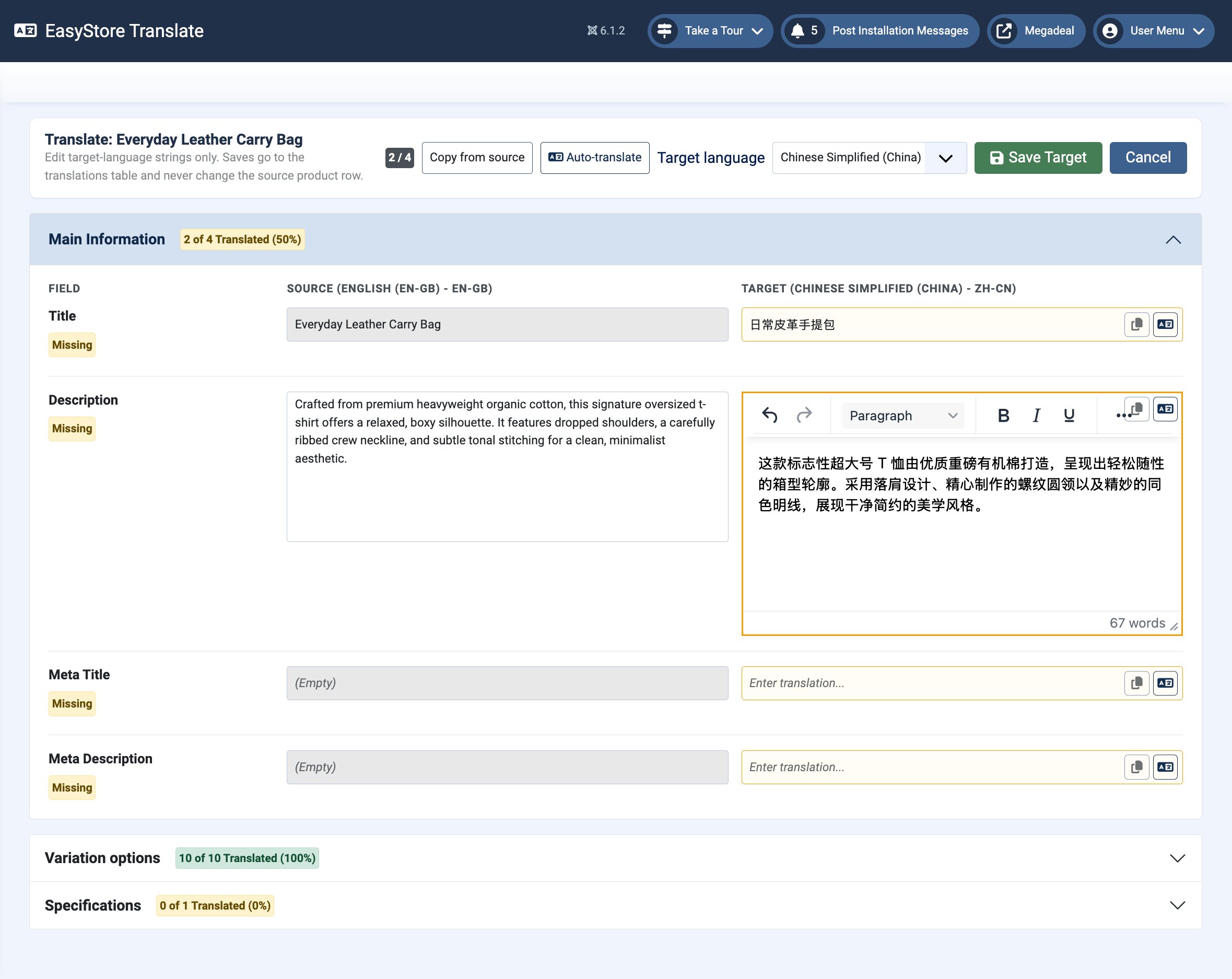
- Go to Components > EasyStore > Products.
- Find the product you want to translate.
- Click Translate adjacent to the product title.
The translation editor opens in a side-by-side layout. The left panel displays the original product content, while the right panel is where you enter the translation..
Understanding the Translation Editor
The translation editor is divided into two panels: Source and Target. This way it's easier to compare the original content with its translation.
Source Panel
The Source panel displays the product’s information in your store's default language. It serves as a reference while translating and cannot be edited.
Depending on your product, the Source panel displays information fetched from the original product, including:
- Title – from the product's title.
- Description – from the product's Description field.
- Meta Title – from the product's Meta Title field.
- Meta Description – from the product's Meta Description field.
- Variations – from the product's Variations section.
- Specifications – from the product's Specifications section.
Target Panel
The Target panel contains the translation fields for the selected language.
Enter the translated content for each field if you are translating manually or hit Auto-translate if you are using AI. After saving, a Translated badge appears beside completed fields, to let you easily identify which content has already been translated.
The Description field uses the same rich-text editor as the product editor to allow you to preserve formatting such as:
- Paragraphs
- Headings
- Bold and italic text
- Lists
- Line breaks
Track Translation Progress
A progress counter at the top of the page shows how many fields have been translated for the selected language.
For example:
4 / 4 indicates that all available fields have been translated.
This progress updates automatically as you complete additional fields.
Translate Product Variations
If your product includes variations, such as Size, Color, or Flavor, they appear below the main product information.
Variations are grouped by option name in collapsible sections. Translate each variation value in the corresponding target field.
Each variation group includes its own progress indicator so you can quickly see whether all values have been translated.
Translate Product Specifications
Product specifications contain additional information about your products, such as technical details, materials, dimensions, or other custom attributes.
Like variations, each specification group includes a progress indicator to help you monitor translation status.
Toolbar Controls
The toolbar at the top of the translation editor provides several actions to help manage your translations.
- Copy from Source: Copies all original content into the target fields. This is useful when you only need to make minor edits instead of translating every field manually.
- Target Language: Lets you switch to another language without leaving the current product.
- Save Target: Saves the translated content for the currently selected language.
- Cancel: Closes the translation editor without saving any unsaved changes.
Things to Know
- Each product is translated individually.
- EasyStore does not currently support bulk product translation.
- The original product always remains unchanged.
- Each language maintains its own independent translation.
- You can return and update translations at any time.