

Translating Variants, Attributes, and Settings
After configuring multilingual support, you can also translate the global product attributes and settings.
Translate Attributes
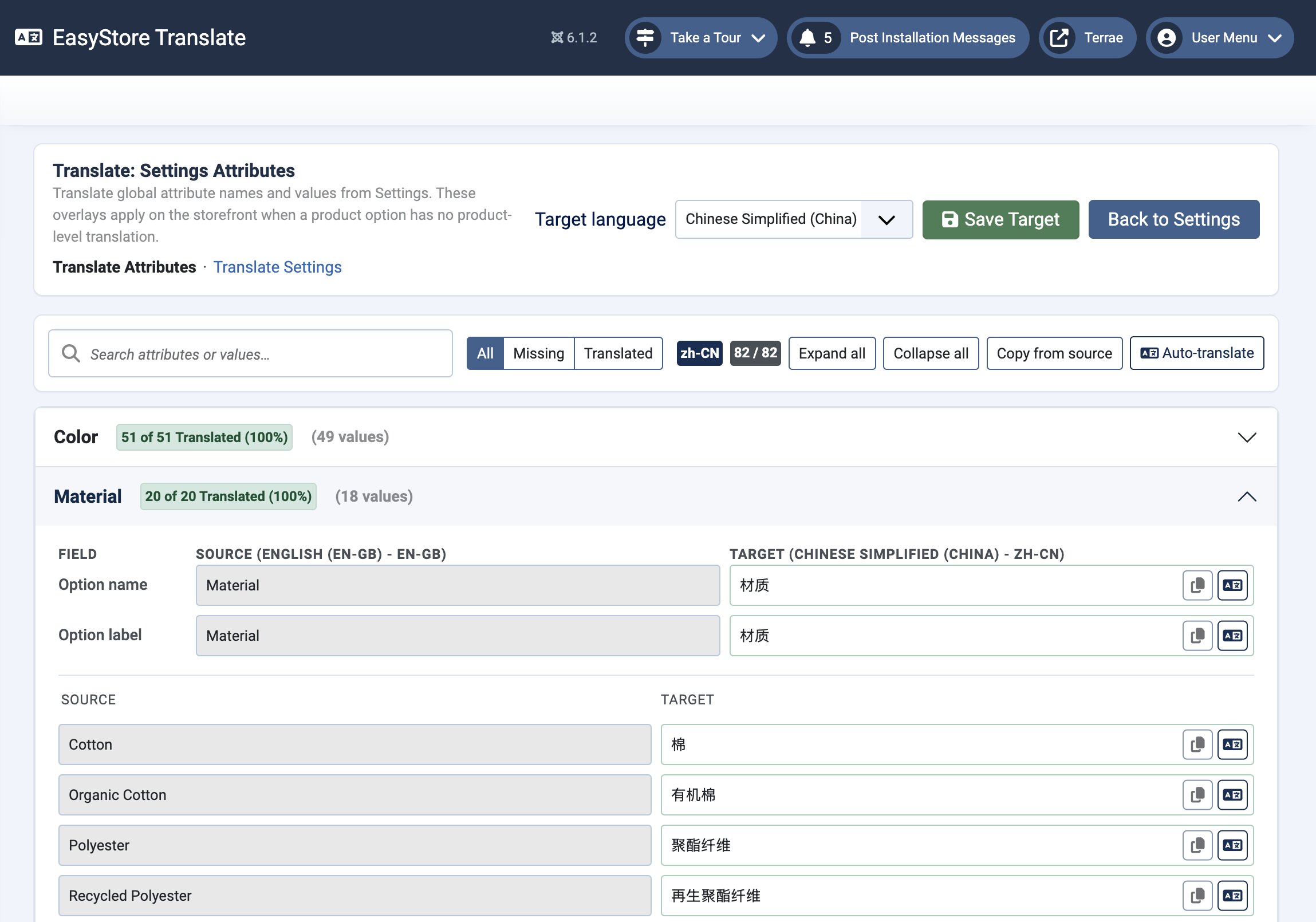
- Go to Components > EasyStore > Settings.
- Click on Translate Attributes.
- Select Target Language and click on Auto Translate to translate all the variants at once or translate each manually.
The translation editor opens with the original variant content on the left and the translation fields on the right.
Note: Translations for variations made here will be reused across every product. Consequently, EasyStore will utilize these global translations if a product variant doesn't possess its own unique translation.
Translate Settings
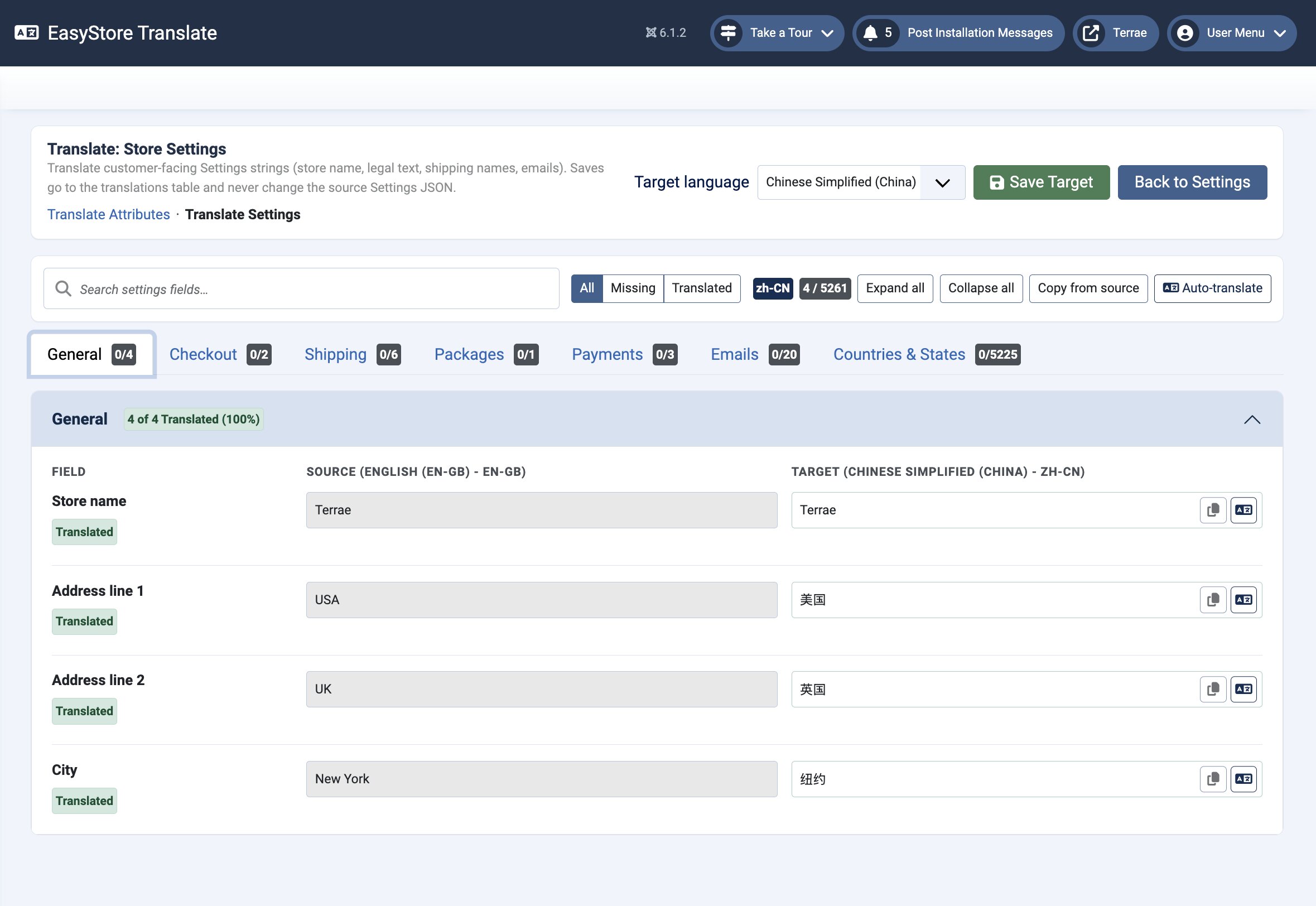
- Go to Components > EasyStore > Settings.
- Click on Translate Settings.
- Select Target Language and click on Auto Translate to translate all the settings at once or translate each manually.
The translation editor opens in the same side-by-side layout used for setting translations.
Note: Setting translations are stored independently for each language and do not affect the actual settings.
Understanding the Translation Editor
The translation editor uses a side-by-side layout, allowing you to compare the original content with its translation while you work.
Source
The Source panel displays the original attributes and settings information in your store's default language. This content is read-only and serves as the reference for your translation.
For Attributes, the Source panel displays information fetched from the original items from the Variation Library, each accessible via dropdown menus. Every variant includes the following translatable fields:
- Option Name – the name of the variation type from the variation library.
- Option Label – the label of the variation type from the variation library.
- Values – the values of each variation type. The source name of the values depends on the name set in the variation library.
For Settings, the Source panel displays information on separate tabs, fetched from the settings options. The list of tabs and their respective translatable fields is as follows:
General
- Store name – from Store name in General settings.
- Address line 1 – from Address line 1 in General settings.
- Address line 2 – from Address line 2 in General settings.
- City – from City in General settings.
Checkout
- Terms & conditions – from terms & conditions in Checkout settings.
- Privacy policy – from Privacy policy in Checkout settings.
Shipping
- Region Name – The source names of the regions depend on the names of the Shipping Regions set in the Shipping settings.
- Free Shipping (Region Name) – from Free Shipping in Shipping settings.
- Rate by Weight (Region Name) – from Rate by Weight in Shipping settings.
- Carriers (Region Name) – from Shipping Carriers in Shipping settings.
- Local Pickup (Region Name) – from Local Pickup in Shipping settings.
Package
- Package Name – The source names of the packages depend on the names of the Shipping Packages set in the Shipping settings.
Emails
You will be able to translate the text in the email subject and email body from Email Notification settings based on the following email types:
- New Order Notification for Customer
- New Order Notification for Admin
- Order Refund
- Order Cancelled
- Order Cancelled (Admin)
- Payment Success
- Payment Error
- Payment Received – Order Successfully Placed
- Shipping Carrier Added
- New Account
Countries & States
- Country Name – The source names of the countries from the shipping regions.
Target
The Target panel is where you enter the translated content for the selected language.
Each field displays a Translated badge after it has been saved, making it easy to identify completed translations.
The Description field uses a rich text editor, allowing you to preserve formatting such as headings, paragraphs, lists, bold text, and line breaks.
Translation Progress
A progress indicator at the top of the page shows how many fields have been translated for the selected language.
For example, 2/2 indicates that all available fields have been translated.
Toolbar Actions
The toolbar at the top of the translation editor provides several actions to help manage your translations.
- Copy from Source: Copies the original attribute or setting content into the target fields. This is useful when only minor edits are needed.
- Target Language: Switches to another language without leaving the current attribute or setting.
- Save Target: Saves the translated content for the selected language.
- Cancel: Closes the translation editor without saving any unsaved changes.
Notes
- Attributes and settings translations are stored separately for each language.
- Saving a translation never overwrites the original attributes and settings.