

Create an Article Detail Page
A Dynamic Article Detail page is the layout that displays the full article when clicked from the Dynamic Article Index page. The Index page lists article previews, while the Detail page shows the entire article with text, images, and related data in a consistent design.
Example:
Clicking an article title on the Index page opens the Detail page to show the full article.
Creating a Dynamic Article Details Page
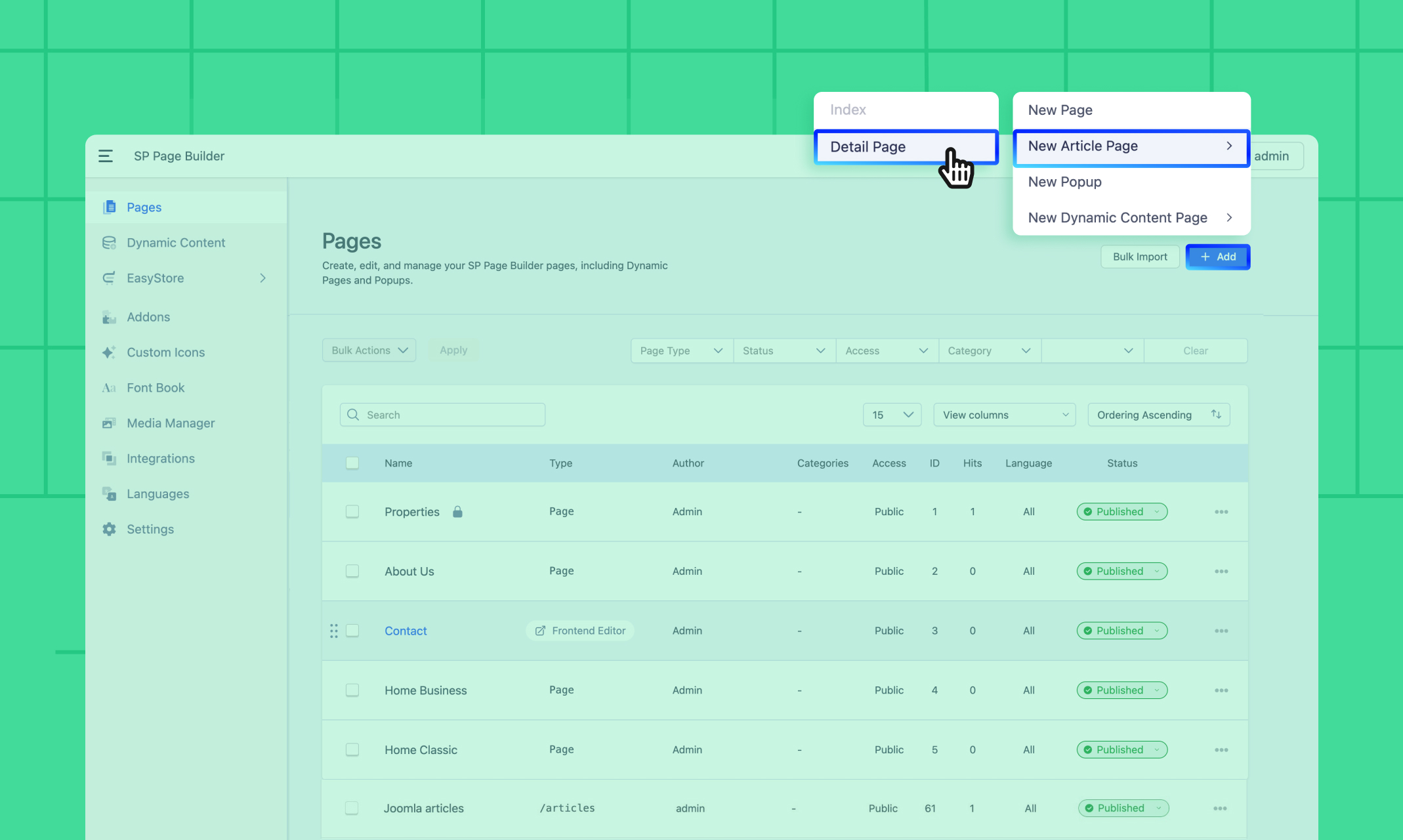
To create a Dynamic Article Details Page in SP Page Builder, follow these steps:
- Navigate to SP Page Builder from your Joomla dashboard
- Go to Pages > Click + Add > Select New Article Page.
- From the submenu, select Detail Page to create an Article Detail page.
- Give your Article Detail page a name and proceed to the next step.
Note: A slug (URL) will be automatically generated for this dynamic page, which can be accessed from the Pages List.
Default Article Detail Page Layout
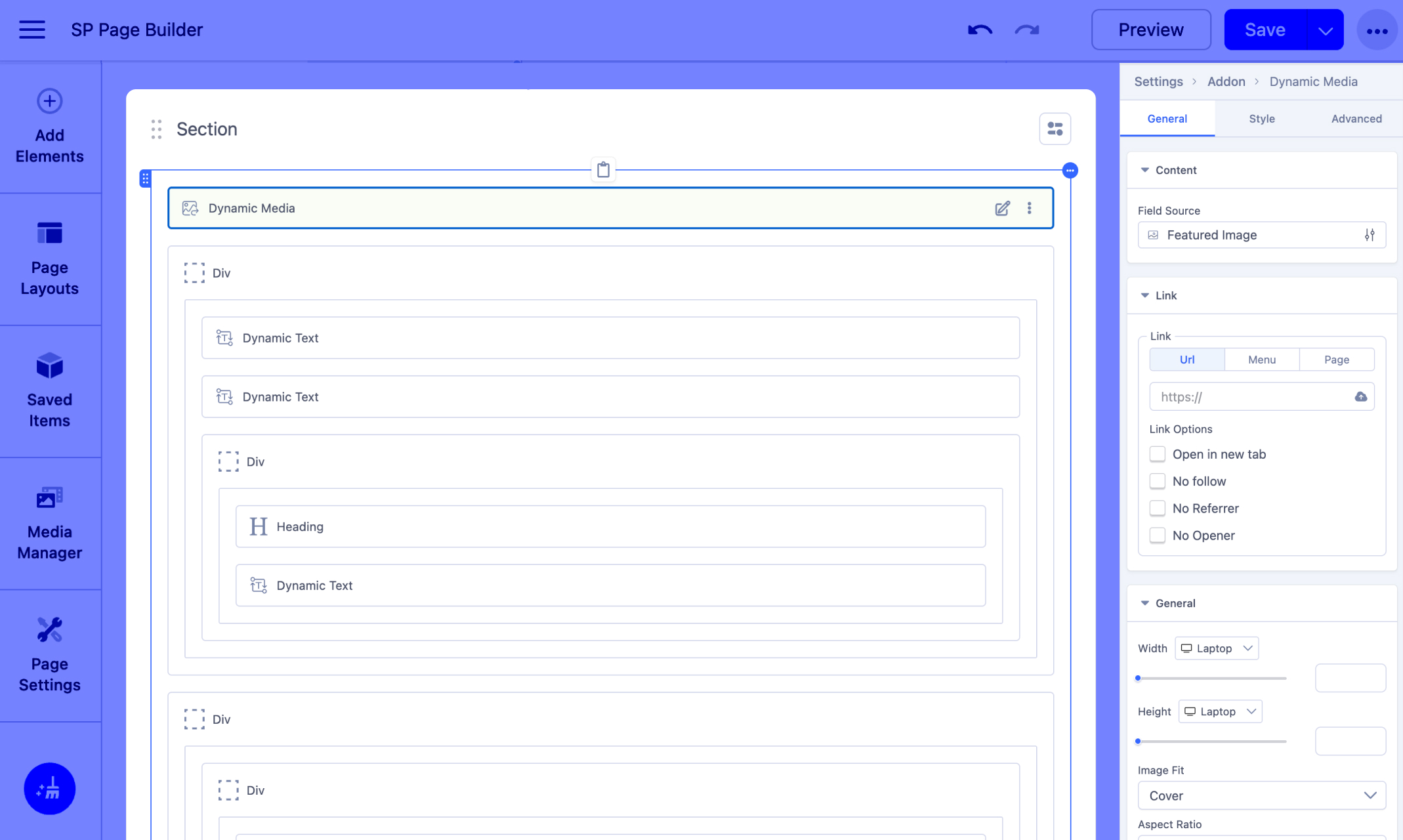
After creating an Article Detail page, a basic layout is automatically generated for you. You can either make quick adjustments to the generated layout or fully customize the page to match your preferences.
Designing the Article Detail Page
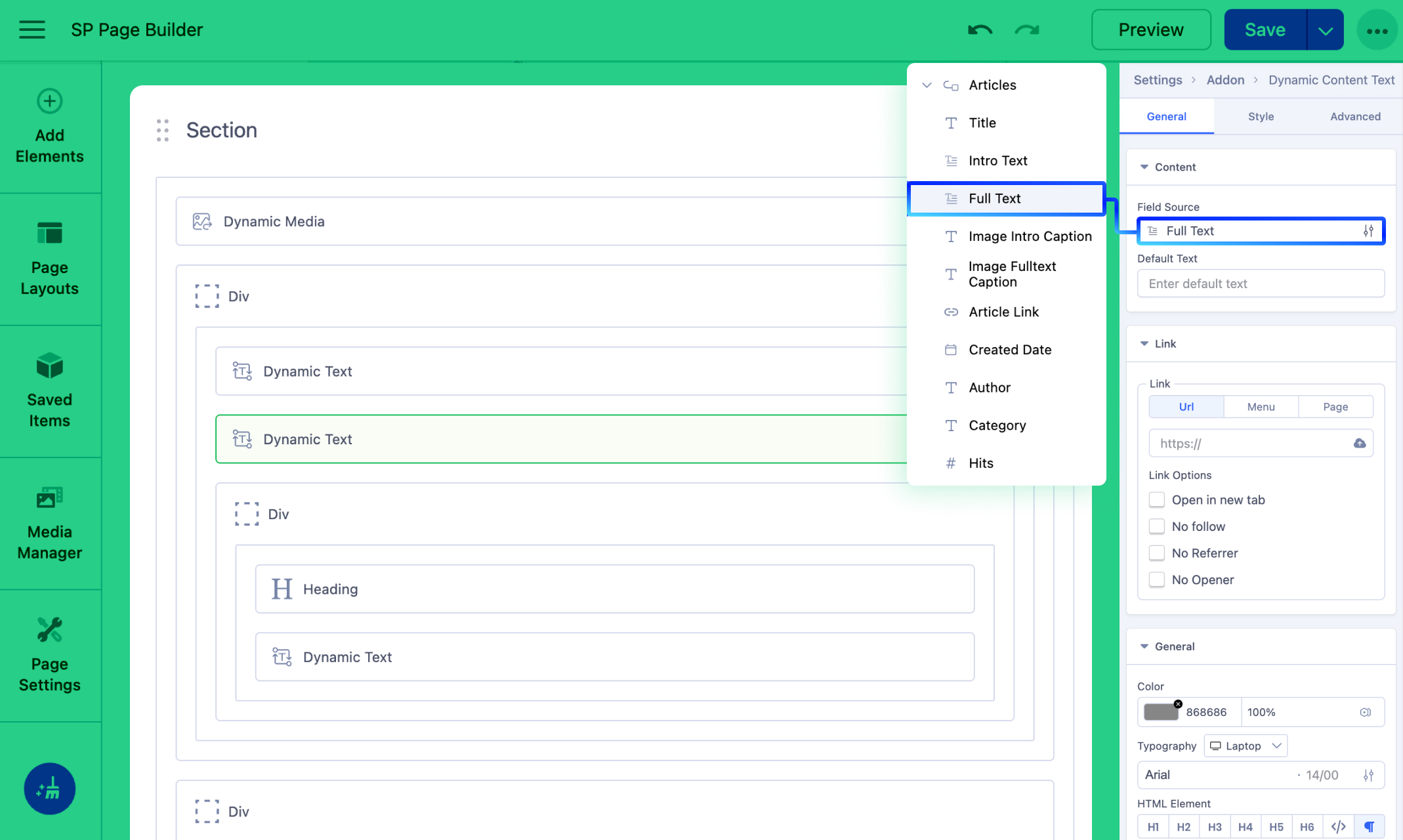
The Article Detail Page enables you to create a layout that dynamically adapts to your Joomla article content. While designing your Article Detail page, keep the following factors in mind:
- Unlike the Article Index Page, you do not need to add a Collection addon to fetch article-related fields.
- Use other SP Page Builder addons for static content, such as headings, buttons, and design elements.
- Map your layout using Dynamic Text and Dynamic Media addons, then define the desired source fields.
- For example, to display the full article, add a Dynamic Text addon and set the Field Source to Full Text.
Learn more about the field source items for the Dynamic Text and Dynamic Media addons.
Customize the Layout
-
Adjust the layout, styling, and structure to ensure that each details page appears polished and professional.
-
Apply spacing, colors, and typography to match your site's design aesthetics.
Linking an Article Detail Page to a Specific Field in the Article Index Page
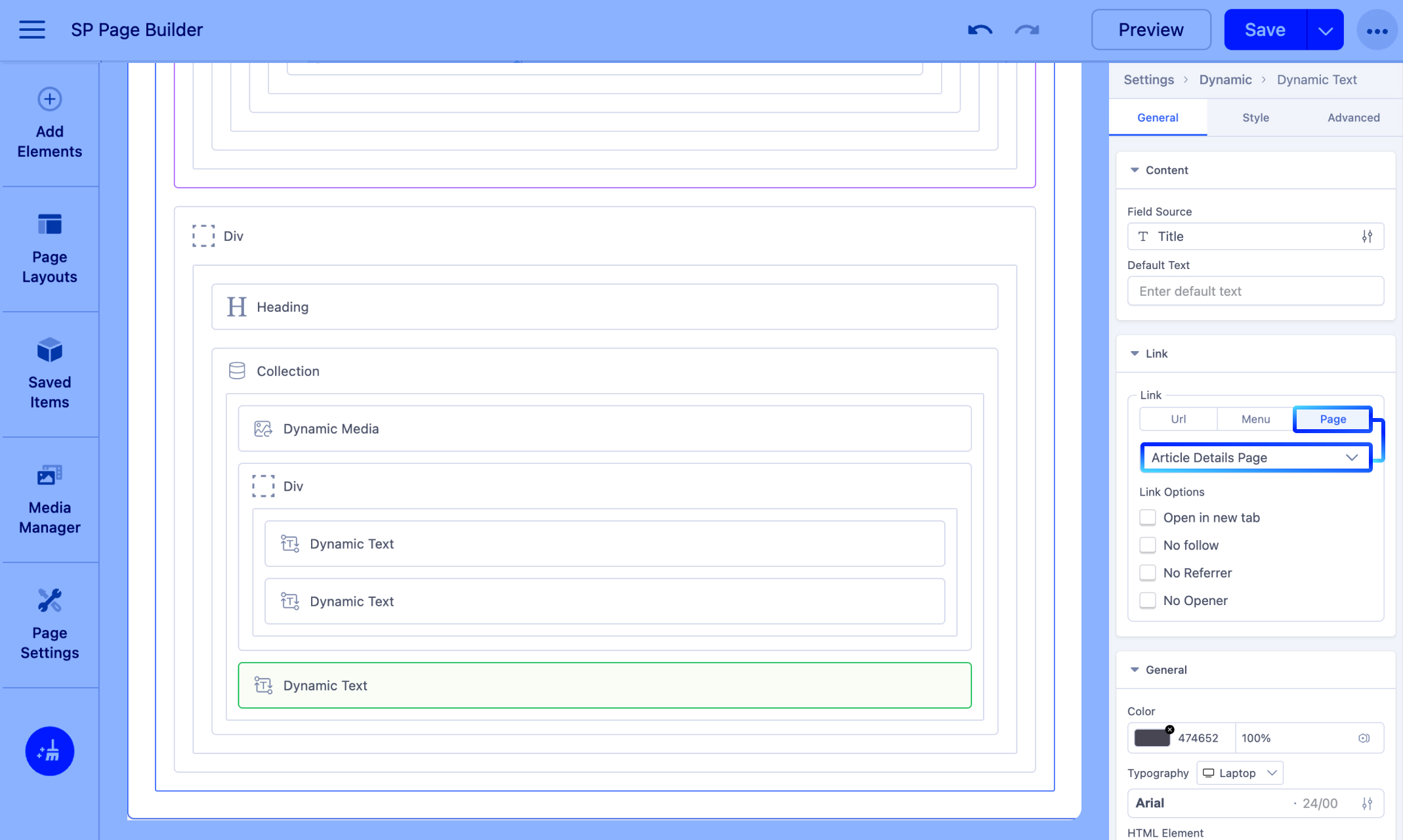
After creating the Article Detail Page, you need to assign it to a field in the Article Index Page.
- Open the Article Index Page.
- Select the addon where you want to link the Article Detail Page. For example, select the Dynamic Text addon where you assigned the Field Source to "Title."
- In the addon’s General Settings, scroll down to the Link section.
- Choose the Page tab and select the Article Detail Page you just created.
- Hit "Save and Close" once done.
Support for Joomla Custom Fields in Dynamic Article pages
You can use Custom Fields in Joomla Articles as Dynamic Fields.
First, set up the fields by following these steps:
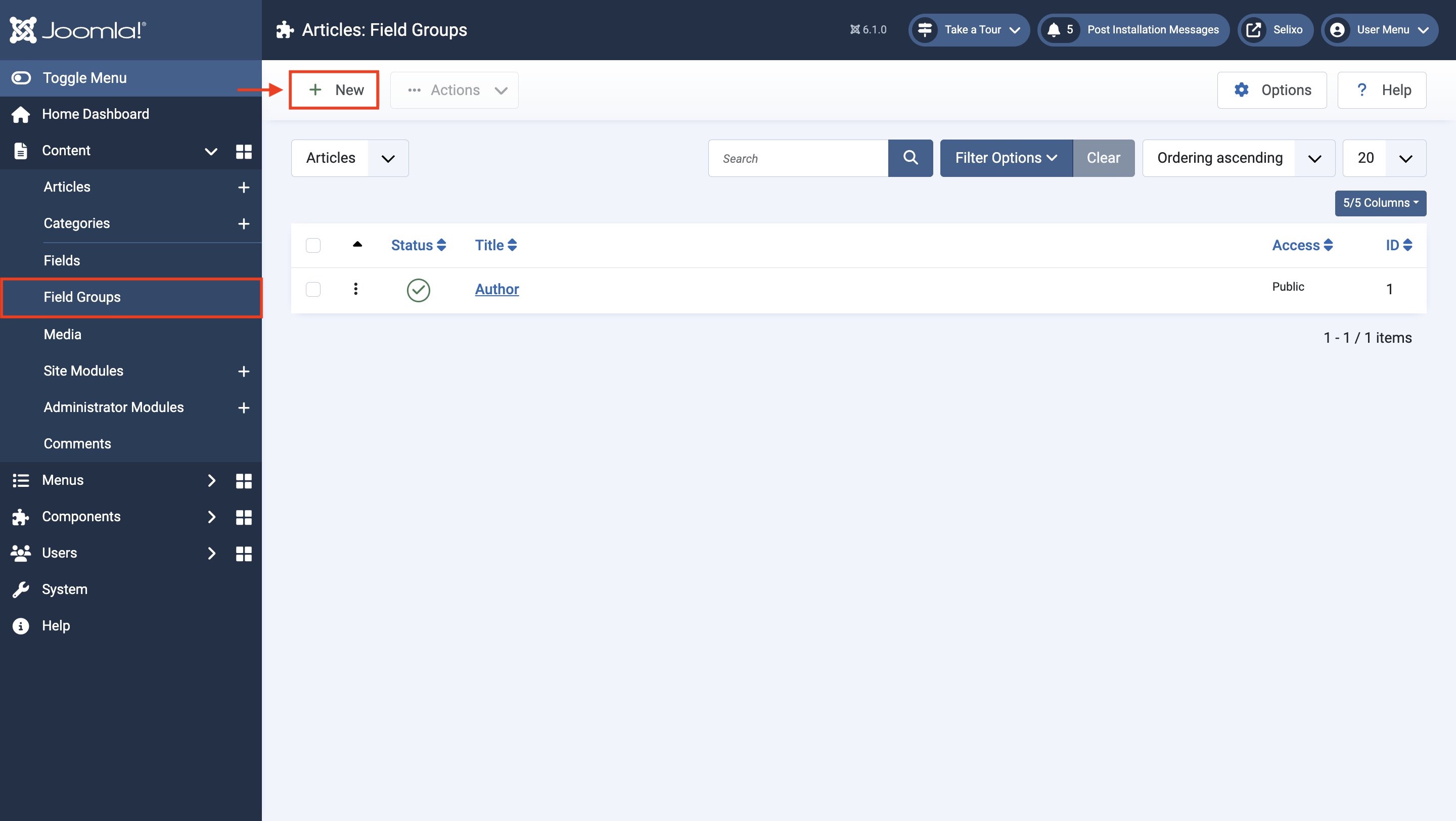
- Go to Joomla Dashboard > Content > Field Groups. Add a Field Group.
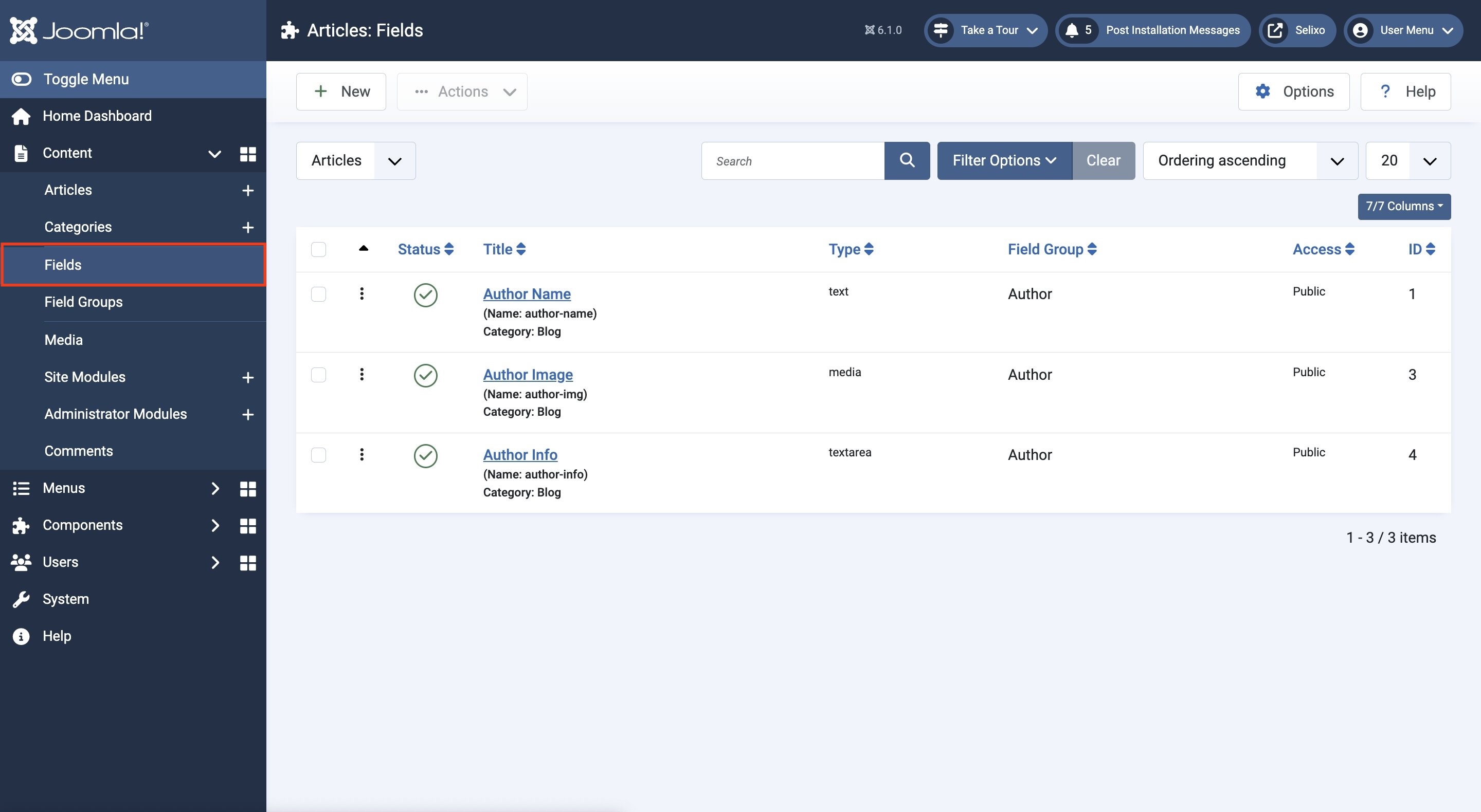
- Then, go to Content > Fields and add Fields within that Field Group.
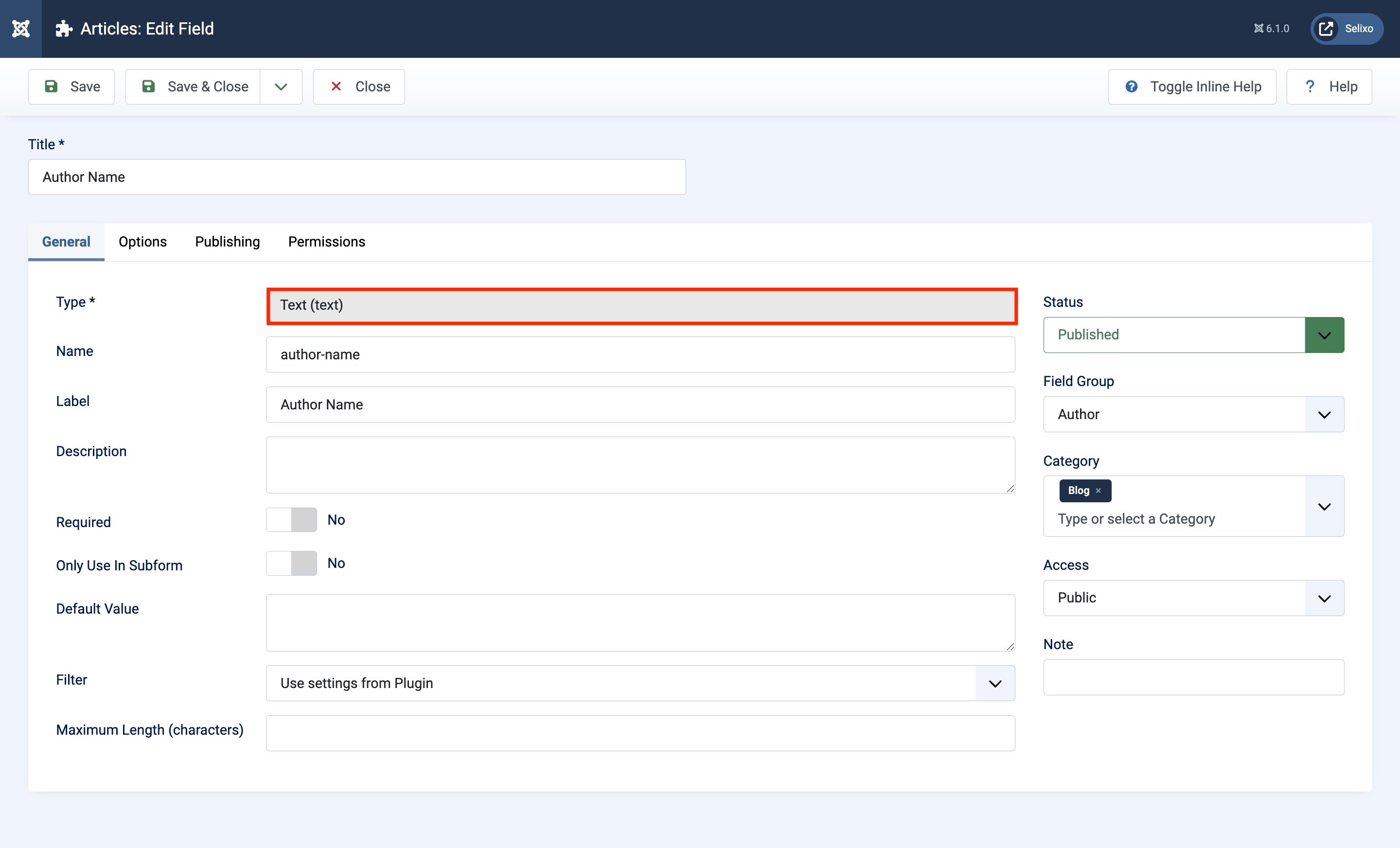
- When creating fields, the Type of the field must be selected from the following supported options: "Text (text)", "Text Area (text area)", "URL (url)", "Editor (editor)", "Media (media)", "Calendar (calendar)", "Radio (radio)", "Number (number)", and "Integer (integer)".
- Go to Articles and create a new article or select an existing one.
- You’ll find the created Field Group besides the Options tab.
- When you click on the Field Group, you’ll find all the available fields there.
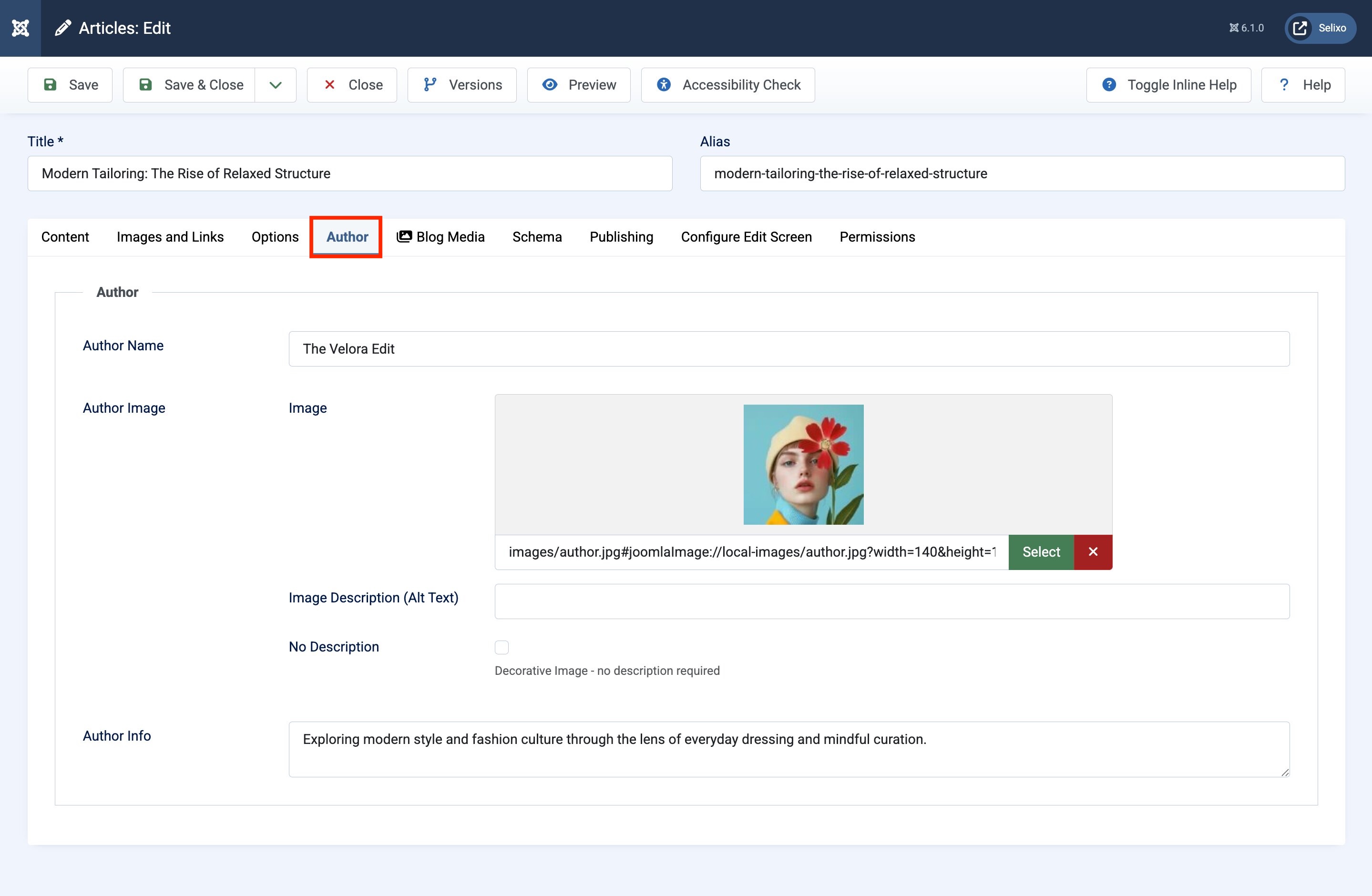




Now, go to your Dynamic Article Index or Details Page. Then:
- Insert a Dynamic Text or Dynamic Media addon and set the Field Source to the appropriate Custom Field.
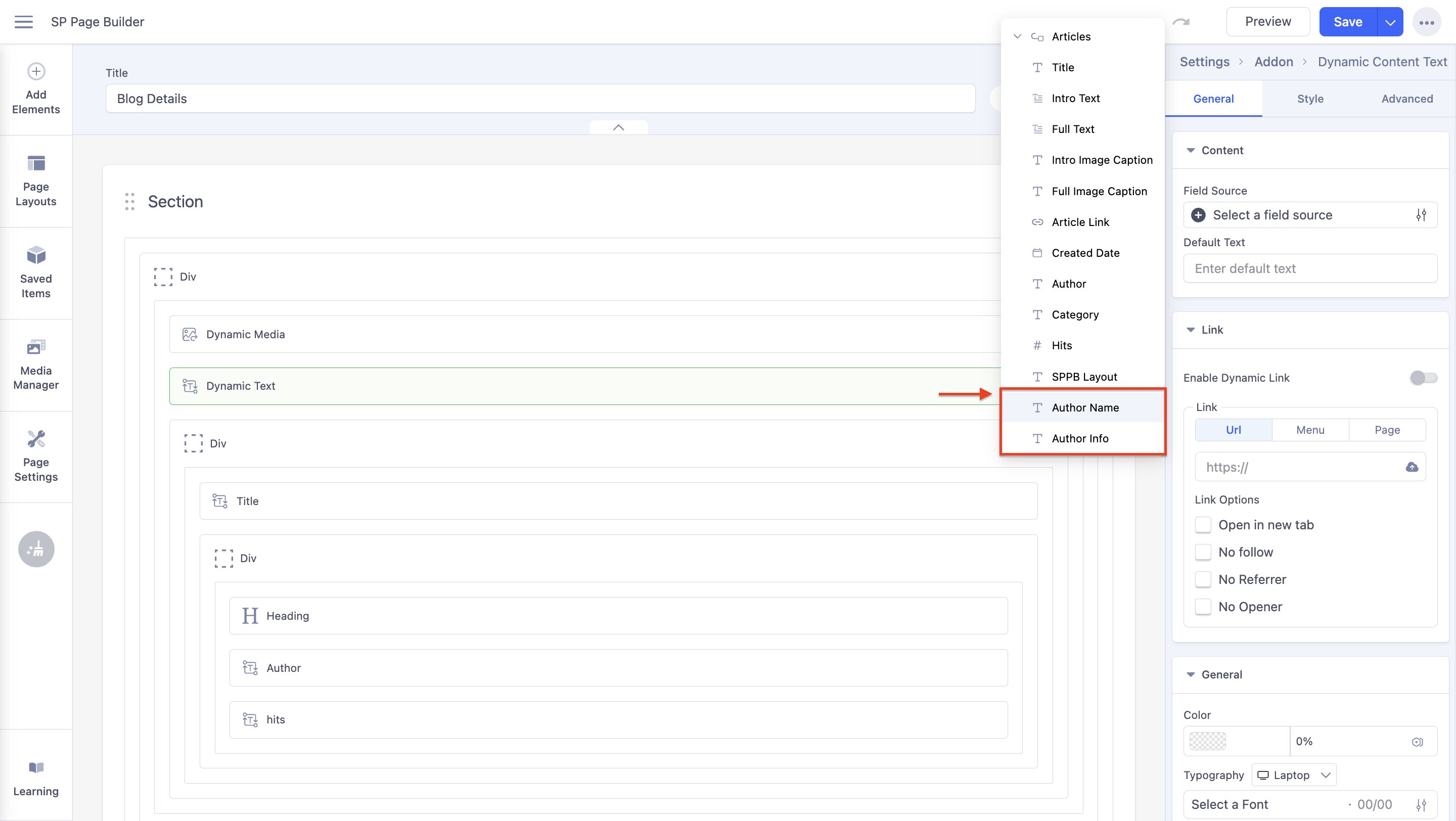
For example, if you had a Field Group titled “Author” and Fields such as “Author Name” which contained the author’s name in text, and an “Author Image” Field which contained the author’s profile photo as a JPEG image, then you should place a Dynamic Text addon and set the Field Source to “Author Name”, and use the Dynamic Media addon and set the Field Source to “Author Image”.