
Schema
The Schema tab in SP Page Builder's Page Settings lets you add structured data to your page. This helps search engines understand your content and can enable rich snippets in search results.
To access it, go to select any page you want to set up the schema, go to the Page Settings in the left sidebar > click the Schema tab.
Note: Schema support requires the Schema.org plugin to be installed and enabled on your Joomla site.
Schema Type
A dropdown to select the type of structured data for the page. Available options:
- Article: News articles, editorial content
- BlogPosting: Blog posts and personal write-ups
- Book: Book listings and reviews
- Event: Conferences, concerts, meetups, or any scheduled event
- Organization: Company or organization profile pages
- Person: Individual profile or bio pages
- Recipe: Cooking recipes with ingredients and steps
- JobPosting: Job listings and career opportunities
- Custom: Any schema type not covered by the options above
Schema Type: Article

- Image: Add a featured image with the schema, which may appear in search results. You can either upload an image directly from your device using the Upload button, or paste a direct image URL into the text field.
- Headline: This is the main title of the article.
- Description: Enter a short summary of the content that may appear in search results and social media previews.
- Type: Choose the author type from the dropdown menu. You can choose from 2 options:
- Person: If you choose, enter the information related to the author like Name, Url, Email, Locality, Postal Code, Street Address.
- Organization: If you choose an organization, enter the information related to the organization like Name of the organization, Url, Email, Locality, Postal Code, Street Address.
- Date Published: Enter the date the article was originally published.
- Date Modified: Enter the date it was last updated.
Generic Field
Lets you add custom schema properties. Click the + button to add a new Field. This is helpful to define properties beyond the default parameters.
- Title: The schema property name (e.g. wordCount)
- Value: The value for that property (e.g. 1500)
- Click + to add more fields
- Click x to remove a field
Schema Type: Book
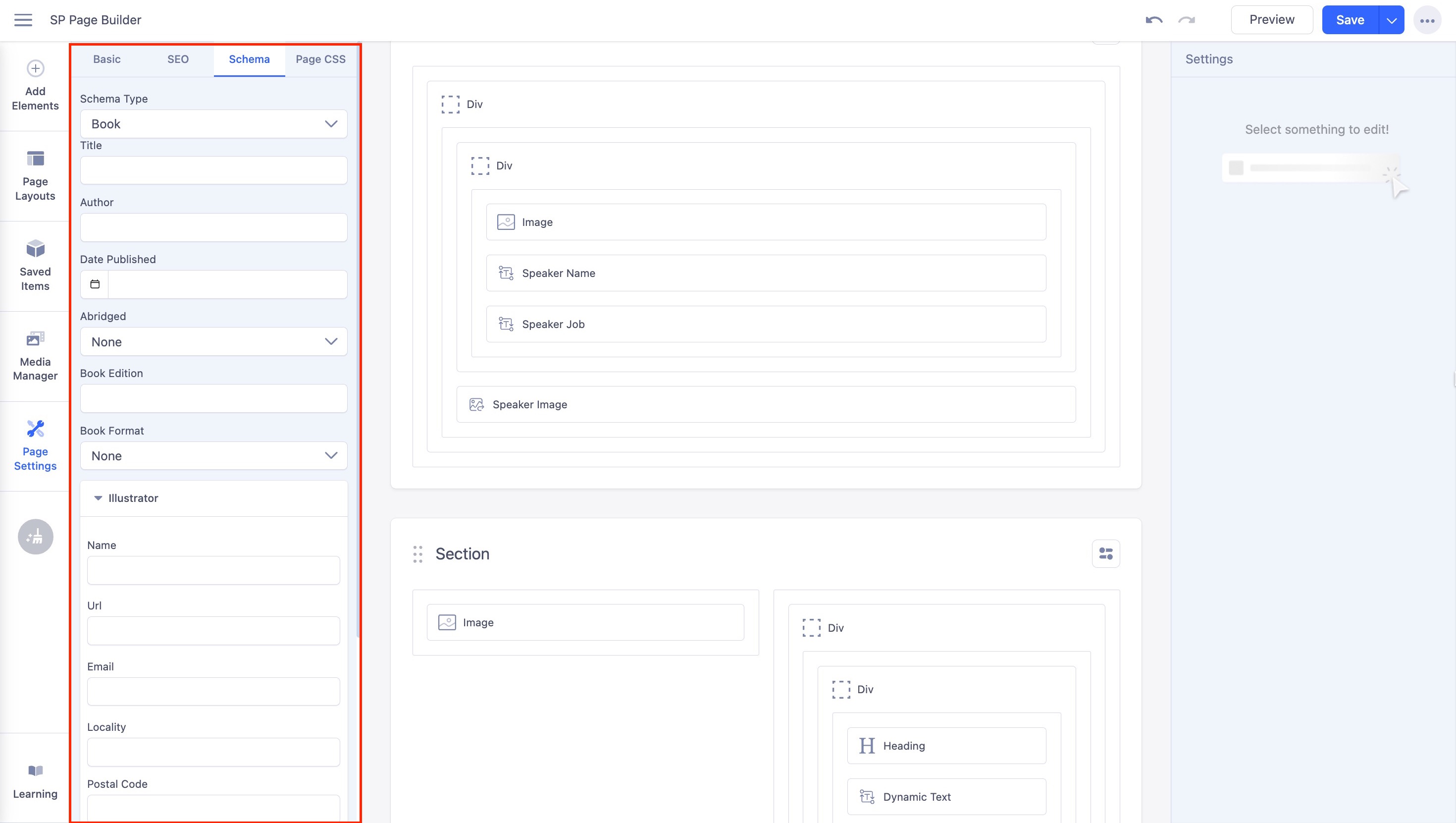
- Title: The title of the book.
- Author: The name of the book's author.
- Date Published: The date the book was published. Click the calendar icon to pick a date.
- Abridged: A dropdown to indicate whether the book is an abridged version. Choose Yes if the book is a shortened version of the original, where content has been removed or condensed. Choose No if the book is the complete, unaltered original version
- Book Edition: The edition of the book, for example "2nd Edition" or "Revised Edition".
- Book Format: A dropdown to specify the format of the book. The following options are available:
- Audiobook — A recorded audio version of the book.
- E-book — A digital version of the book.
- Graphic Novel — A book in comic/illustrated format.
- Hardcover — A print version with a rigid cover.
- Paperback — A print version with a flexible cover.
By defaults, the Book Format is set to None.
- Illustrator: A collapsible section for details about the book's illustrator. Click the Illustrator arrow to expand or collapse it. The following fields are available:
- Name — Full name of the illustrator.
- URL — A link to the illustrator's profile or website.
- Email — The illustrator's contact email.
- Locality — City or locality of the illustrator.
- Postal Code — Postal or ZIP code of the illustrator's location.
- ISBN: The International Standard Book Number (ISBN) of the book. Enter the unique identifier assigned to the book.
- Number of Pages: The total number of pages in the book.
Generic Field
Lets you add custom schema properties. Click the + button to add a new Field. This is helpful to define properties beyond the default parameters.
- Title: The schema property name (e.g. Genre)
- Value: The value for that property (e.g. fiction)
- Click + to add more fields
- Click x to remove a field
Schema Type: Event
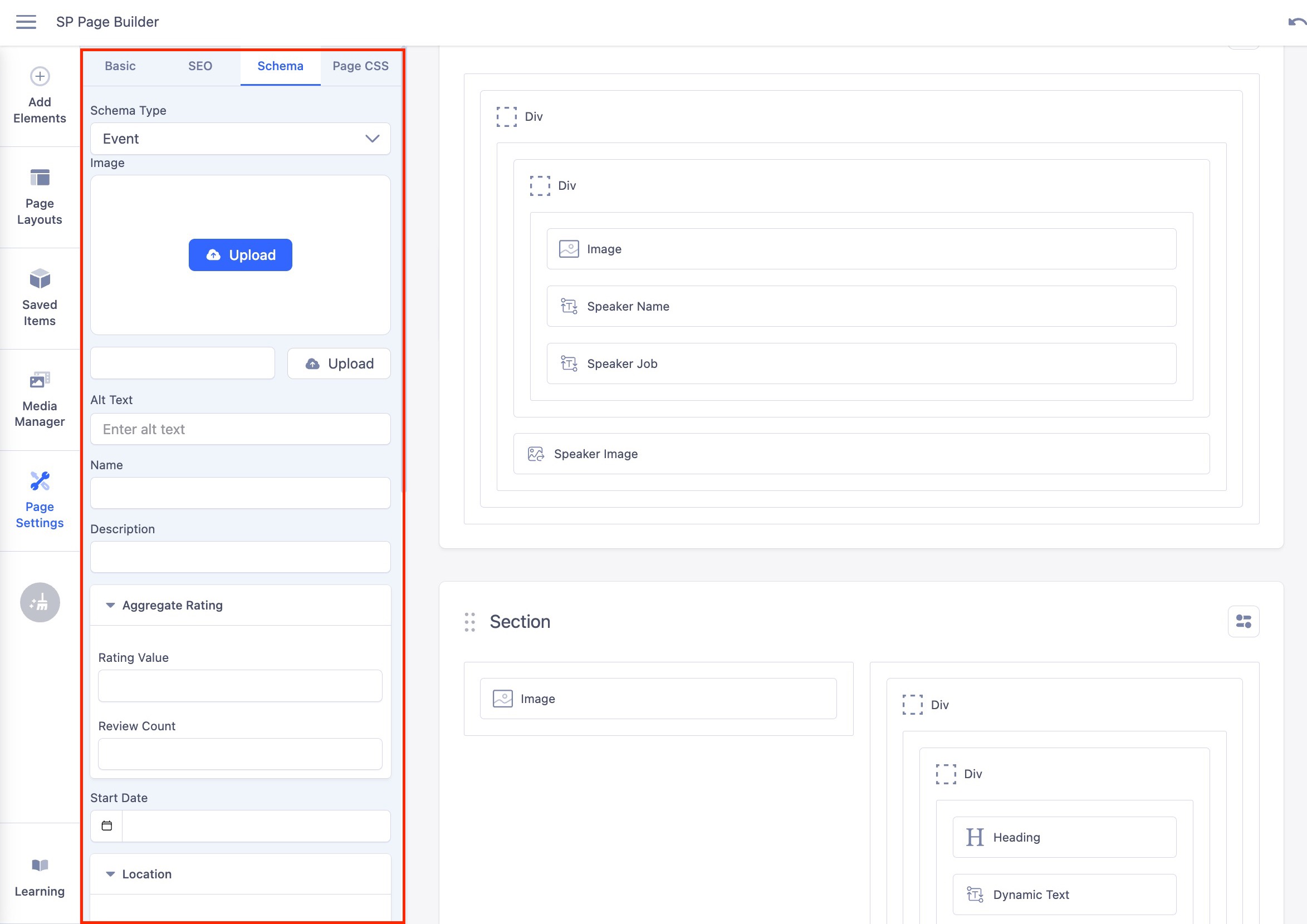
- Image: Upload an image for the event or paste a direct image URL.
- Name: The name of the event.
- Description: A brief description of the event.
- Aggregate Rating: A collapsible section for the event's rating details. Click the Aggregate Rating arrow to expand or collapse it.
- Rating Value — The overall rating score of the event
- Review Count — The total number of reviews the rating is based on
- Start Date: The date the event begins. Click the calendar icon to pick a date.
- Location: A collapsible section for the event's location details. Click the Location arrow to expand or collapse it.
- Name — Name of the venue or location where the event is held
- Locality — City or locality of the venue
- Postal Code — Postal or ZIP code of the venue
- Street Address — Street address of the venue
- Organizer: A collapsible section for details about the event organizer. Click the Organizer arrow to expand or collapse it.
- Type — Select whether the organizer is a Person or Organization
- Name — Full name of the organizer or organization
- URL — A link to the organizer's website or profile
- Email — Contact email of the organizer
- Locality — City or locality of the organizer
- Postal Code — Postal or ZIP code of the organizer's location
- Street Address — Street address of the organizer
Generic Field
Lets you add custom schema properties. Click the + button to add a new Field. This is helpful to define properties beyond the default parameters.
- Title: The schema property name (e.g. organizer)
- Value: The value for that property (e.g. John Doe)
- Click + to add more fields
- Click x to remove a field
Schema Type: Organization
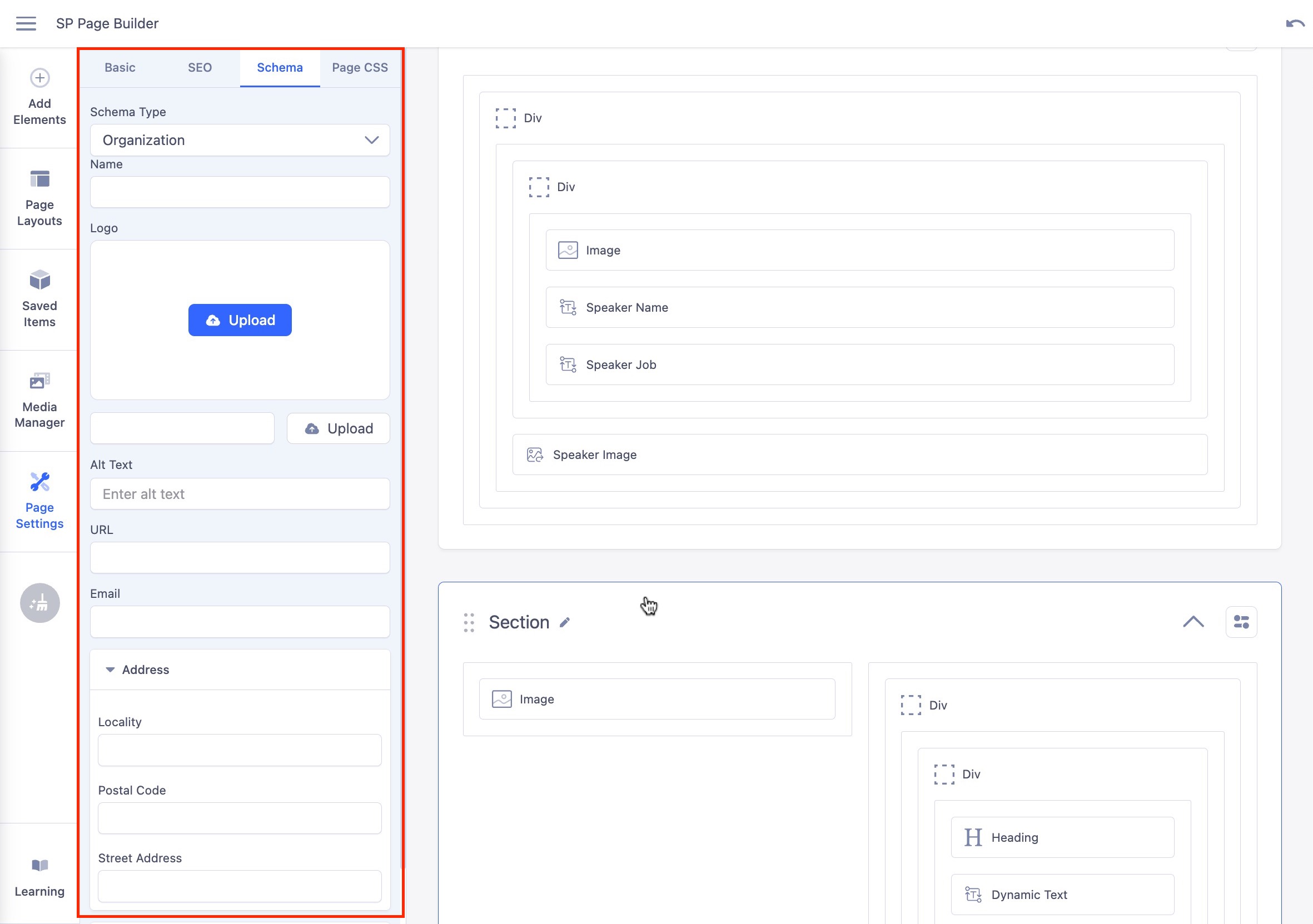
- Name: The name of the organization.
- Logo: Upload a logo image for the organization or paste a direct image URL.
- URL: The website URL of the organization.
- Email: The contact email address of the organization.
- Address: A collapsible section for the organization's address details. Click the Address arrow to expand or collapse it.
- Locality — City or locality of the organization
- Postal Code — Postal or ZIP code of the organization
- Street Address — Street address of the organization
Generic Field
Lets you add custom schema properties. Click the + button to add a new Field. This is helpful to define properties beyond the default parameters.
- Title: The schema property name (e.g. foundingDate)
- Value: The value for that property (e.g. 1882)
- Click + to add more fields
- Click x to remove a field
Schema Type: Person
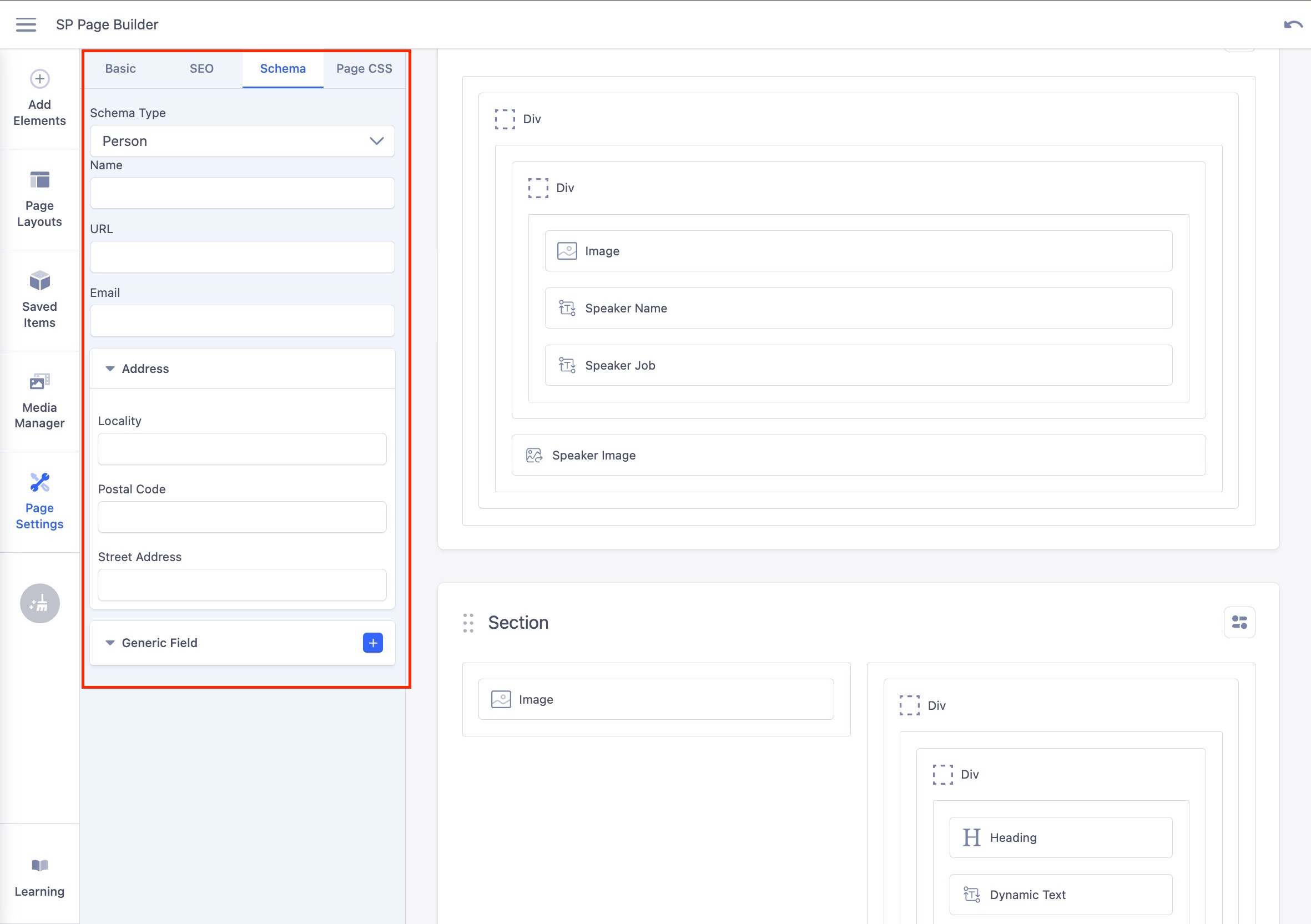
- Name: The full name of the person.
- URL: A link to the person's website or profile page.
- Email: The contact email address of the person.
- Address: A collapsible section for the person's address details. Click the Address arrow to expand or collapse it.
- Locality — City or locality where the person is based
- Postal Code — Postal or ZIP code of the person's location
- Street Address — Street address of the person
Generic Field
Lets you add custom schema properties. Click the + button to add a new Field. This is helpful to define properties beyond the default parameters.
- Title: The schema property name (e.g. jobTitle)
- Value: The value for that property (e.g. Software Engineer)
- Click + to add more fields
- Click x to remove a field
Schema Type: Recipe
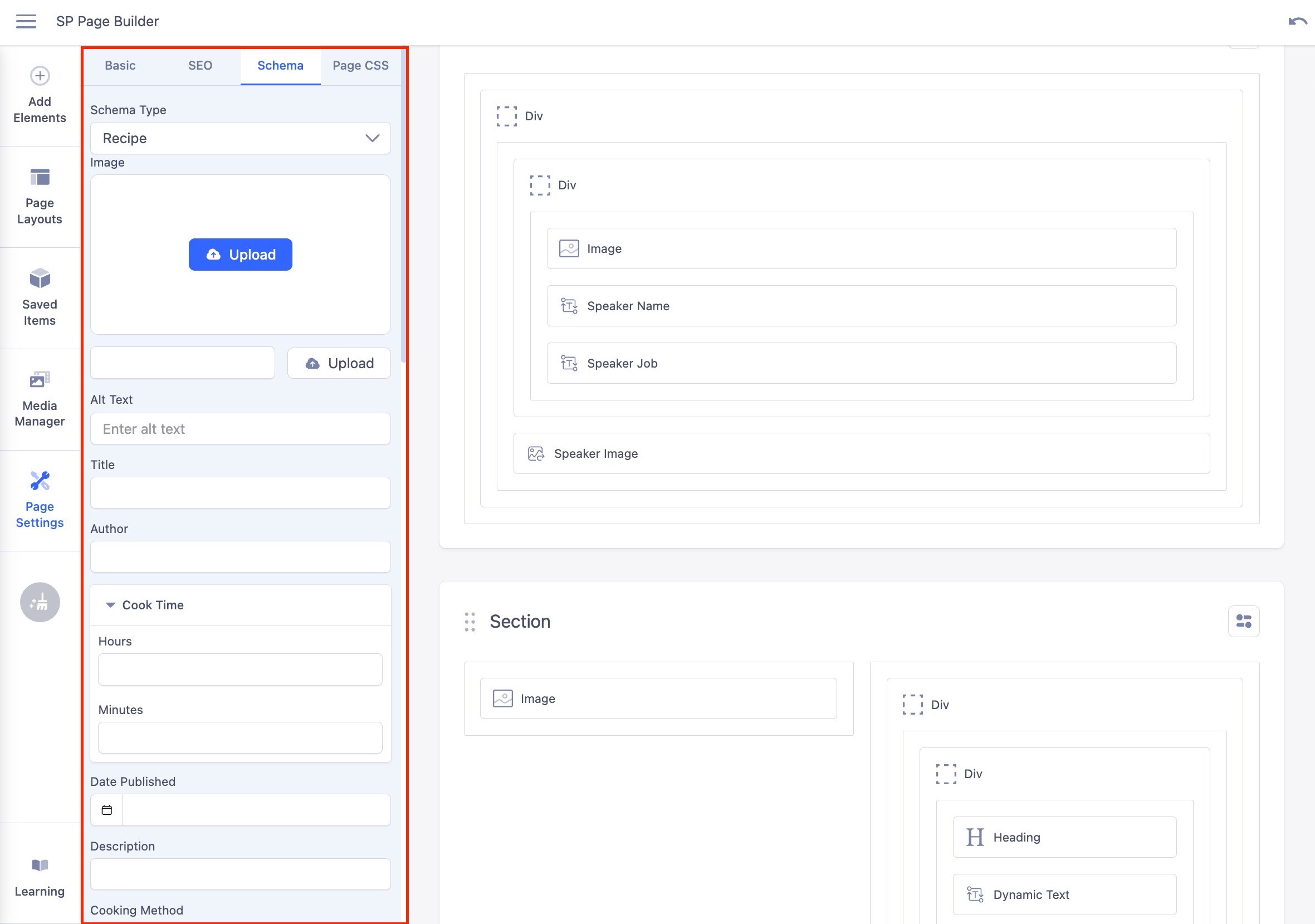
- Image: Upload an image of the recipe or paste a direct image URL.
- Title: The name of the recipe.
- Author: The name of the person or organization who created the recipe.
- Cook Time: A collapsible section for how long the recipe takes to cook. Click the Cook Time arrow to expand or collapse it.
- Hours — Number of hours required to cook
- Minutes — Number of minutes required to cook
- Date Published: The date the recipe was published. Click the calendar icon to pick a date.
- Description: A brief summary of the recipe.
- Cooking Method: The method used to cook the recipe, for example Baking, Frying, or Grilling.
- Preparation Time: A collapsible section for how long the recipe takes to prepare before cooking. Click the Preparation Time arrow to expand or collapse it.
- Hours — Number of hours required to prepare
- Minutes — Number of minutes required to prepare
- Category: The category the recipe belongs to, for example Dessert, Main Course, or Appetizer.
- Cuisine: The type of cuisine the recipe belongs to, for example Italian, Mexican, or Japanese.
- Instructions: Step-by-step cooking instructions for the recipe.
- Yield: The number of servings the recipe produces.
- Suitable for Diet: The dietary suitability of the recipe, for example Vegan, Gluten-Free, or Low-Fat.
- Ingredients: A collapsible section to list the ingredients used in the recipe. Click the + button to add each ingredient.
- Nutrition: A collapsible section for the nutritional information of the recipe. Click the Nutrition arrow to expand or collapse it.
- Calories — Total calories per serving
- Carbohydrate — Amount of carbohydrates per serving
- Cholesterol — Amount of cholesterol per serving
- Fat — Total fat per serving
- Fibre — Amount of dietary fibre per serving
- Protein — Amount of protein per serving
- Saturated Fat — Amount of saturated fat per serving
- Sodium — Amount of sodium per serving
- Sugar — Amount of sugar per serving
- Trans Fat — Amount of trans fat per serving
- Unsaturated Fat — Amount of unsaturated fat per serving
- Serving Size — The serving size the nutritional values are based on
Generic Field
Lets you add custom schema properties. Click the + button to add a new Field. This is helpful to define properties beyond the default parameters.
- Title: The schema property name (e.g. prepTime)
- Value: The value for that property (e.g. PT15M)
- Click + to add more fields
- Click x to remove a field
Schema Type: JobPosting
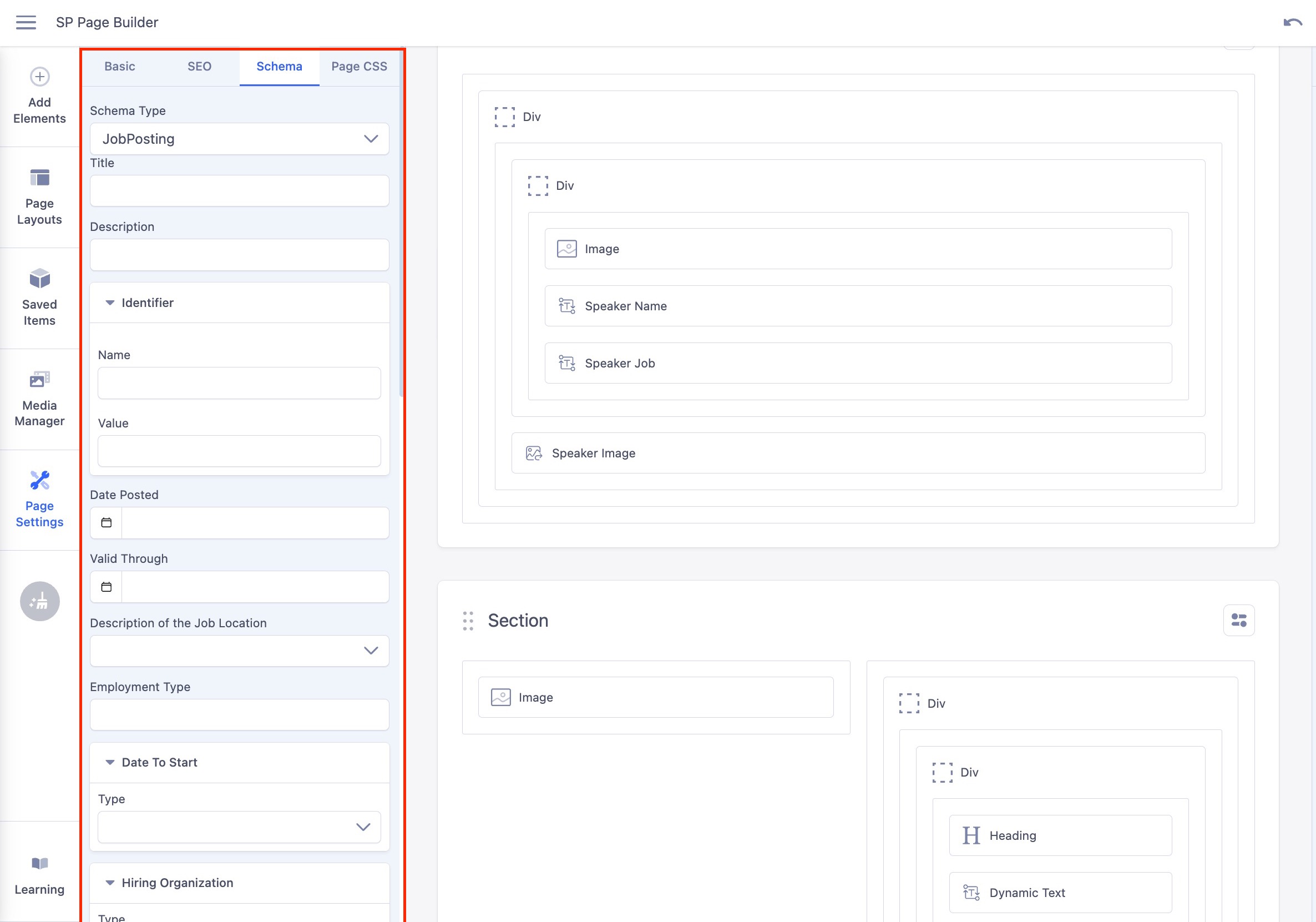
- Title: The title of the job position being advertised.
- Description: A detailed description of the job role and responsibilities.
- Identifier: A collapsible section for a unique identifier of the job posting. Click the Identifier arrow to expand or collapse it.
- Name — The name of the identifier, for example the name of the hiring platform or internal system
- Value — The unique identifier value assigned to the job posting
- Date Posted: The date the job posting was published. Click the calendar icon to pick a date.
- Valid Through: The date the job posting expires. Click the calendar icon to pick a date.
- Description: of the Job Location A dropdown to describe the job location type, for example remote or on-site.
- Employment Type: The type of employment, for example Full-time, Part-time, or Contract.
- Date To Start: A collapsible section for the expected start date of the role. Click the Date To Start arrow to expand or collapse it.
- Type — Select the type of start date from the dropdown
- Hiring Organization: A collapsible section for details about the company offering the job. Click the Hiring Organization arrow to expand or collapse it.
- Type — Select whether the hiring organization is a Person or Organization
- Title — The name of the hiring organization
- URL — The website of the hiring organization
- Email — Contact email of the hiring organization
- Locality — City or locality of the hiring organization
- Postal Code — Postal or ZIP code of the hiring organization
- Street Address — Street address of the hiring organization
- Job Location: A collapsible section for the physical location of the job. Click the Job Location arrow to expand or collapse it.
- Street Address — Street address of the job location
- Locality — City or locality of the job location
- Region — State, province, or region of the job location
- Postal Code — Postal or ZIP code of the job location
- Country — Country of the job location
- Base Salary: A collapsible section for the salary details of the job. Click the Base Salary arrow to expand or collapse it.
- Currency — The currency of the salary, for example USD or EUR
- Maximum — The maximum salary offered
- Minimum — The minimum salary offered
- Value — The exact salary value if a fixed amount is offered
- Currency Unit — The pay period, for example Hour, Month, or Year. Select from the dropdown
Generic Field
Lets you add custom schema properties. Click the + button to add a new Field. This is helpful to define properties beyond the default parameters.
- Title: The schema property name (e.g. industry)
- Value: The value for that property (e.g. Information Technology)
- Click + to add more fields
- Click x to remove a field