

Cancelling Orders
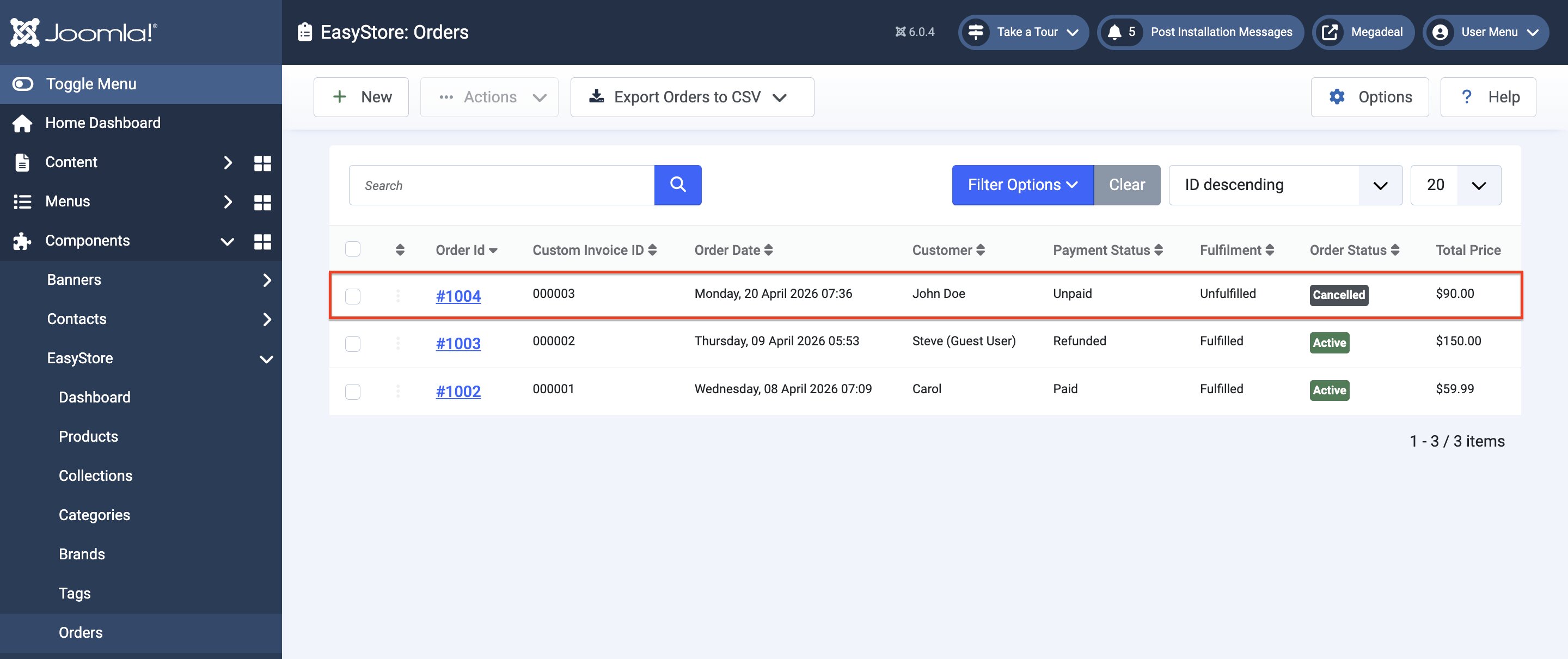
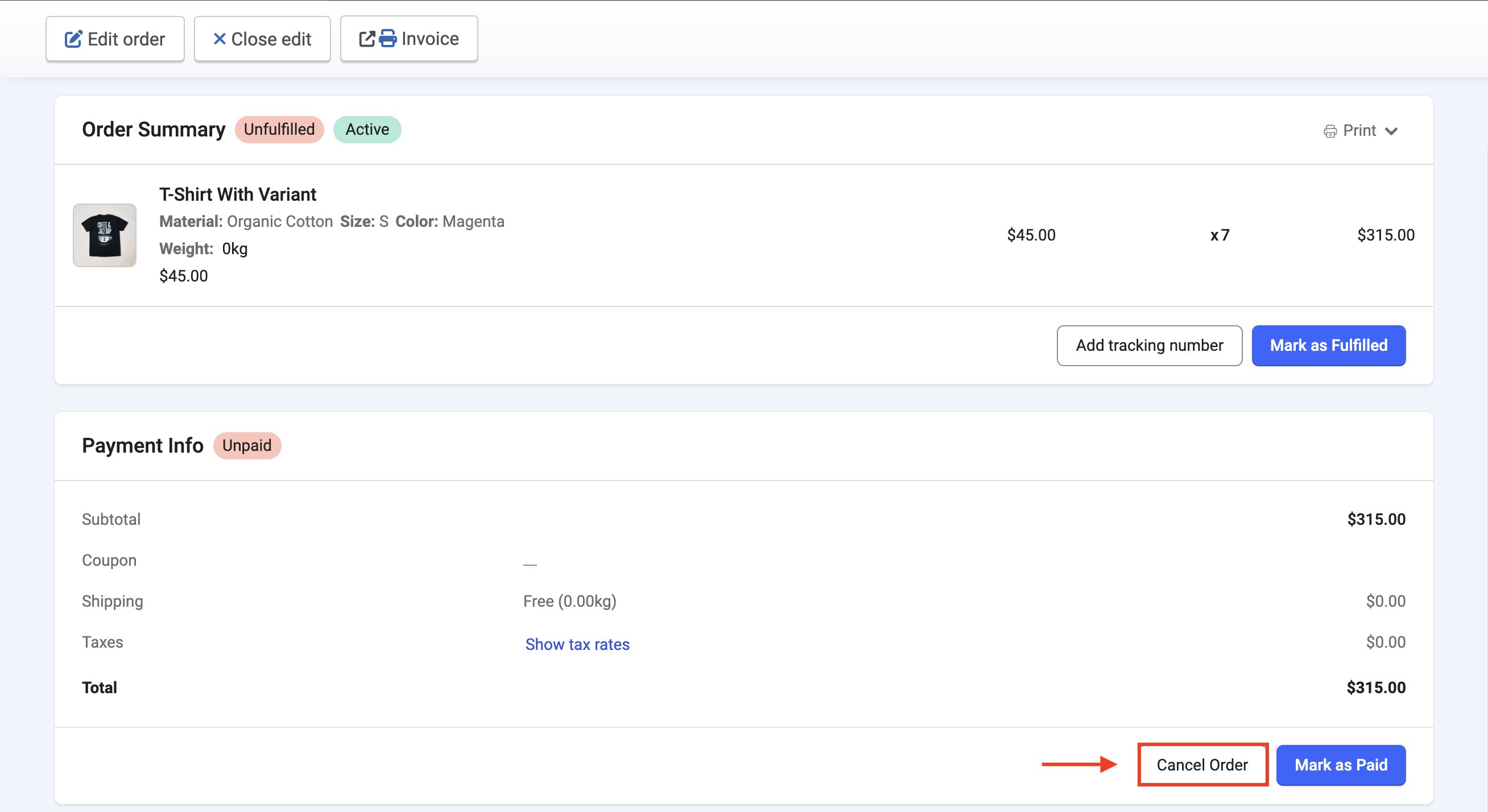
To cancel orders as the site administrator, follow these steps:
- Go to Components > EasyStore > Orders and click on the “Order ID” of that specific order.
- Under the Payment Info section, click on Cancel Order.
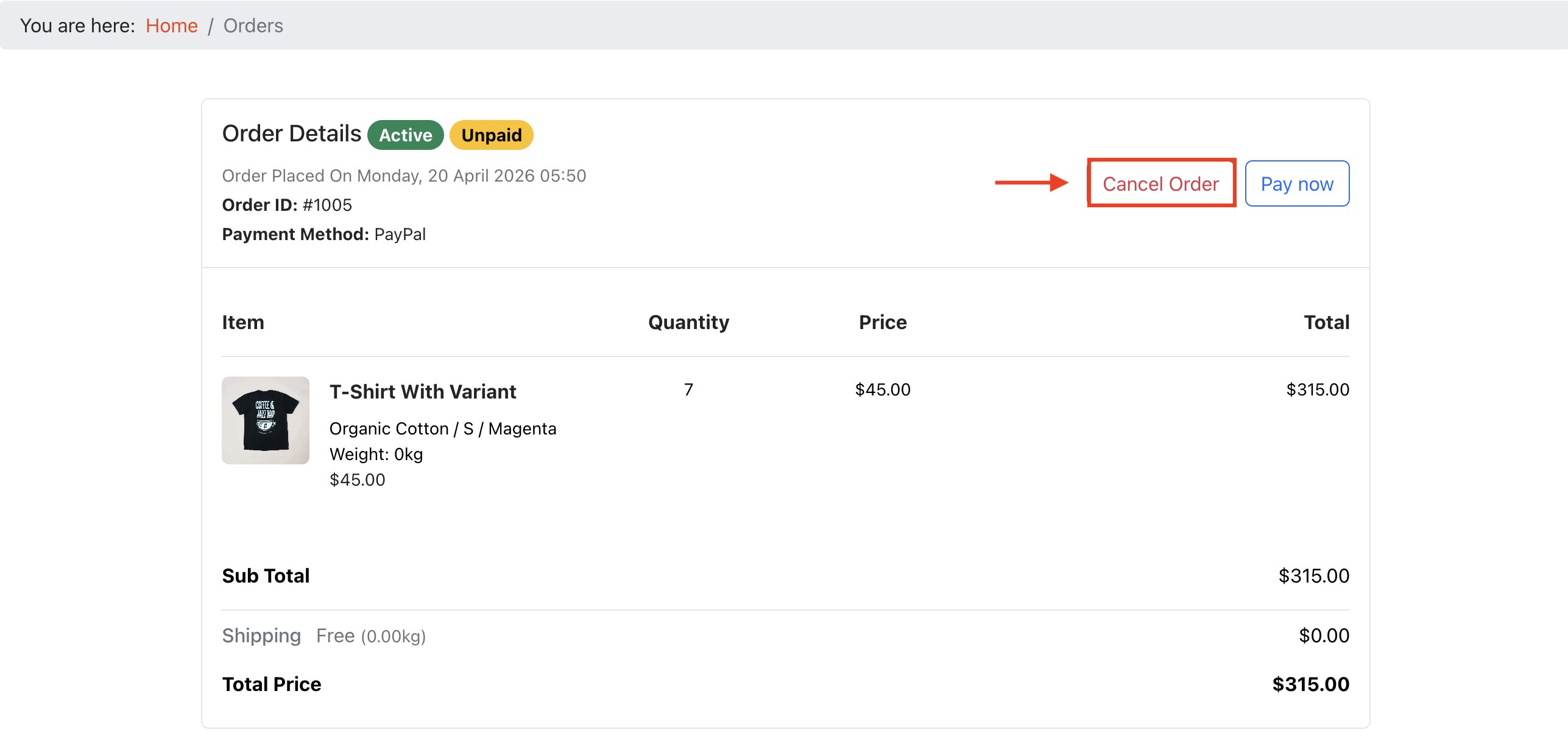
For users to cancel orders, they need to:
- Place their order and proceed to payment at checkout.
- Click on the “View My Orders” or any equivalent button.
- Within the Order Details page, they need to click on the Cancel Order button.
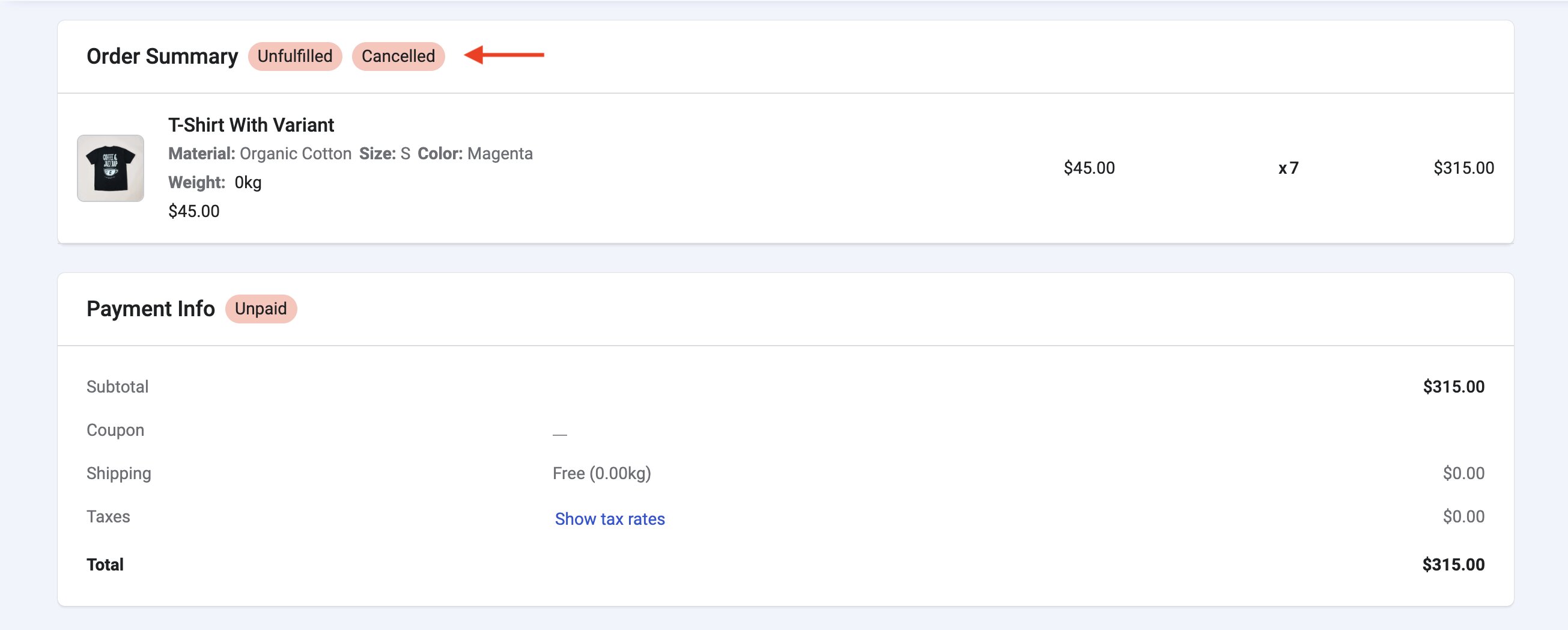
Whether the order is cancelled by the administrator or user, in either case, the Order Summary will be marked as “Cancelled” as shown below.
Setting Up Cancel Order Emails
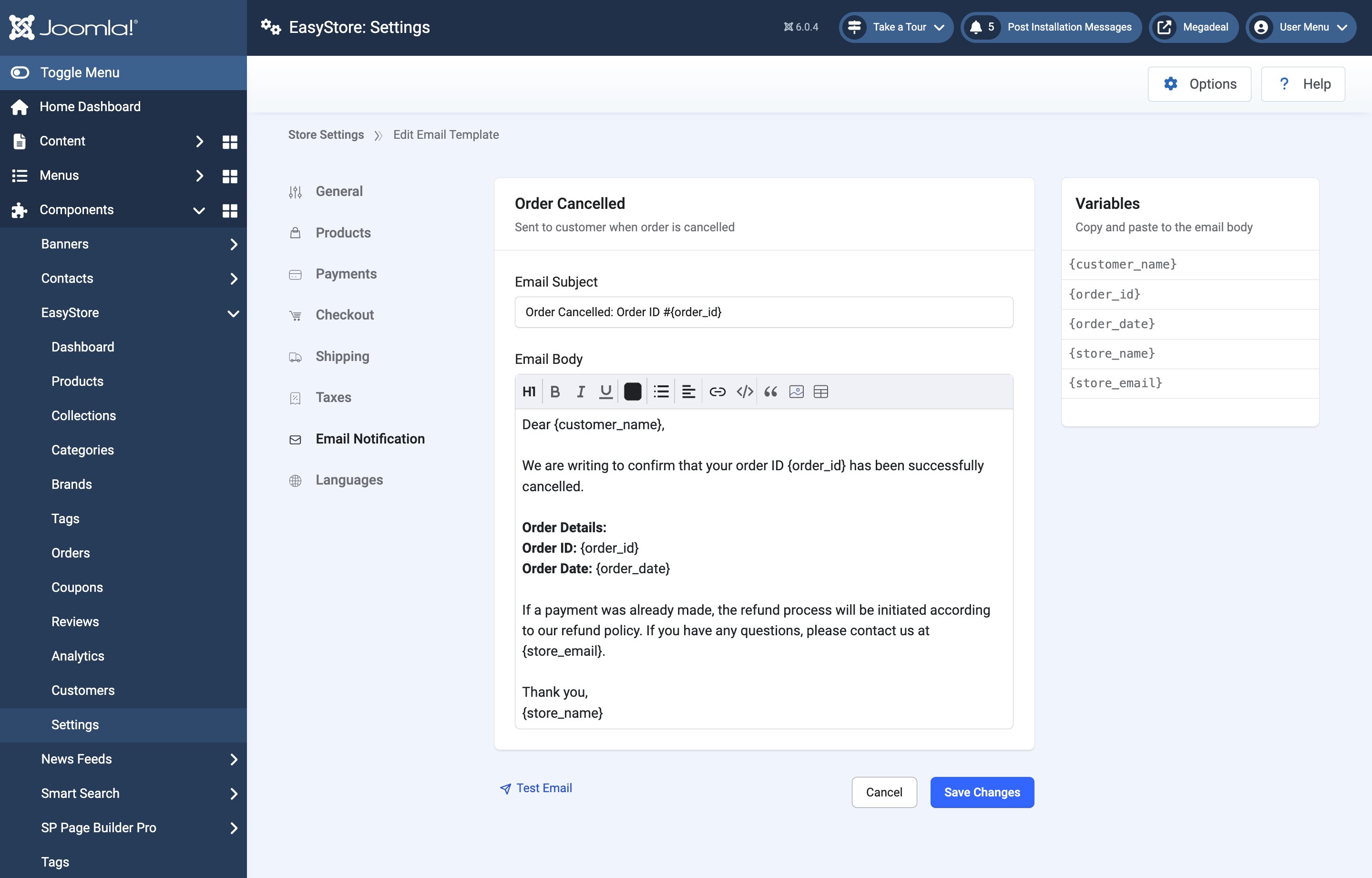
To add a notification to be sent to the user upon cancellation of their order, follow these steps:
1. Go to Components > EasyStore > Settings > Email Notification > Order and enable the “Order Refund” setting.
2. Click on “Order Refund” to edit the email’s content. The following parts of the email can be customized:
- Email Subject: This is where you can create the title of the email.
- Email Body: Use this text field to create the main content of the email.
Note: Copy and paste the variables provided on the right side of the screen to place the correct order information, such as {customer_name} for the name of the user or {order_id} for their order number.
3. Click Save Changes.