

Configure AI Auto Translation
EasyStore supports AI-powered translations using supported AI providers. Once configured, AI translation becomes available across supported EasyStore content, including Products, Categories, Tags, Attributes, and Settings.
Enable AI Auto-Translation
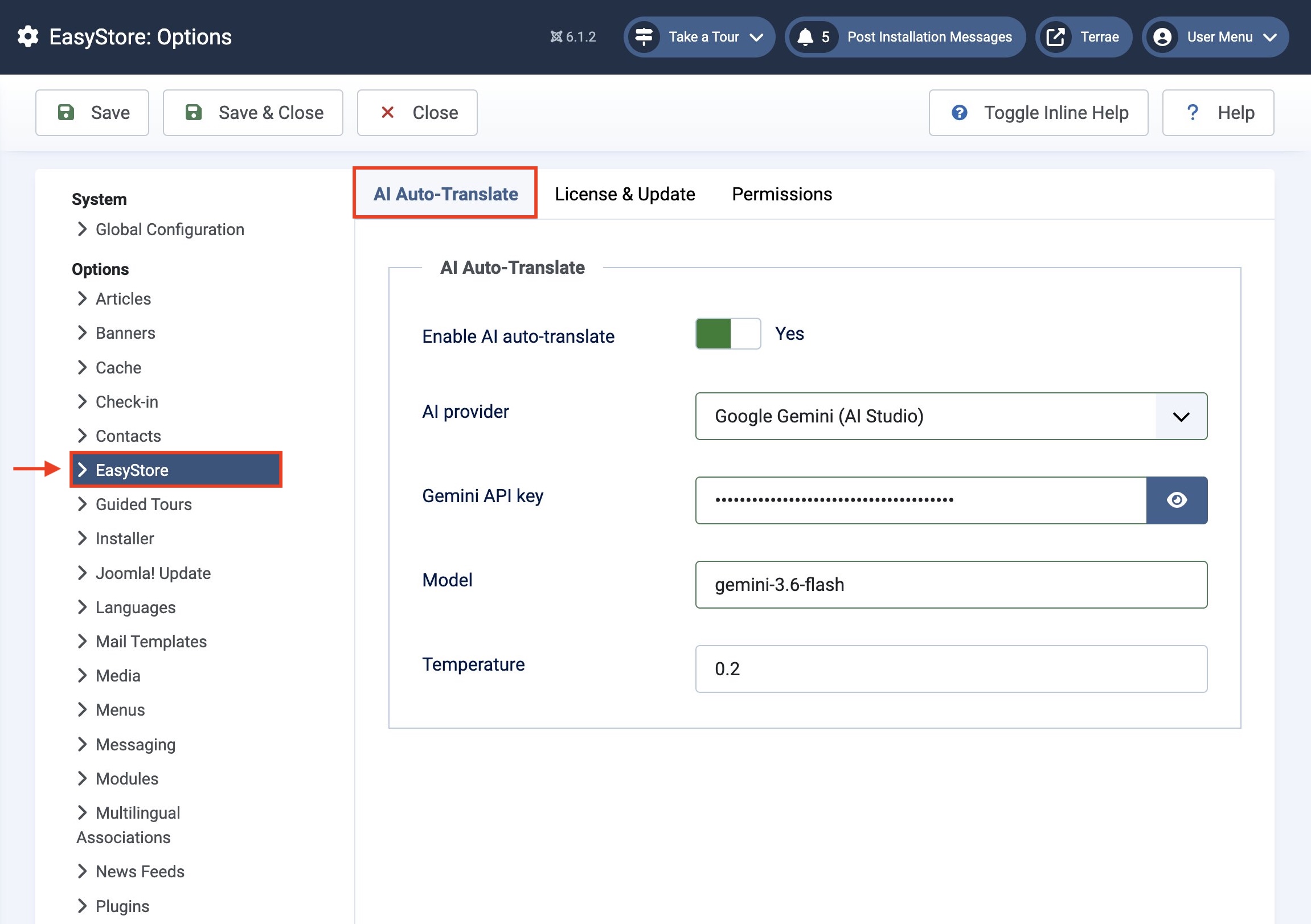
- Go to System > Global Configuration.
- Select EasyStore from the left sidebar.
- Open the AI Auto-Translate tab.
- Enable AI Auto-Translate.
Configure an AI Provider
Choose your preferred AI provider from the AI Provider dropdown. The list initially contains the following providers:
- OpenAI
- Google Gemini (AI Studio)
- DeepSeek
- Anthropic Claude
- OpenRouter
- Ollama (local)
After selecting a provider, enter the required API credentials.
For example, when using Google Gemini (AI Studio), provide:
- Gemini API Key
- Model
- Temperature (For translation tasks, a low temperature, such as 0.2, is generally recommended)
Once configured, click Save or Save & Close.
Using AI Auto-Translation
Once AI Auto-Translation has been configured, an Auto-translate button becomes available in supported translation editors, including Products, Categories, Tags, Attributes, and Settings.
- Products
- Categories
- Tags
- Attributes
- Store Settings
- Other supported translatable content
You can use AI-generated translations as a starting point and edit them before saving.
Note: AI-generated translations may require review before publishing to ensure they accurately reflect your intended meaning, brand voice, and terminology.